
Deactivate a student
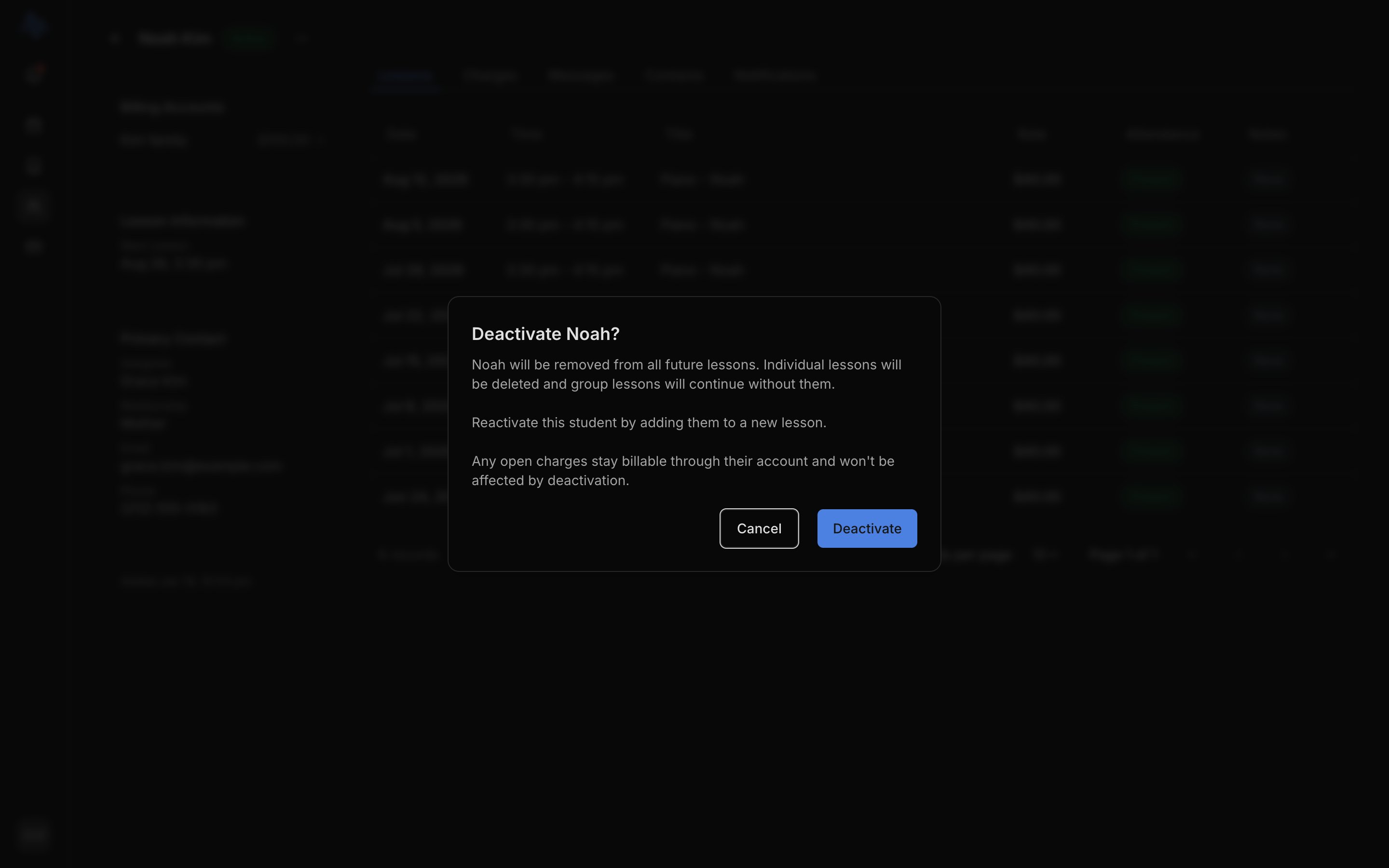
On the student’s profile (or their row in the Students list), open the … menu, choose Deactivate, and confirm.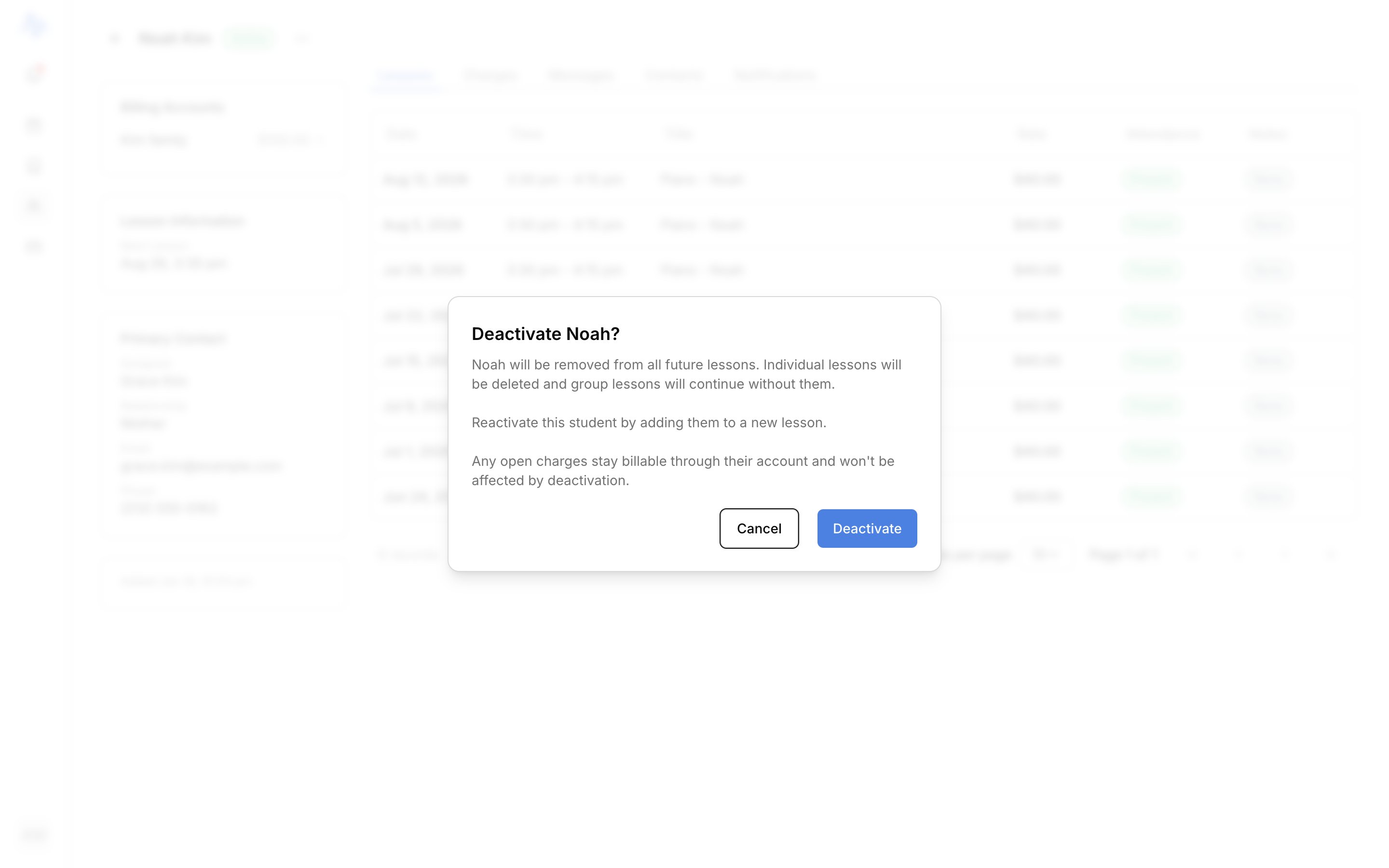
- The student’s status changes to Inactive, and they move to the Inactive tab on the Students list.
- They’re removed from all future lessons. Lessons just for them are deleted; group lessons carry on without them.
- Their financial history and open charges are unaffected: charges stay billable through the student’s account.
Reactivate a student
To bring a student back, open the … menu on the Inactive student and choose Activate. This opens the new-event modal with the student already added: adding them to a lesson reactivates them. To fill in and save the lesson, see Create an event.Deactivating is reversible and leaves finances intact, so it’s the safe choice when a student might return. A Locked student has no Activate or Deactivate option; see Plans and limits.