
Create an event
A timed event has a start and end time and sits in the week grid. An all-day event spans whole days and sits in the strip above the grid, useful for trips, holidays, or studio closures.1
Open the event modal
There are three ways to start:
- Click Create event at the top right of the calendar.
- Click an empty slot in the grid, and the modal opens with that time filled in.
- Click and drag across the grid to draw a time or date range, and the modal opens with that span filled in.
2
Fill in the details
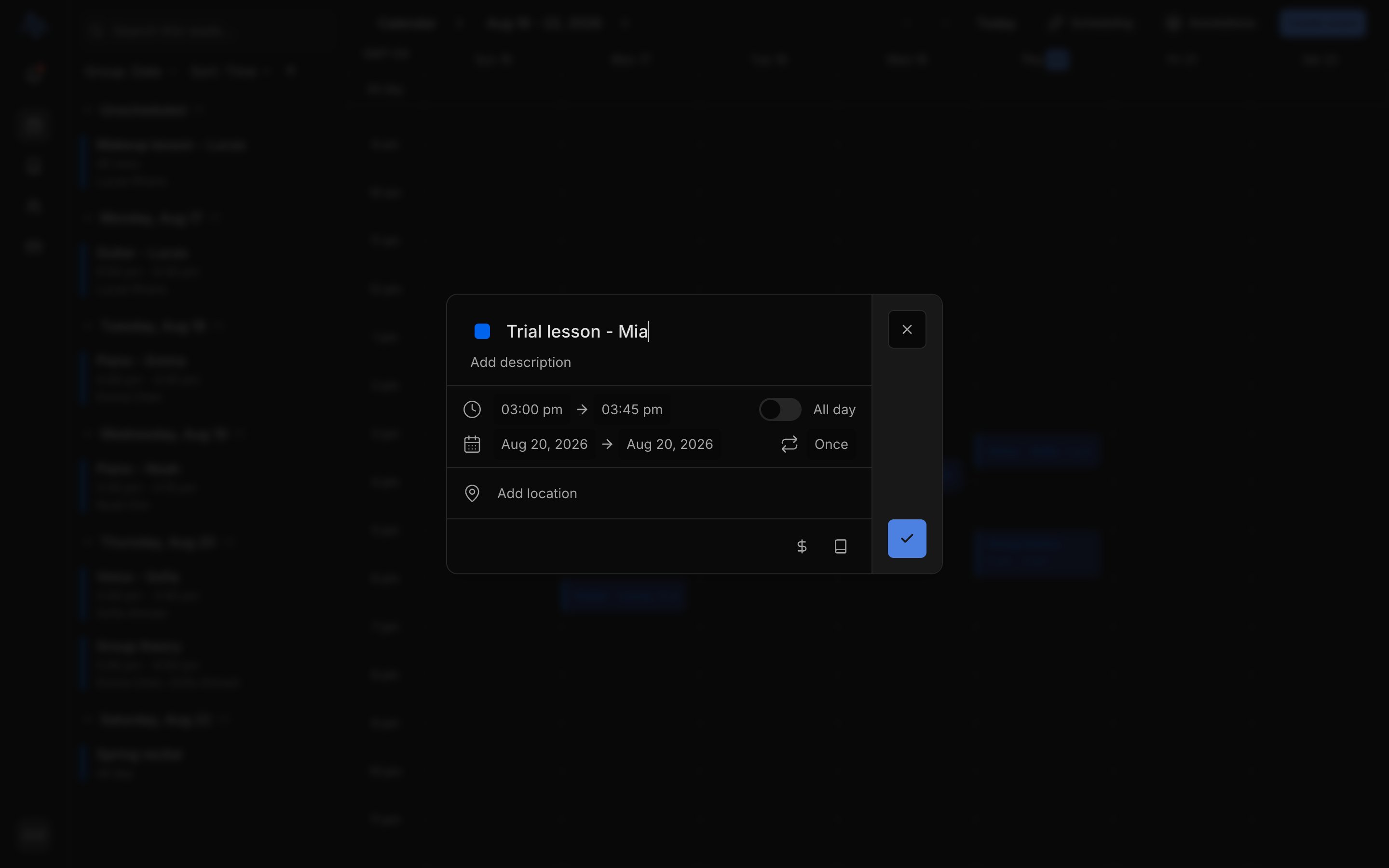
Give the event a title and check the start and end times. The color dot sets how it looks on the grid. If it should repeat, pick a pattern from Repeat (see Set a repeat); if it’s a lesson or something you’ll charge for, turn that on now (see the toggles below).For an all-day event, switch on All day. The time pickers disappear and the event becomes a day-based block. For a multi-day block, set the end date later than the start.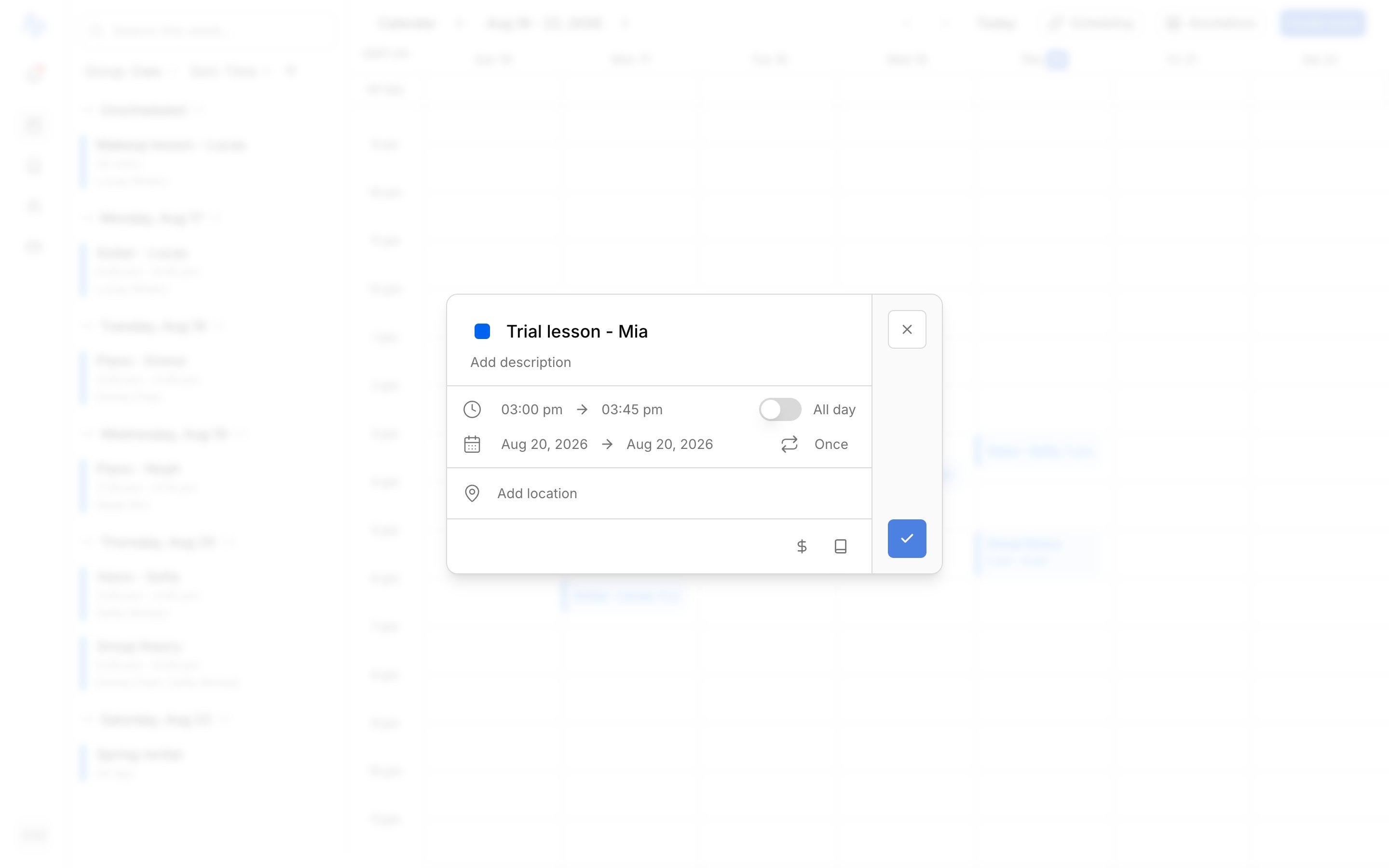
3
Save
Click the check to save. The event appears on the grid right away.
Make it a lesson, or charge for it
Two toggles in the modal change what an event is. Set them when you create it.- Lesson (the book icon, Enable Lesson): attach students with the Add students picker. A lesson tracks attendance and notes, and needs at least one student to save. It turns on Payment at the same time, since lessons are usually billed: set the rate by typing an amount or picking a rate preset. Every student on the lesson is charged that rate when you mark attendance. See Run a lesson.
- Payment (the dollar icon, Enable Payment): charge for an event that isn’t a lesson, like a paid gig, a recital, or a workshop. Set a rate. Nothing bills automatically the way a lesson does; after saving, record the charge or the payment from the event itself. How billing works covers where that money shows up.
Decide up front whether an event is a lesson, a paid event, or neither. The Lesson and Payment toggles lock once the event is saved, so you can’t change them afterward.
Set a repeat
Any event, timed or all-day, can repeat. Pick a pattern from the Repeat dropdown when creating the event:FAQ
Why won't my lesson save?
Why won't my lesson save?
A lesson needs at least one student. Add a student in the Add students
picker, then save.
My event times look an hour off
My event times look an hour off
The calendar uses your studio timezone, not your browser. Check it in
Settings → Profile.