Mark attendance

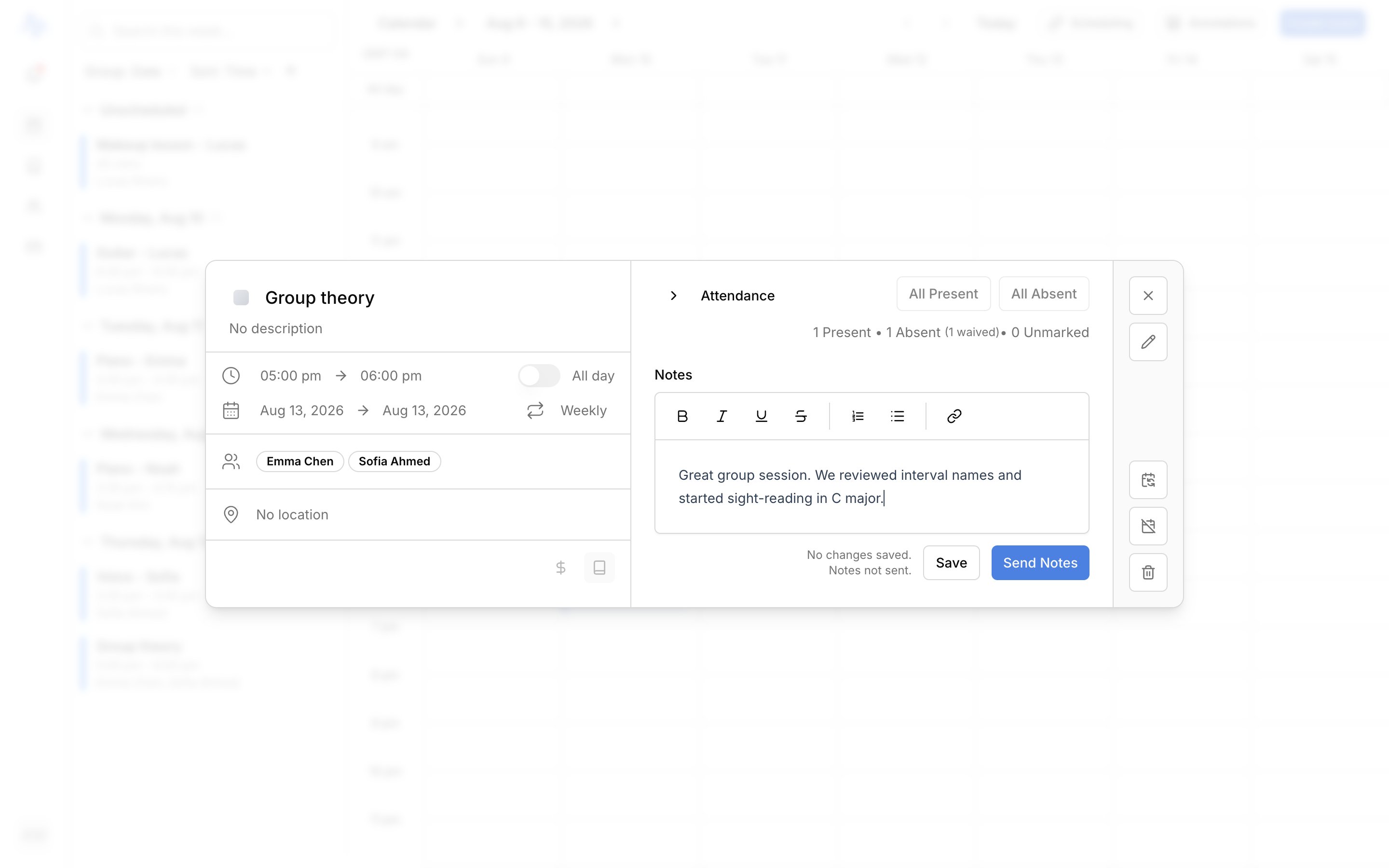
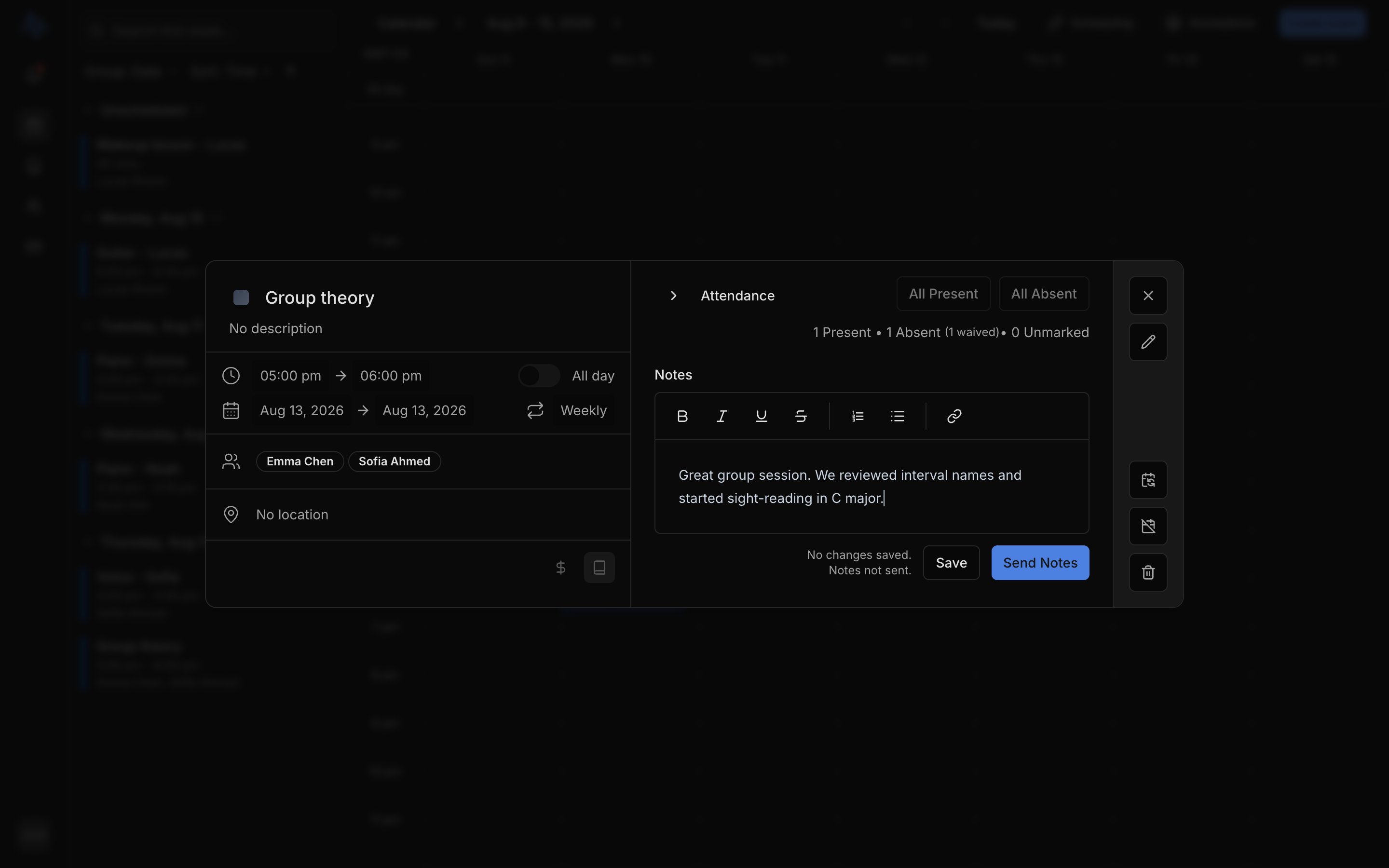
Open a saved lesson to see the controls. For each student, mark them Present or Absent. When a rate applies, marking a student Absent allows you to either still charge them or Waive the charge. If no rate applies to the lesson, the Charge / Waive choice doesn’t appear. Absent is a simple toggle. For a lesson with several students, use the bulk actions to mark everyone at once. Marking attendance creates any charges. You don’t bill them by hand here. See how charges become invoices.

Add and send notes

1

Write your notes

Type into the editor. It keeps your formatting as you write.
2

Save

Click Save to keep your notes without sending them.
3

Send notes

Click Send Notes to email the notes out. After they go out, the button reads Resend Notes for sending an updated copy.
Notes go to the contacts set to receive lesson details for each student: the student, a parent, or both. Each student gets one email sent to all of their lesson-details recipients.

FAQ

Once the lesson is saved. Open a saved lesson from the calendar. The attendance controls and the notes editor appear in the lesson.
Marking attendance creates the charge. You collect it on an invoice. See Send an invoice.