
Add or edit a contact
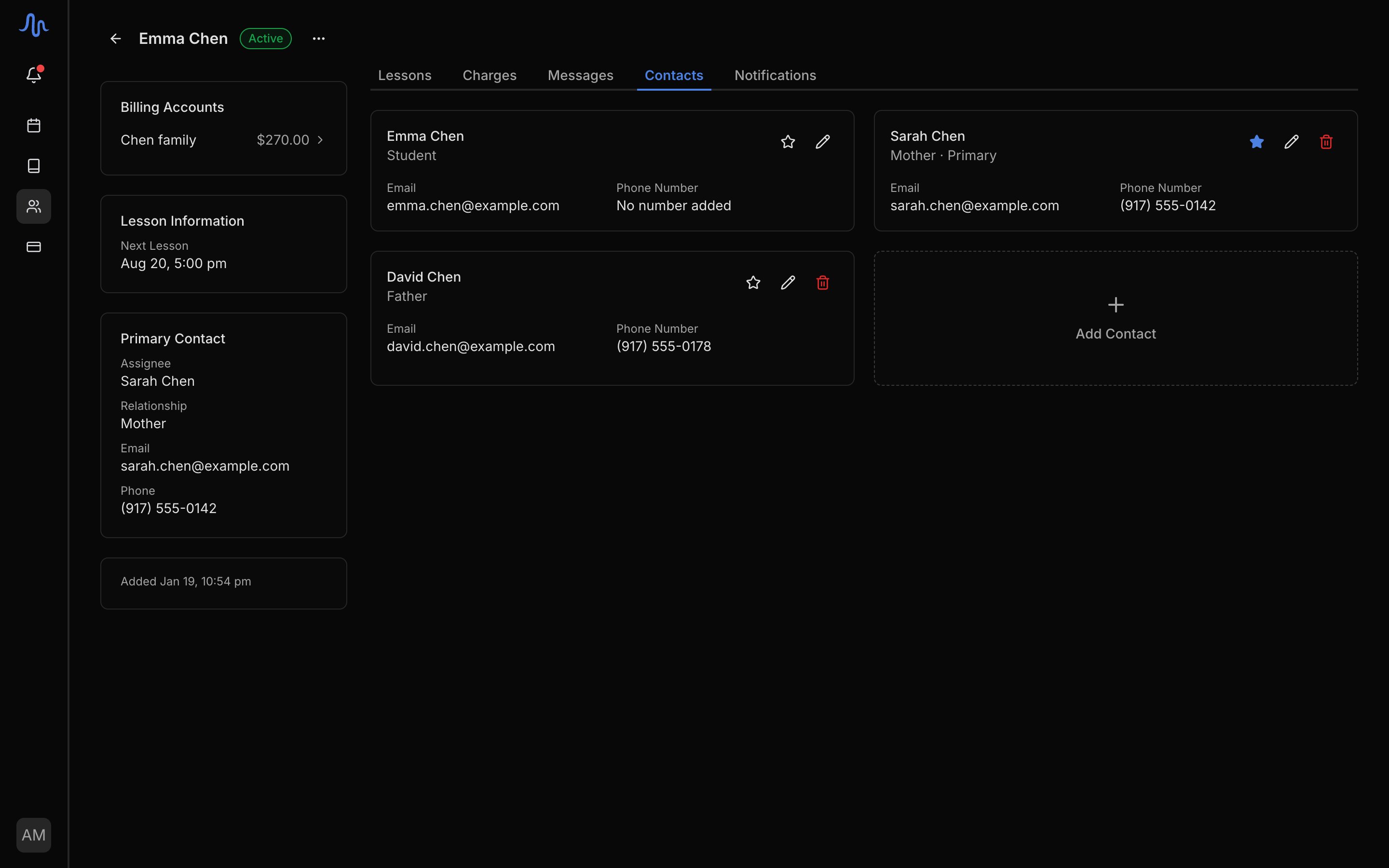
A student can have up to 6 contacts in addition to the student themselves. Manage everyone from the Contacts tab: Add contact to add someone, the pencil icon to edit their details, the trash icon to remove them.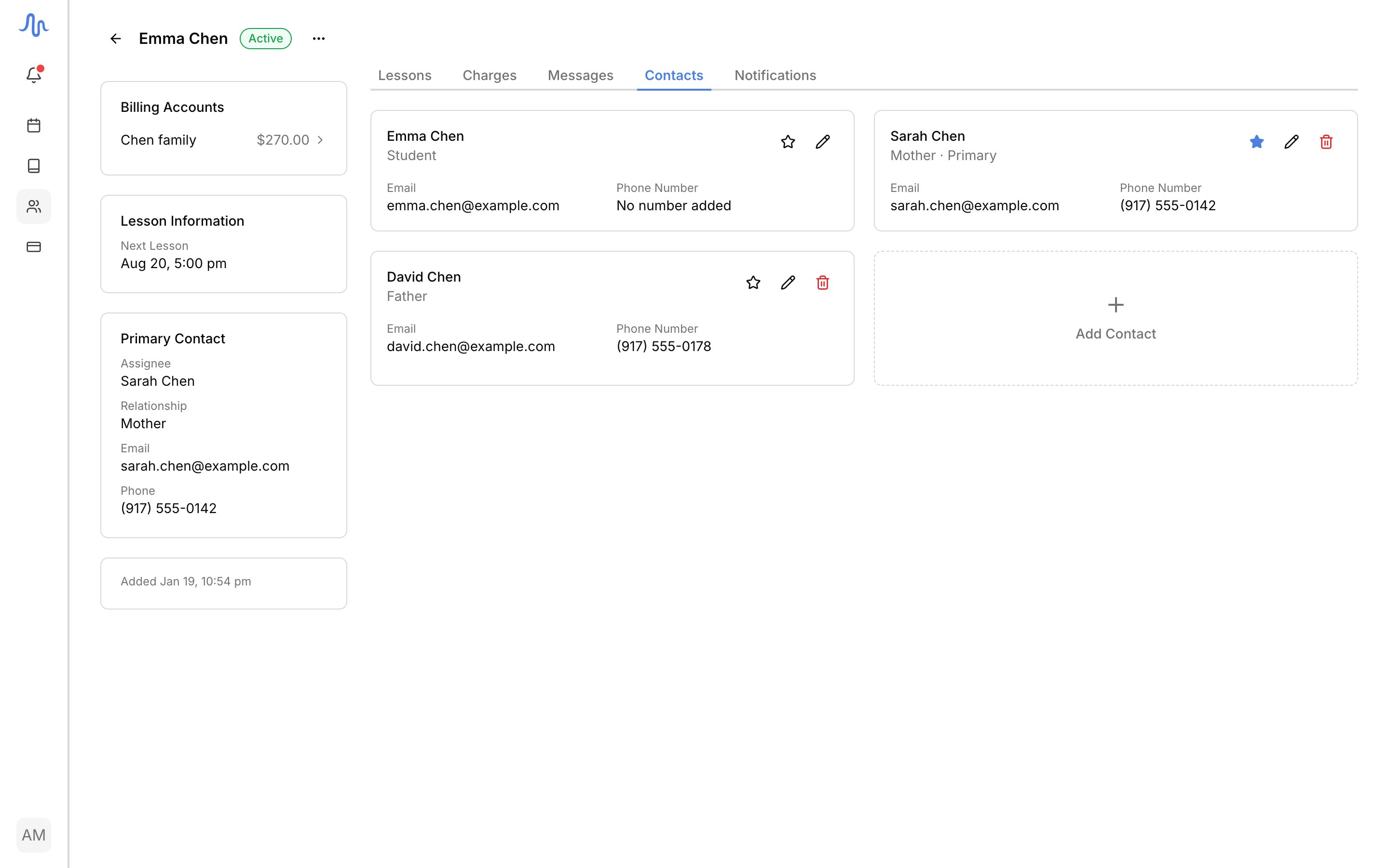
An address that stops accepting mail shows a warning on its contact card. Fix it here by editing the contact; see when an address stops working.
Change the primary contact
The primary contact is the main person you designate for a student. To change it, click the star icon on the contact you want to make primary, then confirm. A primary contact can’t be removed directly; assign a new primary first, then remove the old one.Choose who gets notified
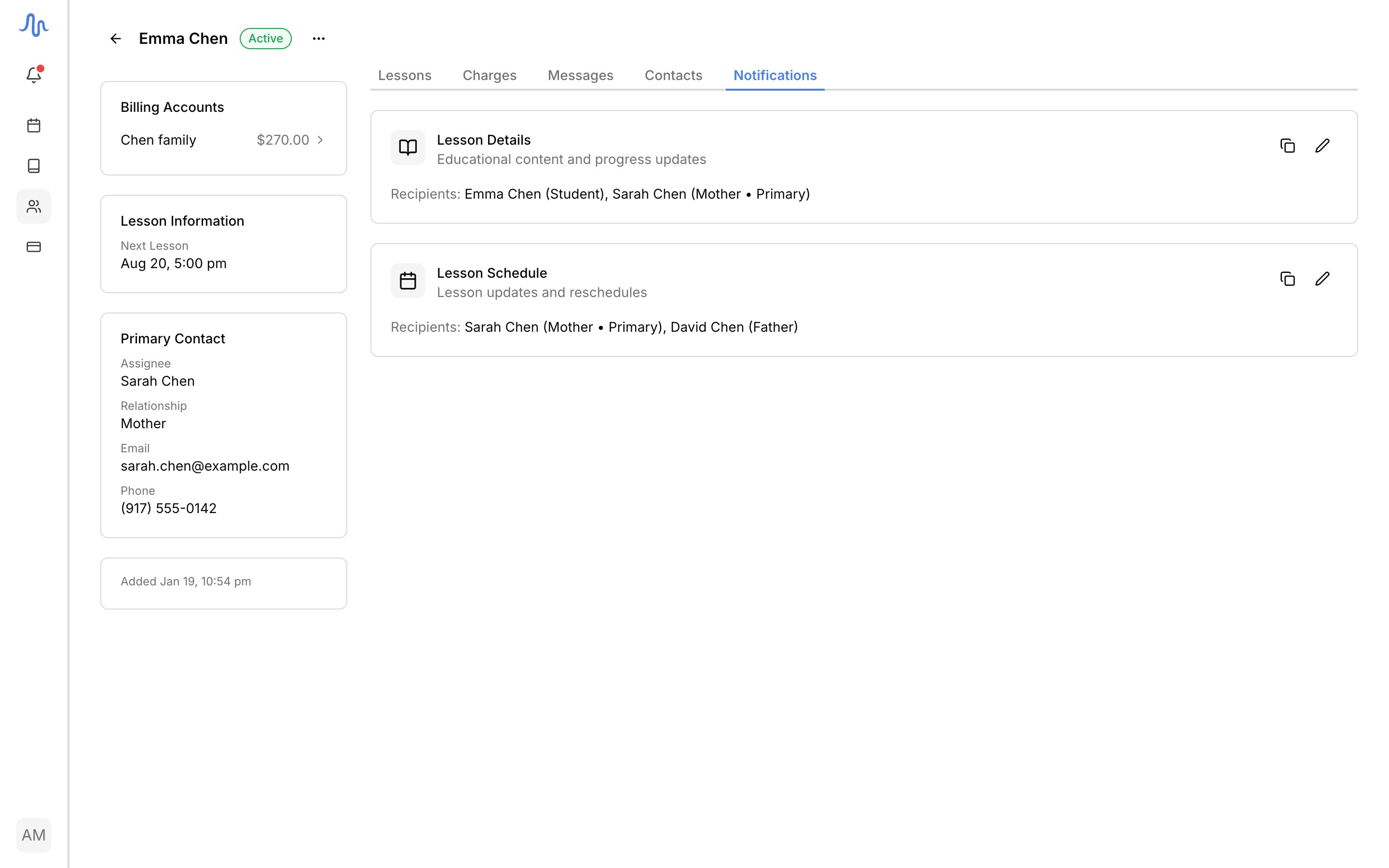
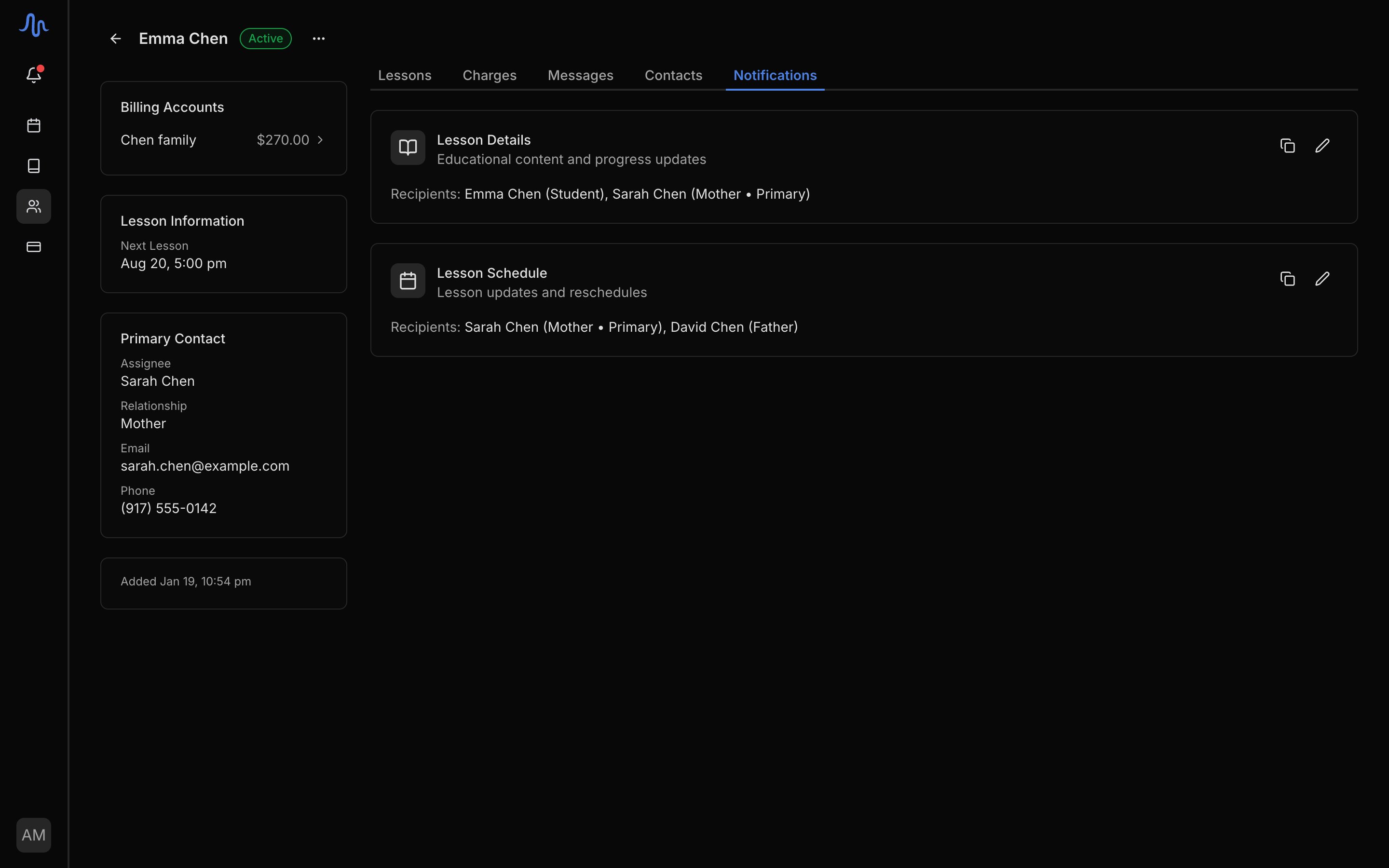
The Notifications tab controls which contacts receive which emails. Two groups:
To change recipients, click the pencil icon on a group, toggle each contact on or off, then save. Use the copy icon to copy the group’s recipient emails as a comma-separated list.
A contact with no email shows (No email) and can’t be selected until you add one.
Billing recipients are not set here. Who receives a student’s invoices is set on their billing account, not on the Notifications tab. See Accounts and students.
FAQ
Who gets lesson notes?
Who gets lesson notes?
The contacts in the Lesson details group for that student. For how notes are written and sent, see Run a lesson.