
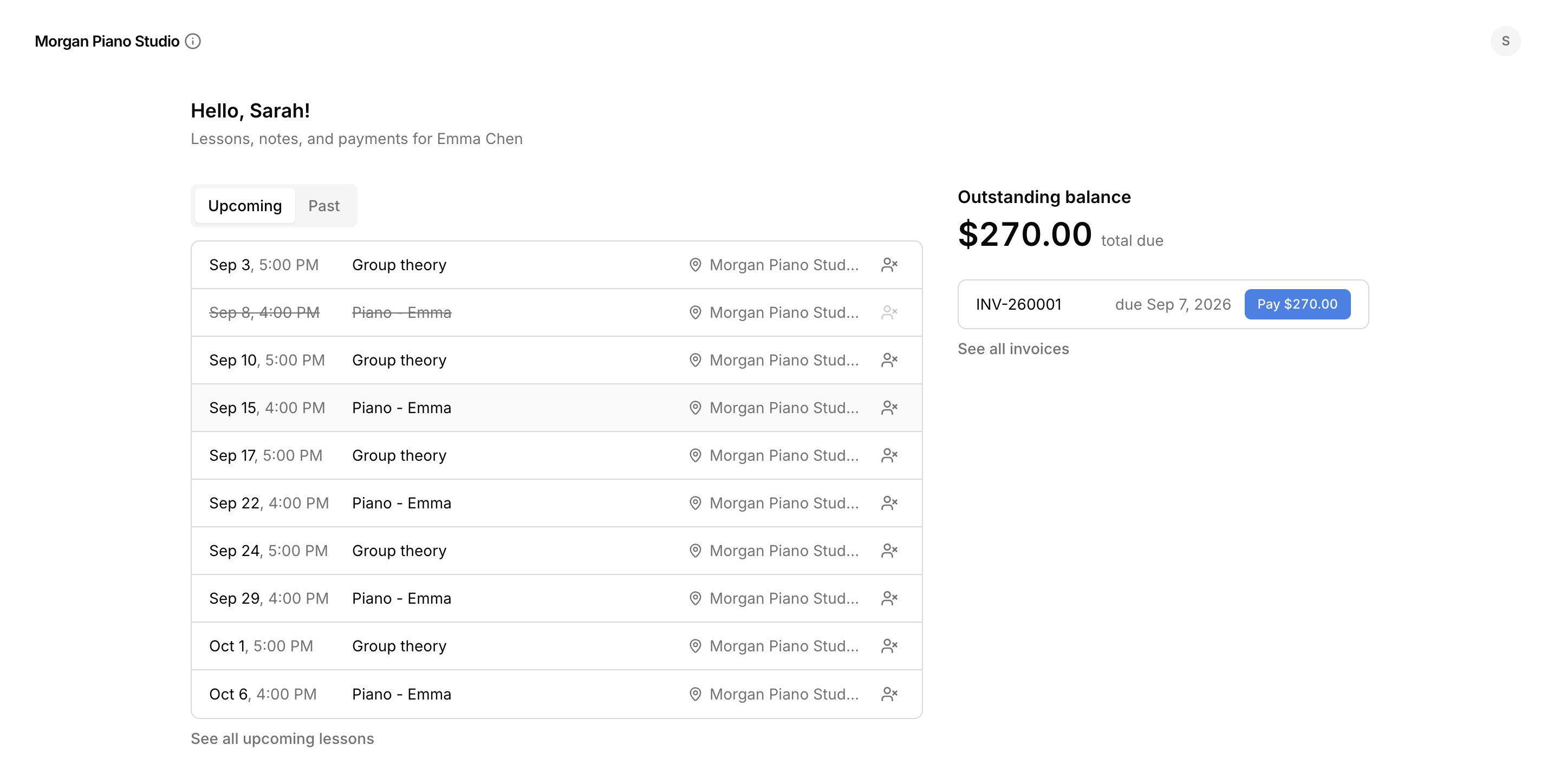
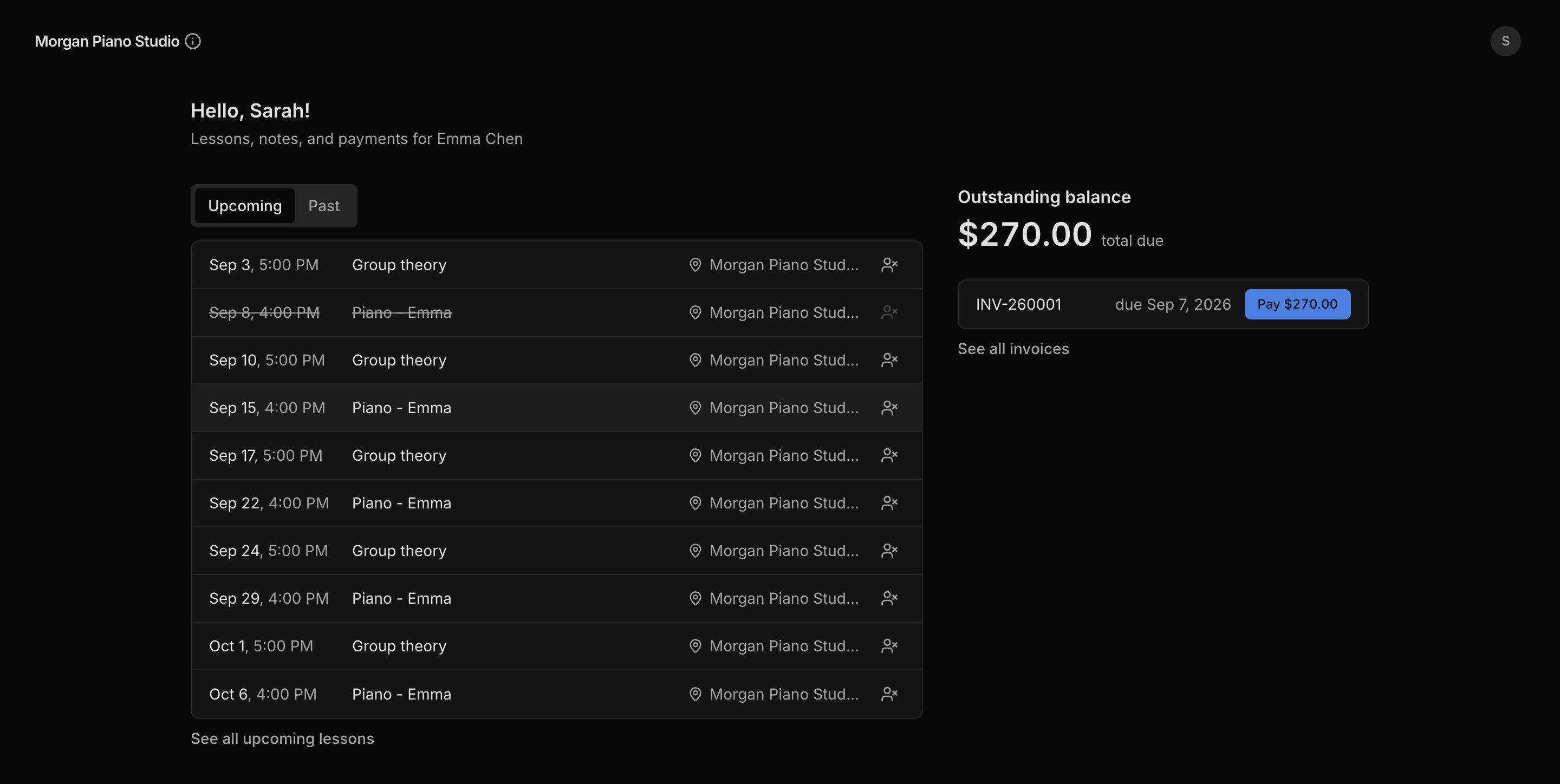
What families see, and what controls it
A person sees only what you have linked to their email.
The email on the person is the key. A person with an email can sign in; a person with none cannot.
Give a family access
1
Add the person as a contact
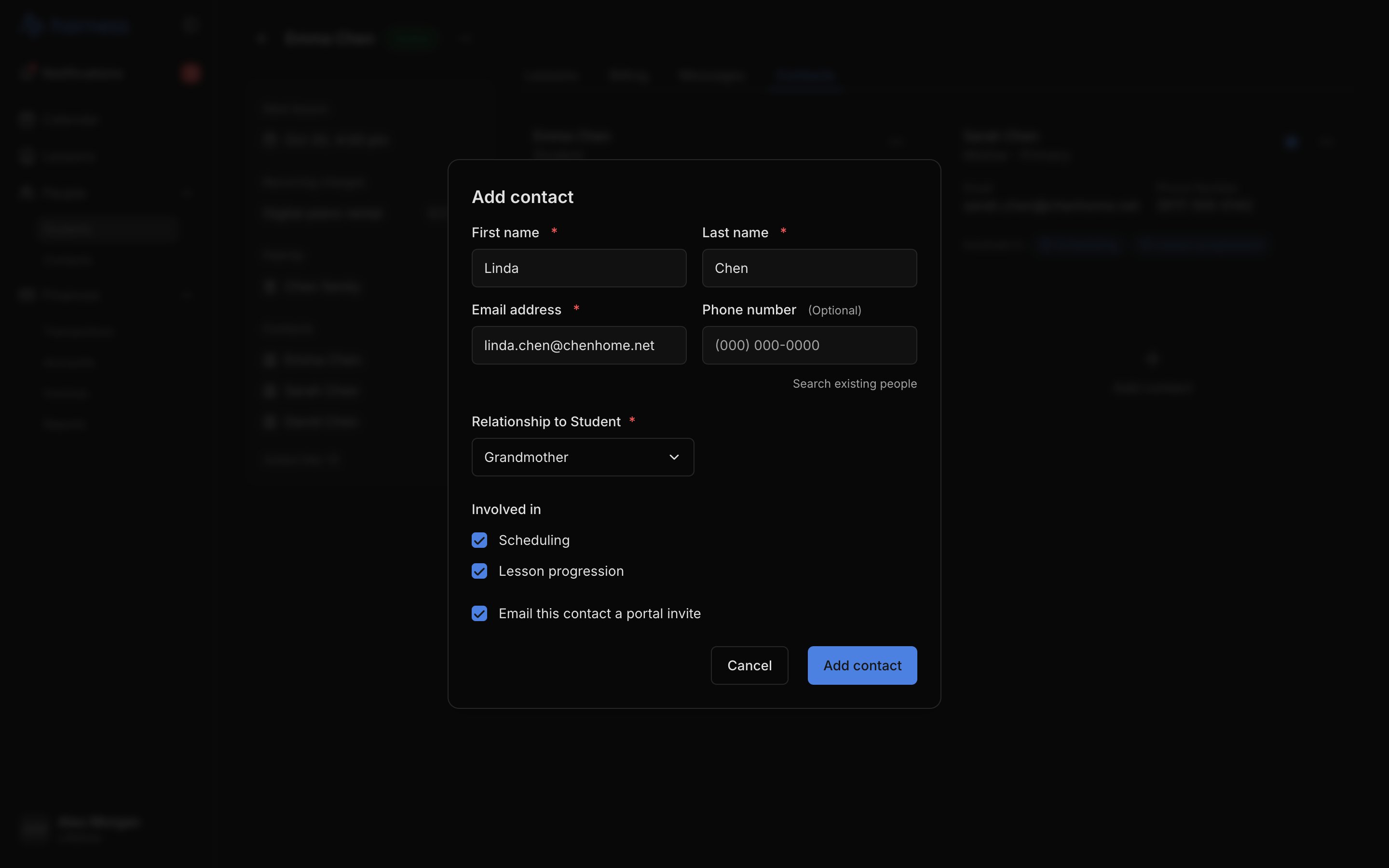
Go to People → Students → a student → Contacts → Add contact. Search for the person or add someone new, then pick their Relationship to Student. They need an email for the portal.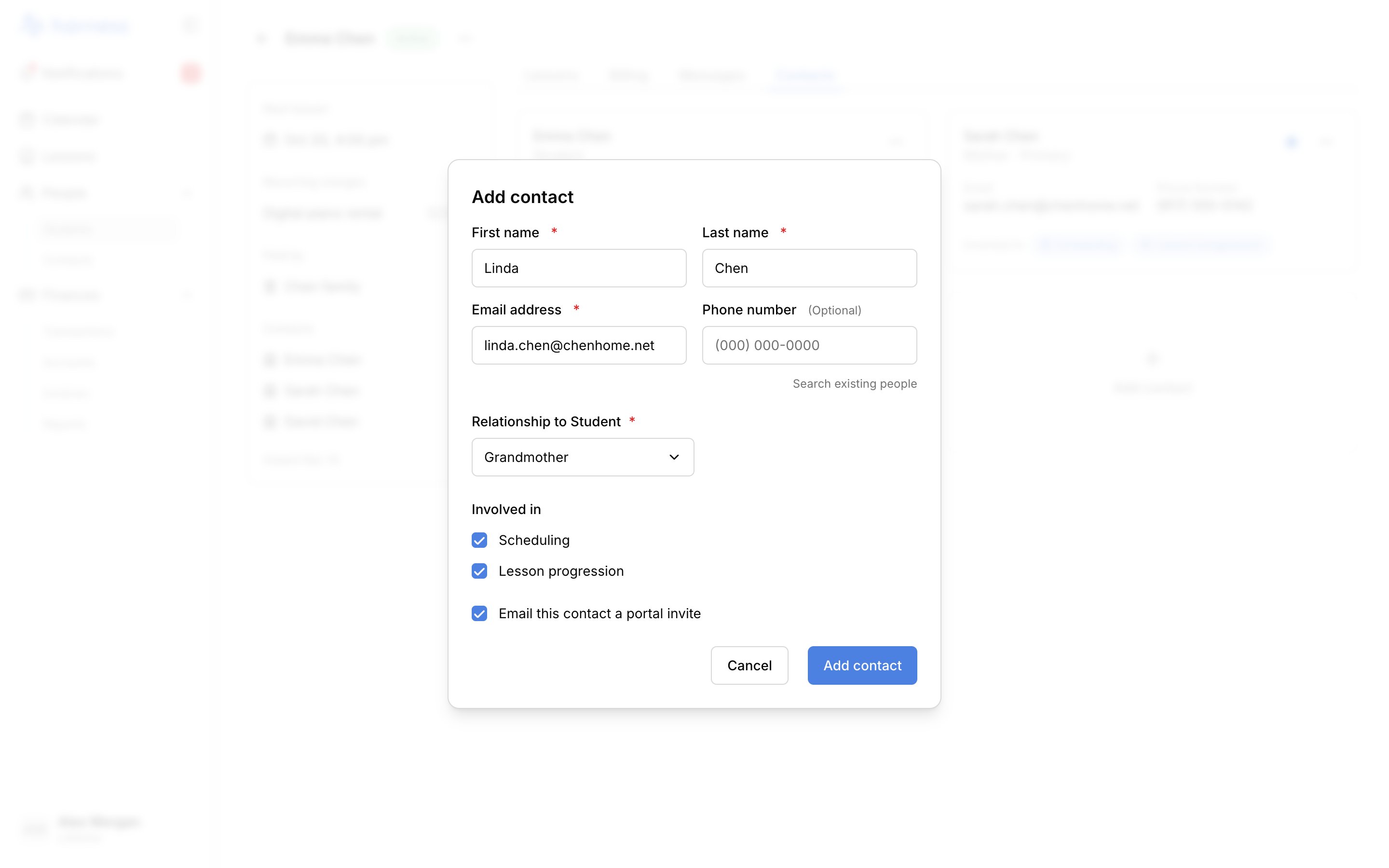
2
Choose what they see
In the same dialog, tick Scheduling or Lesson progression under Involved in to share lessons. To share invoices, open the account and choose ⋯ → Add person (or use Attach to an account from the person’s menu on People → Contacts).
3
Send the invite
Leave Email this contact a portal invite ticked, or send it later with Send portal invite from the contact’s menu. The email points them to the portal. They sign in there with their email and a six-digit code. You never do this for them.
Preview what a family sees
Choose View portal from a person’s menu: on a student’s contact card, on People → Contacts, or on an account. It shows that person’s exact portal, read-only. A person with no valid email can’t be previewed: Harness shows Add an email address to continue.FAQ
Do I have to send the invite before they can sign in?
Do I have to send the invite before they can sign in?
No. Any contact with an email can sign in. The invite is a courtesy that points them to the page. Use Send portal invite again any time they lose it.
Can someone see invoices but no lessons?
Can someone see invoices but no lessons?
Yes. Add them to the account with Add person without making them involved in any student’s lessons. A grandparent who only pays sees billing and nothing else.
What if one person belongs to more than one of my families?
What if one person belongs to more than one of my families?
They sign in once with their email and see every student and account that email is linked to, grouped by studio.
Can a family cancel a lesson from the portal?
Can a family cancel a lesson from the portal?
A family involved in Scheduling can mark an upcoming lesson can’t make it. If they give less notice than your late-cancellation window, the lesson rate is charged to their next invoice automatically. Set that window in Invoicing defaults.