
The Contacts list
Two tabs filter the list:
- All: everyone.
- Needs attention: people whose email has a problem: it bounces, it isn’t valid, it’s a placeholder address, or it’s missing for someone who needs one. The tab shows how many. See when an address stops working.
/ to jump to the search box.
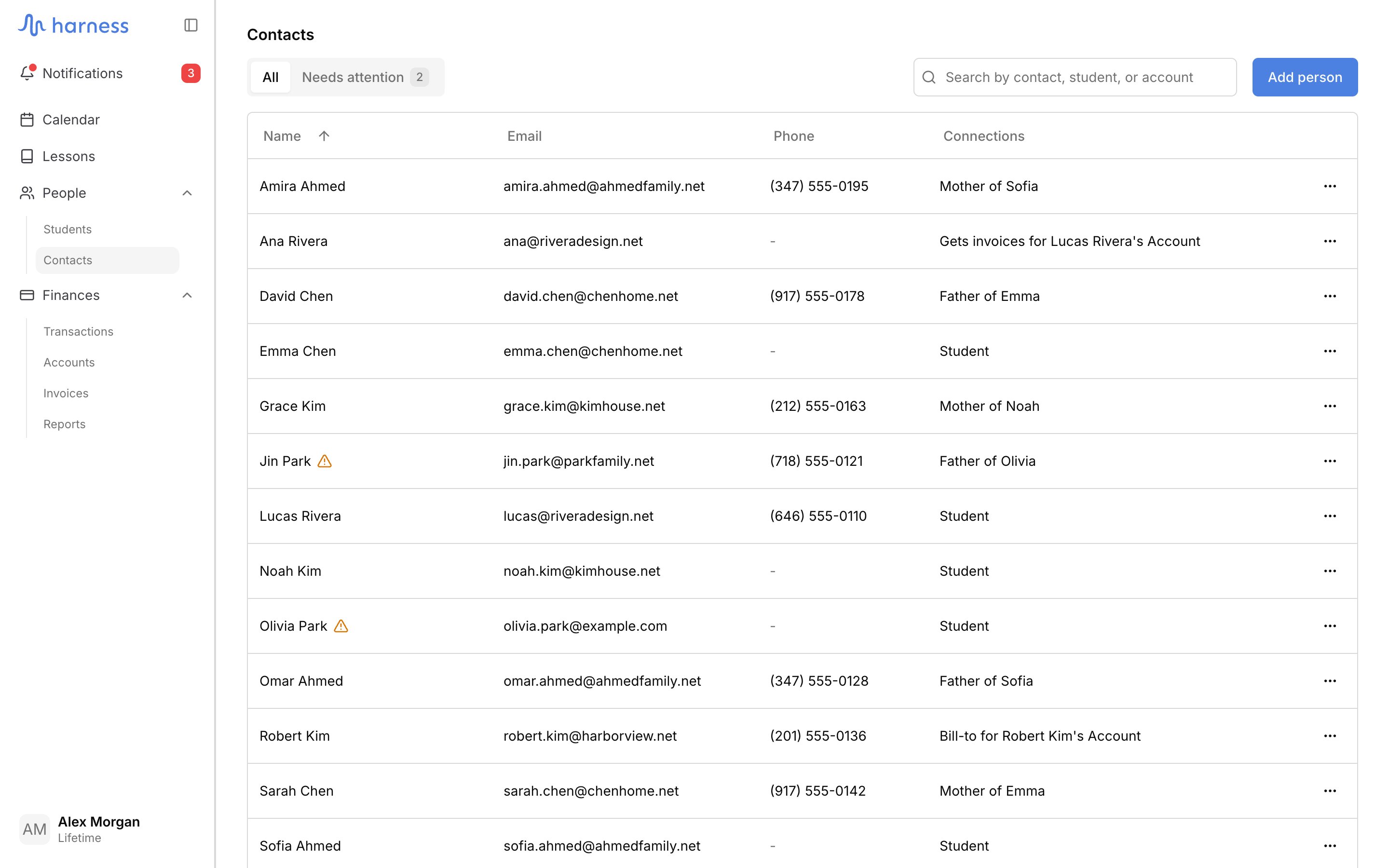
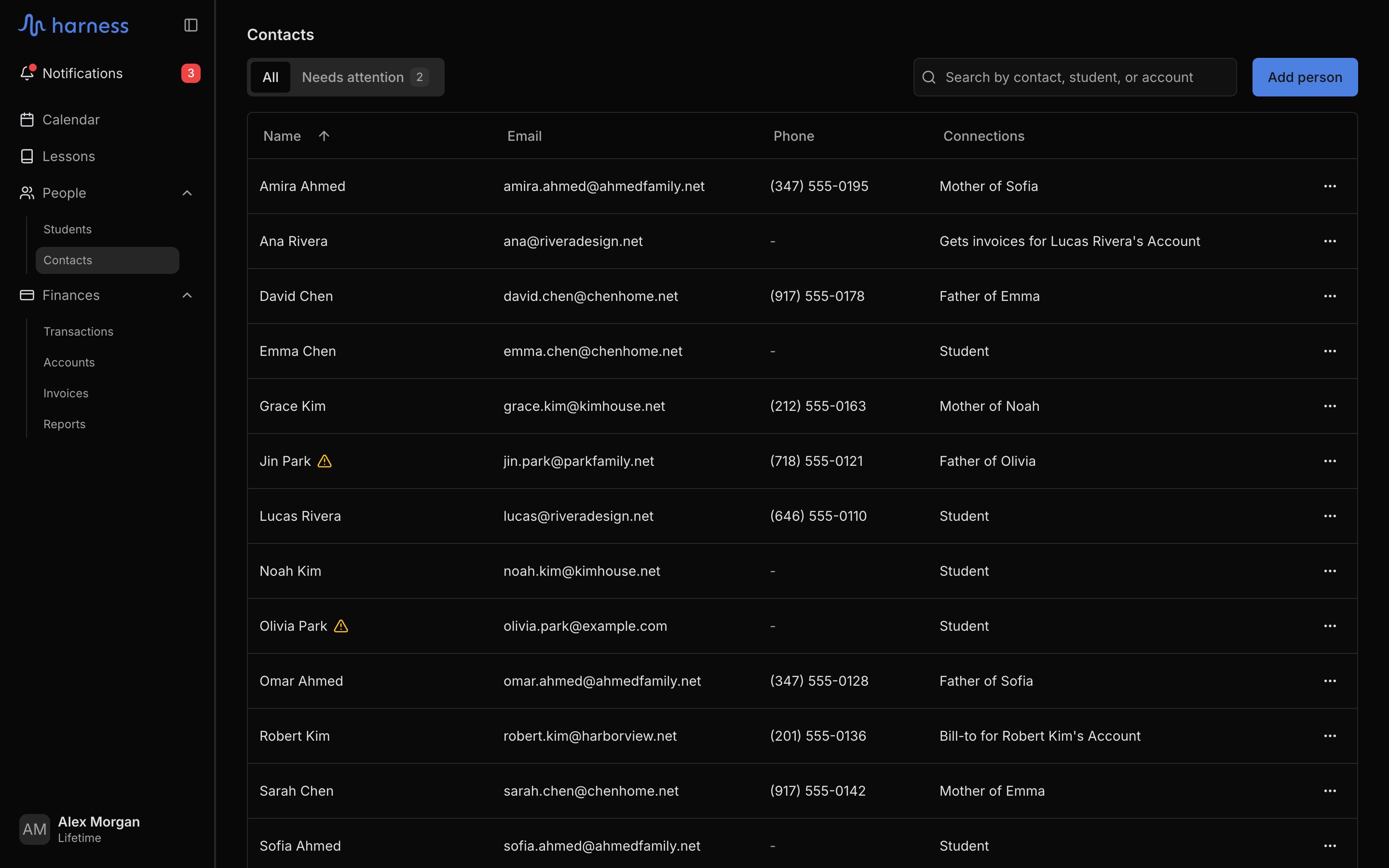
Add a person
Click Add person, enter a first and last name, and add an email, phone, or address if you have them. Click Add person to save. The person starts with no connections; connect them from their menu (below) or from a student’s Contacts tab. Email is optional until the person takes on a role that sends them mail: primary contact, involved in a student’s lessons, or on an account.A person’s page
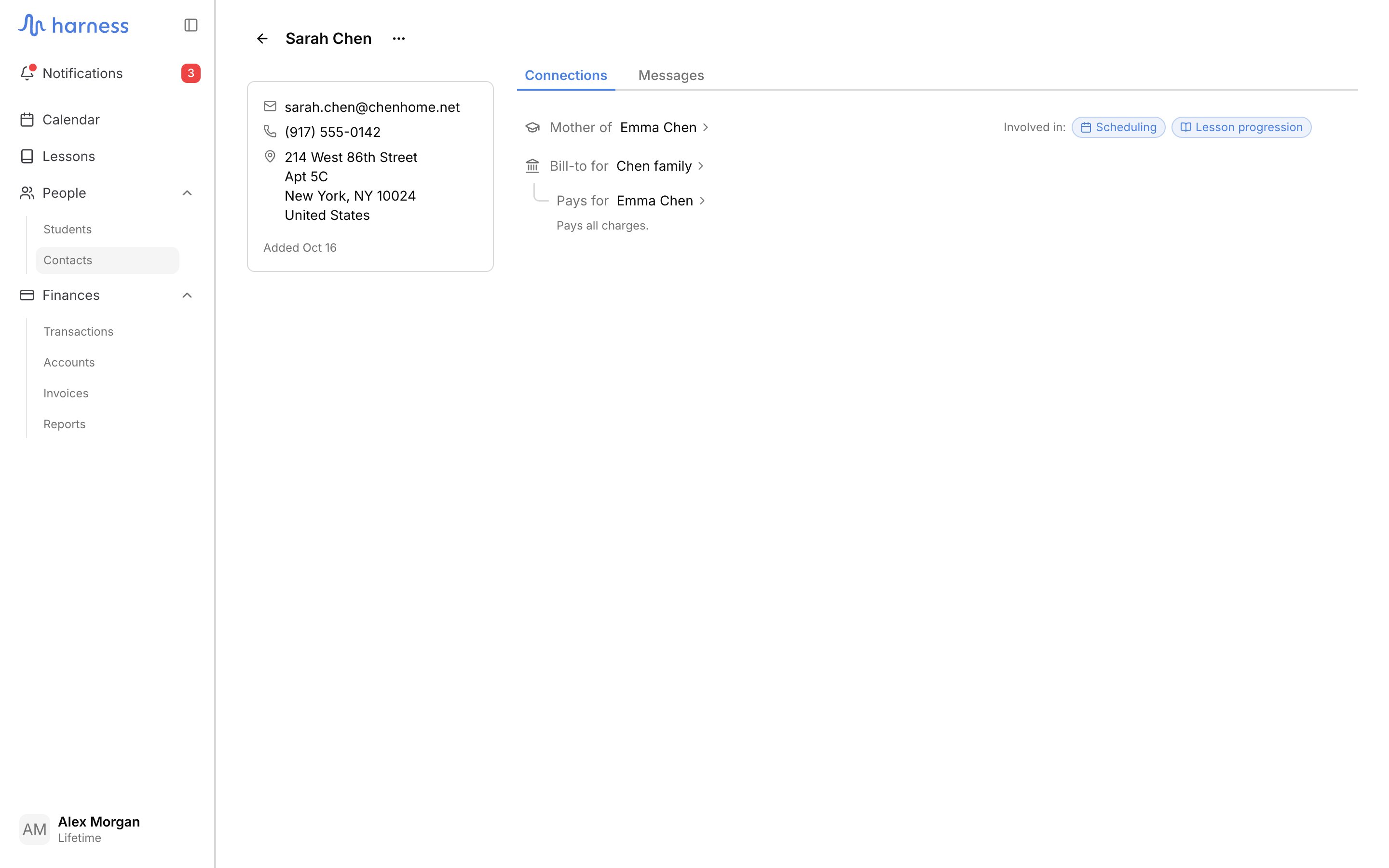
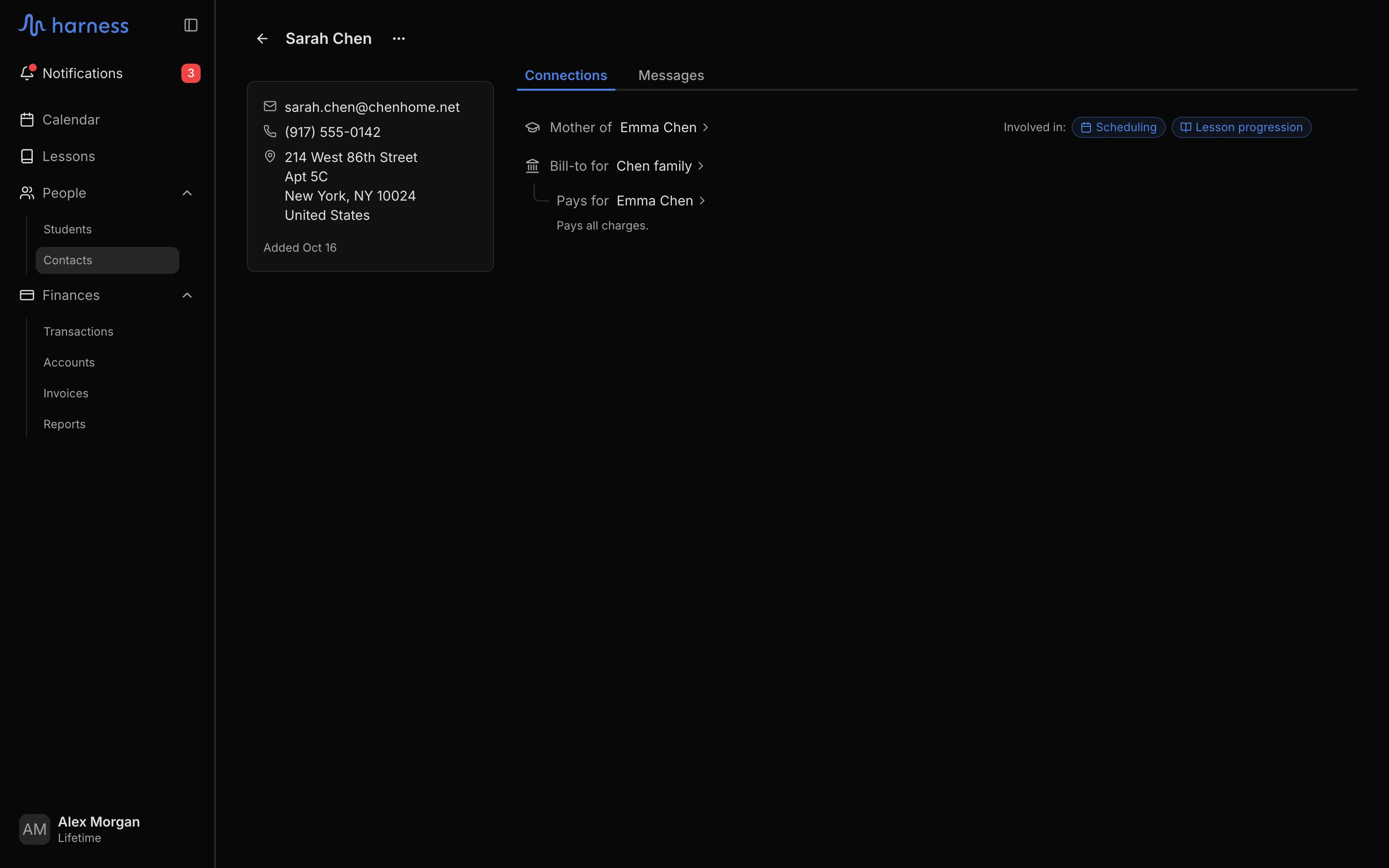
Click a person to open their page. The sidebar shows their email, phone, address, and the date they were added. On a phone, the sidebar is the Details tab. A banner under the header lists any email problem, with Edit person to fix it.
The Connections tab lists:
- Student, when the person is a student themselves, with a link to their student page.
- Each relationship (“Mother of”), with the students it covers. Each student shows the Scheduling and Lesson progression chips (click to turn them on or off) and Disconnect.
- Bill-to for each account the person is named on, with the students it pays for and the billing rule behind each.
- Gets invoices for each account they were added to, with Disconnect.
The person menu
The ⋯ on a person’s row or page offers:
Portal actions need a valid email. Without one, Harness shows Add an email address to continue.
Delete a person
Choose Delete person and confirm. This cannot be undone. Harness refuses while the person still has a role that someone depends on, and says what to fix first:
Any other connections (a contact who isn’t primary, a person added to an account) are removed with them. Emails already sent to them stay in message history.
FAQ
How is a contact different from a student?
How is a contact different from a student?
A student is someone you teach; a contact is any person. Every student is also a person in this list, shown as Student in Connections. See Key concepts.
I edited someone's email. Why did it change on another student too?
I edited someone's email. Why did it change on another student too?
One person is one record. A parent of two students is one contact, so Edit person changes their details everywhere they appear.