
Before you start
- Every student has a default account that pays whatever other rules leave. Harness sets it up when you add the student.
- The account a rule names must exist. You can create one from inside the rule.
Add a rule
1
Open the student's billing rules
Open the student and choose the Billing tab. Click + (Add rule) beside Billing rules. You can also choose Add billing rule from the student’s ⋯ menu.
2
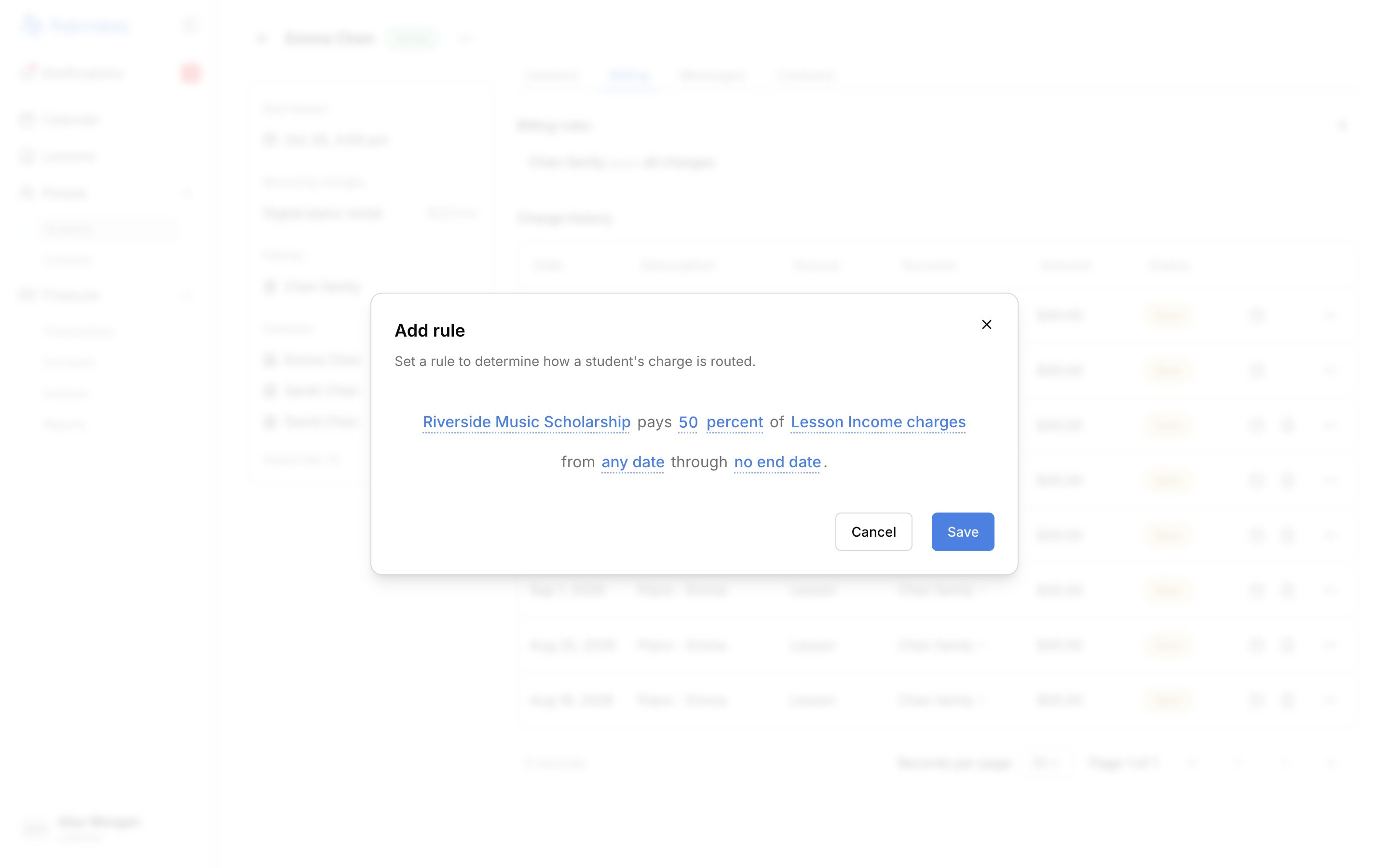
Fill in the sentence
The rule reads as one sentence: [Account] pays [50] percent of [all charges] from [any date] through [no end date]. Click each blank to set it:
- Account: who pays. Choose Create account at the bottom of the list to make a new one.
- Share: type a number. Click percent and choose dollars to pay up to a set amount of each charge.
- Which charges: All charges, or one category, such as lessons.
- Dates: leave them open, or pick a start and an end.
3
Save
Click Save. If something’s missing or the rule doesn’t fit with the others, a line under the sentence says what to change.
Change who pays by default
Click the default’s sentence, the last one in the list ([Account] pays all charges, or the remaining share when other rules come first), and pick another account. The default can be changed, never removed. If the student shows No one pays [name]‘s charges yet, click Choose who pays. Until you do, Harness can’t create charges for them.Edit or remove a rule
- Edit: click the rule, change any blank, and click Save.
- Remove: hover the rule and click the trash icon, or open it and click Remove rule. The rule goes at once; click Undo in the message to bring it back.
FAQ
Where can I see who pays for a student?
Where can I see who pays for a student?
On the student’s page, under Paid by in the sidebar. On an account’s page, Pays for lists every student whose rules name it.
What happens to a student's rules when an account is closed?
What happens to a student's rules when an account is closed?
Closing an account removes every rule that names it. If that was the student’s default, choose who pays again. See Close an account.