
The kinds of transaction
What you can change
The record stays accurate by keeping money that has moved permanent, and letting you correct it with a new transaction instead of editing the old one.
While a charge is still open, you can also move it to a different account from its detail view, to fix a bill that went to the wrong payer. The charge leaves its old account’s upcoming bill (and any draft invoice it sat on) and rides the new account’s next one. Once a charge is paid or on a sent invoice, it can’t move; correct it with a void instead.
To undo something that’s locked, add a correcting transaction rather than editing it:
- Void cancels a charge or payment you no longer want, and leaves a record that it was cancelled.
- Cancel & refund voids a paid charge and returns the money.
- A refund returns money a payer has put in. See Issue a refund.
The Summary bar
The Summary bar sits on top of the screen. Pick a timeframe, Past Week, Past Month, or Past Year, to scope the figures. Every metric except Outstanding updates with it.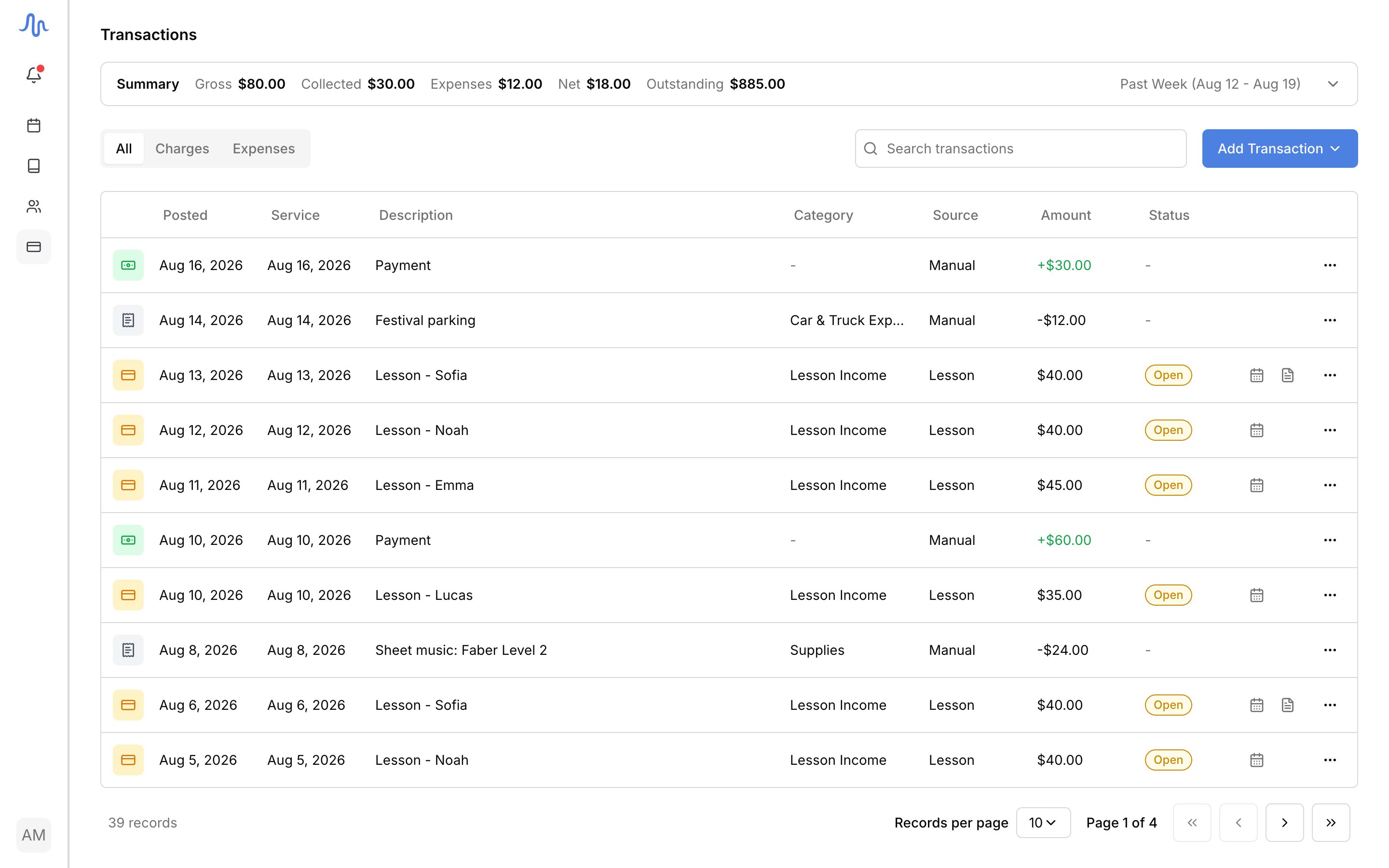
The list
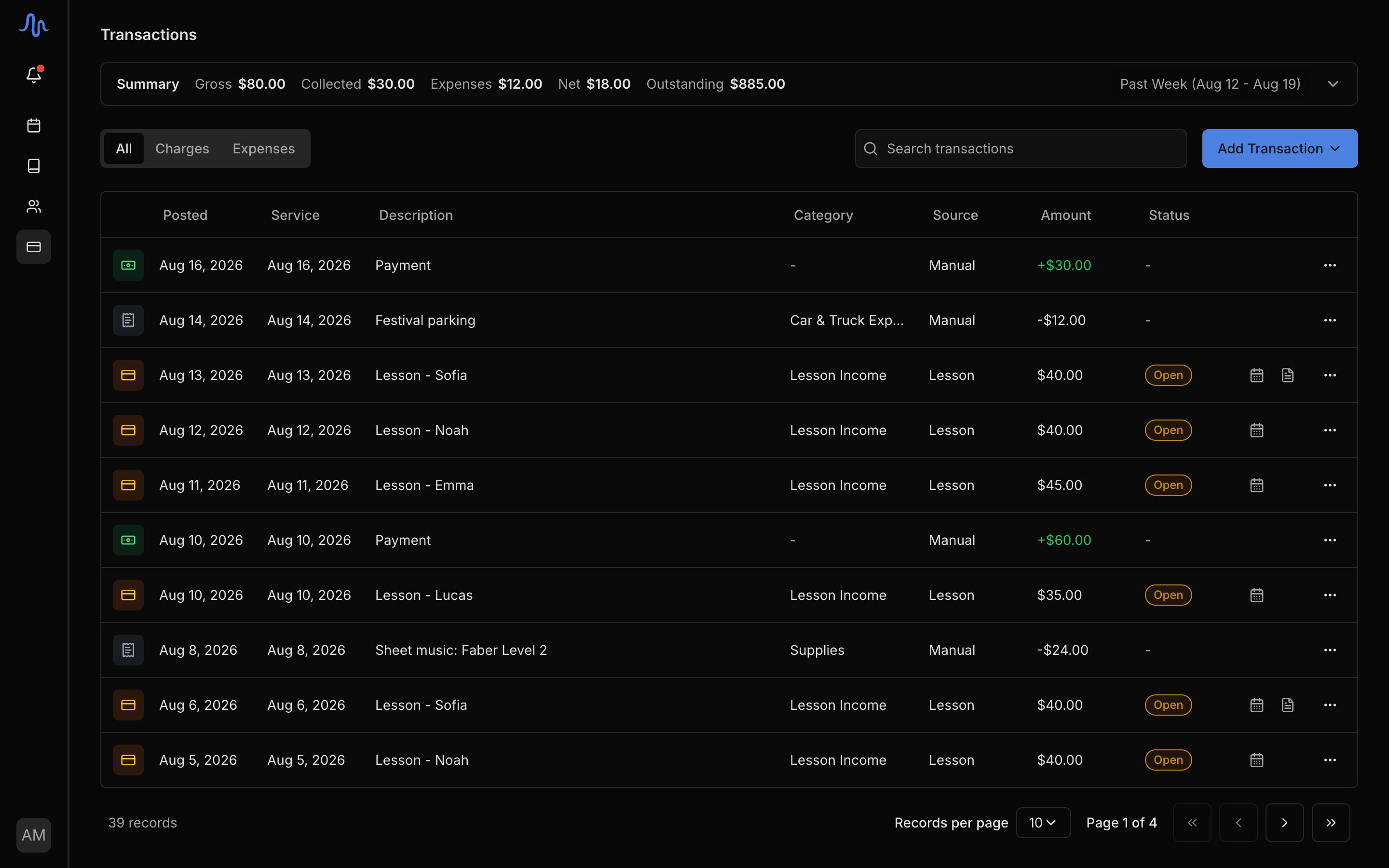
Each row is one transaction: The columns worth decoding:Find a transaction
- The tabs above the list filter it: All, Charges, or Expenses.
- Search transactions filters by description, student, category, or amount.
Add a transaction
Click Add Transaction to record one by hand:- Charge: a one-off amount an account owes, like a recital fee or a book. Pick the account (and optionally which student it’s for); the charge rides the account’s next bill. See Automated billing.
- Expense: a studio cost, with a tax category and an optional receipt. See Track expenses.
Act on a transaction
Open a row’s … menu for the actions that apply to it: Record Payment, Edit, Void, Delete, or Cancel & refund. See Record a payment, Manage invoices for voiding, and Issue a refund.The Transactions screen is the live record. To export it to CSV or PDF, or to build a Profit & Loss statement, use Reports.