
Find an invoice
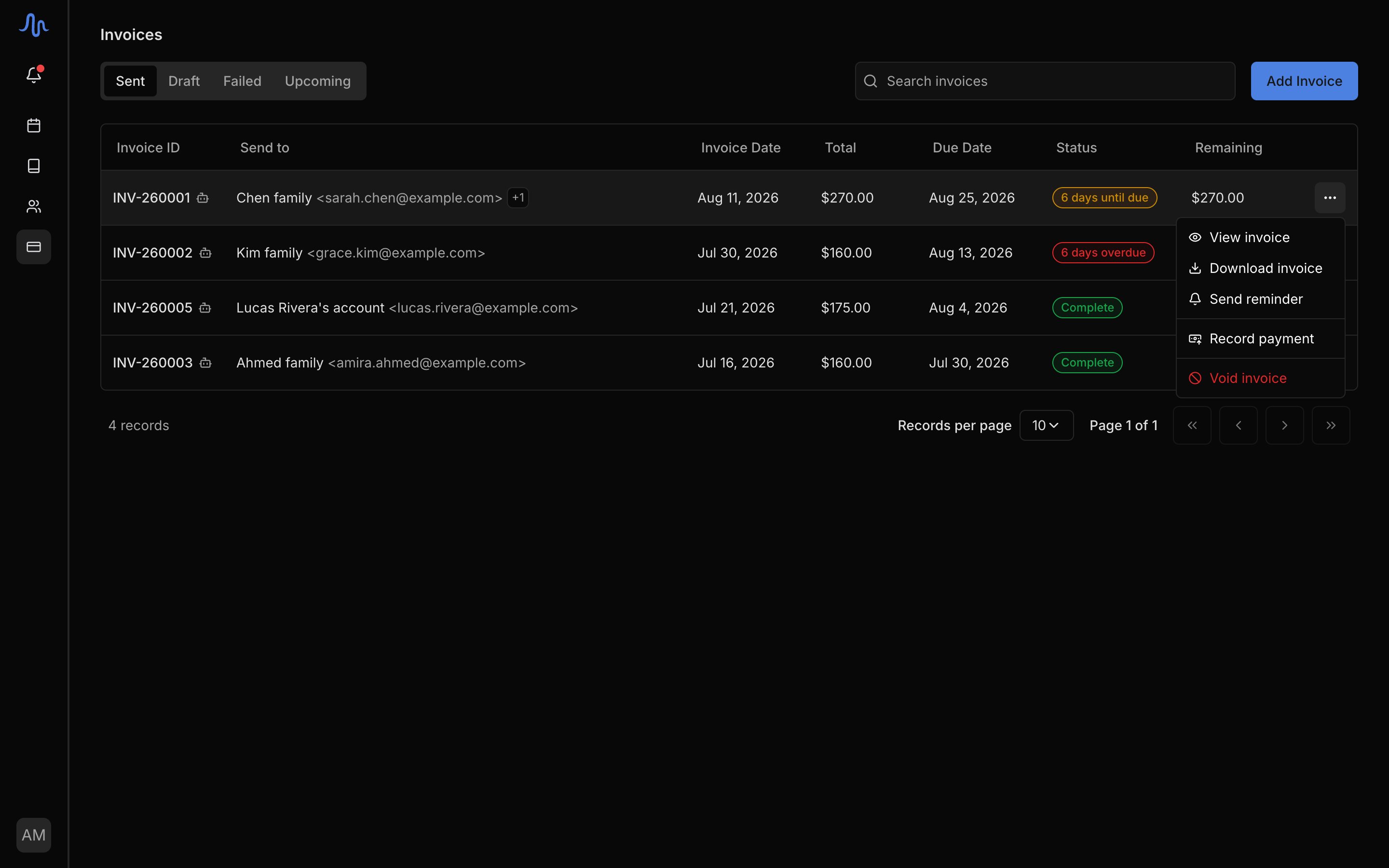
Go to Finances → Invoices. The tabs split the list by where each invoice stands: Sent, Draft, Failed, and Upcoming. Search by invoice number or recipient to narrow the list. Click a row to open it: a sent invoice opens in view mode, a draft opens in the editor so you can keep working on it. A robot icon on a row means automated billing created that invoice.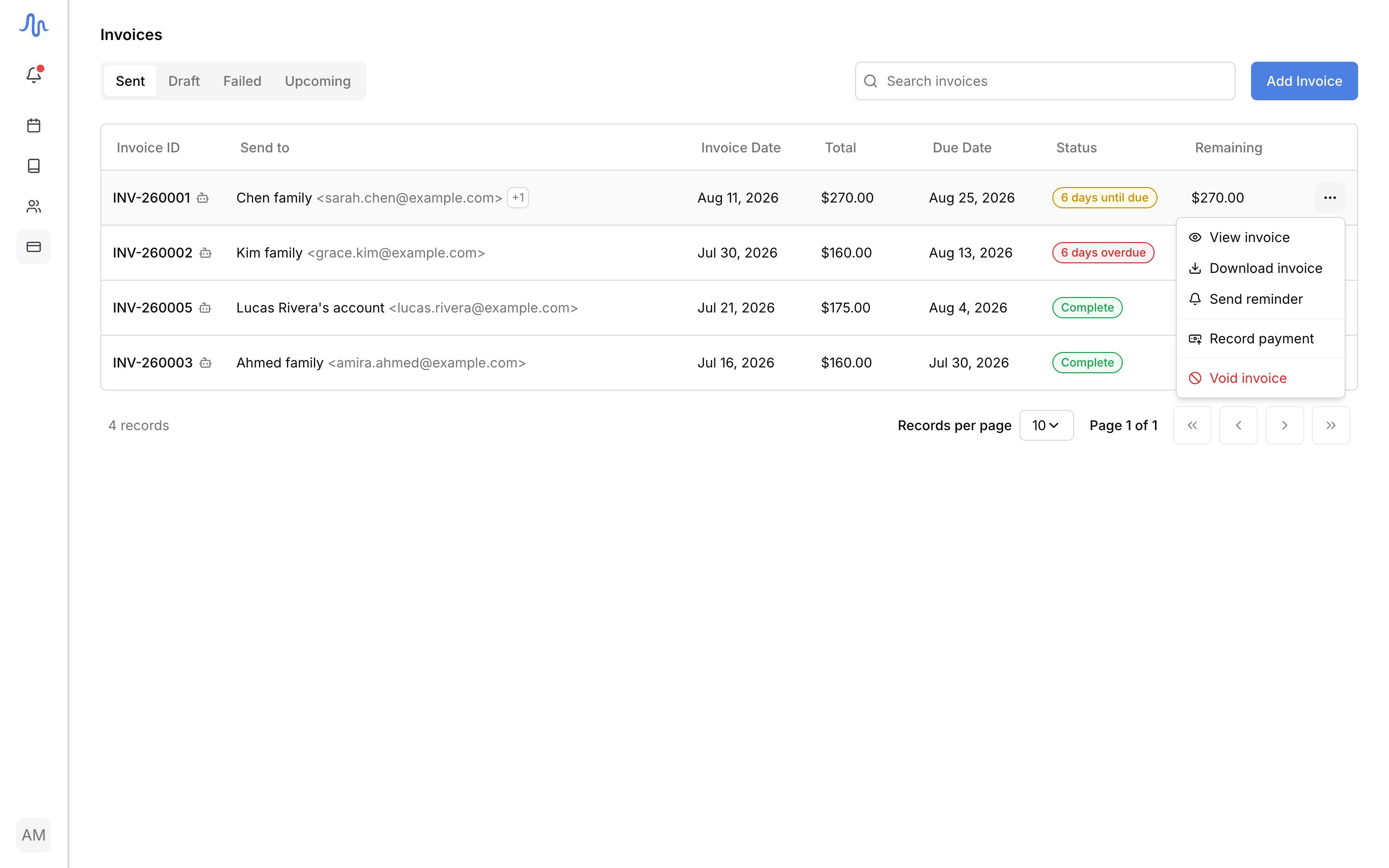
What you can do
Open the actions menu (the ⋯ button) on any invoice row. Which actions appear depends on the invoice’s status:- A draft offers Edit Invoice, Download, Send Invoice, and Delete Invoice. Only drafts can be deleted; once an invoice is sent, void it instead.
- A sent invoice offers View Invoice, Download, Send Reminder (when a balance is due), Record Payment (while unpaid, see recording a payment), Void Payment (when paid and nothing has been refunded, to undo a payment you recorded by mistake), and Void Invoice (see Void an invoice).
- An invoice in Error (the email failed to send) offers View/Edit Invoice, Download, Retry Send, and Delete Invoice.
Sending is one-way. There’s no “unsend”. To correct a sent invoice, void it
and start a new one. See Send an invoice.
Void an invoice
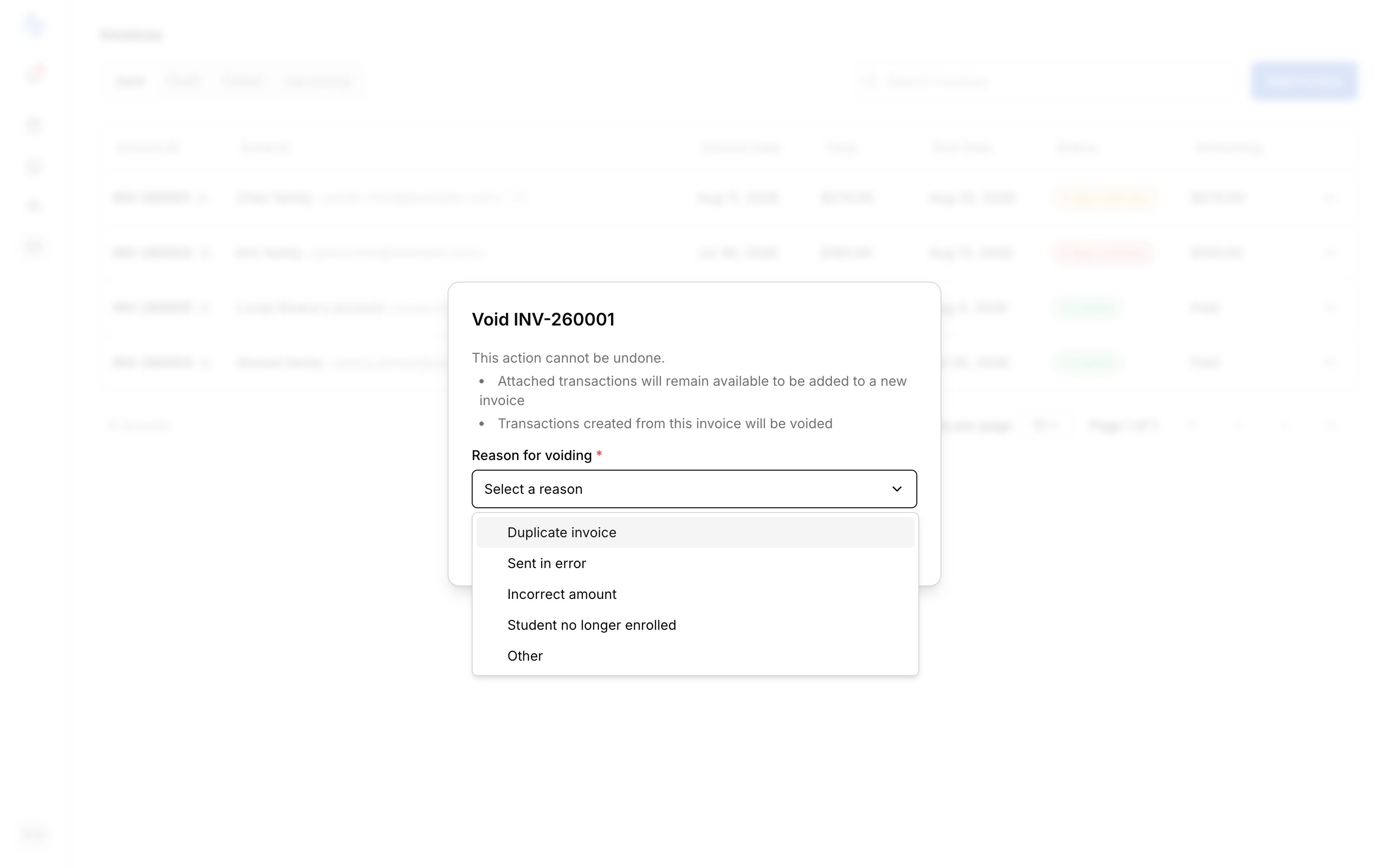
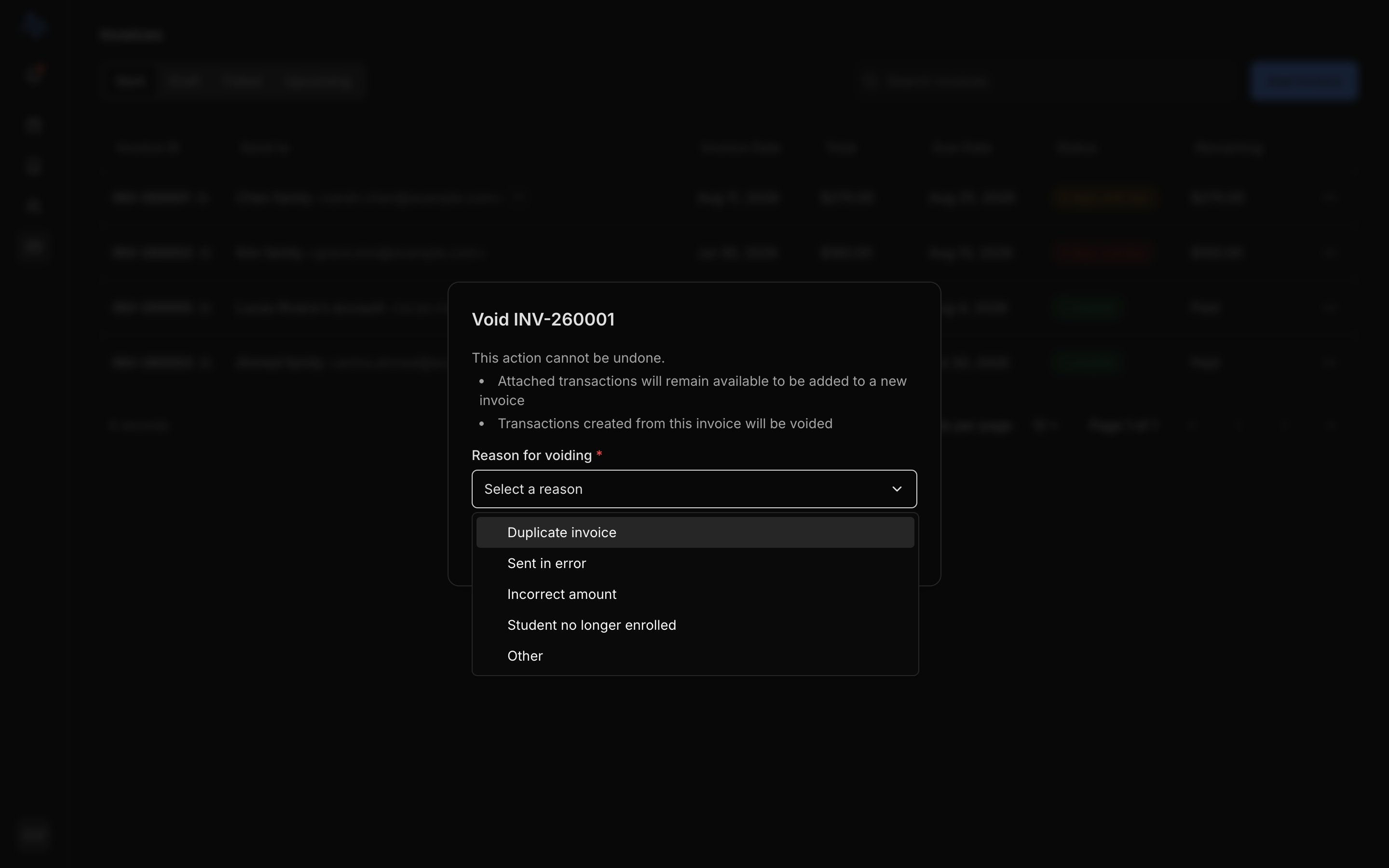
Voiding cancels a sent invoice you no longer want collected. Because a sent invoice can’t be edited, voiding is how you correct one (see Understand your transactions). Open its actions menu, choose Void, then pick a reason. If the invoice has already received payments, you’ll see a warning showing how much was paid: voiding does not reverse that money. What voiding does:- Cancels the invoice (this can’t be undone).
- Frees the invoice’s charges so you can add them to a new invoice.
- Cancels the online pay link, if there was one.
Invoice statuses
The Status column tells you where each invoice stands at a glance:FAQ
The Send reminder option is greyed out
The Send reminder option is greyed out
Reminders have a cooldown so recipients don’t get spammed. If you sent one
recently, the option stays disabled until it passes. It also only shows on
sent invoices with a balance owing.
Where did a voided invoice's charges go?
Where did a voided invoice's charges go?
Voiding frees the charges: they unlock from that invoice and become
available again. Build a fresh invoice for the account and attach them. See
Send an invoice.
What does the Disputed status mean?
What does the Disputed status mean?
A card payment on this invoice has been disputed with the card processor.
The outcome is uncertain until it resolves, so it’s flagged for your
attention ahead of everything else.