
Add a vehicle
Every trip belongs to a vehicle, so start by adding your car.1
Open Business records
Go to Settings → Business records and click + (Add vehicle).
2
Describe the car
Fill in the Year, Make, and Model. A Description like the trim or color is optional, and helps if you drive two similar cars.
3
Save
Click Add vehicle. It joins your list, ready for trips.
Log a trip
Log each trip close to when you drive it. A log written at the time is stronger evidence than one pieced together later, and Harness reminds you when a trip’s date is far in the past.1
Open the log form
Open the vehicle from Settings → Business records and click Log mileage. From any page, you can also press
Shift+M; with more than one vehicle, pick which one (see keyboard shortcuts).2
Fill in the trip
Enter the date, miles, origin, destination, and purpose. The date starts as today. Origin and Destination suggest addresses as you type, but a plain name like “Home studio” works too.
3
Save
Click Log trip. The trip lands in that vehicle’s mileage log.
Your mileage records
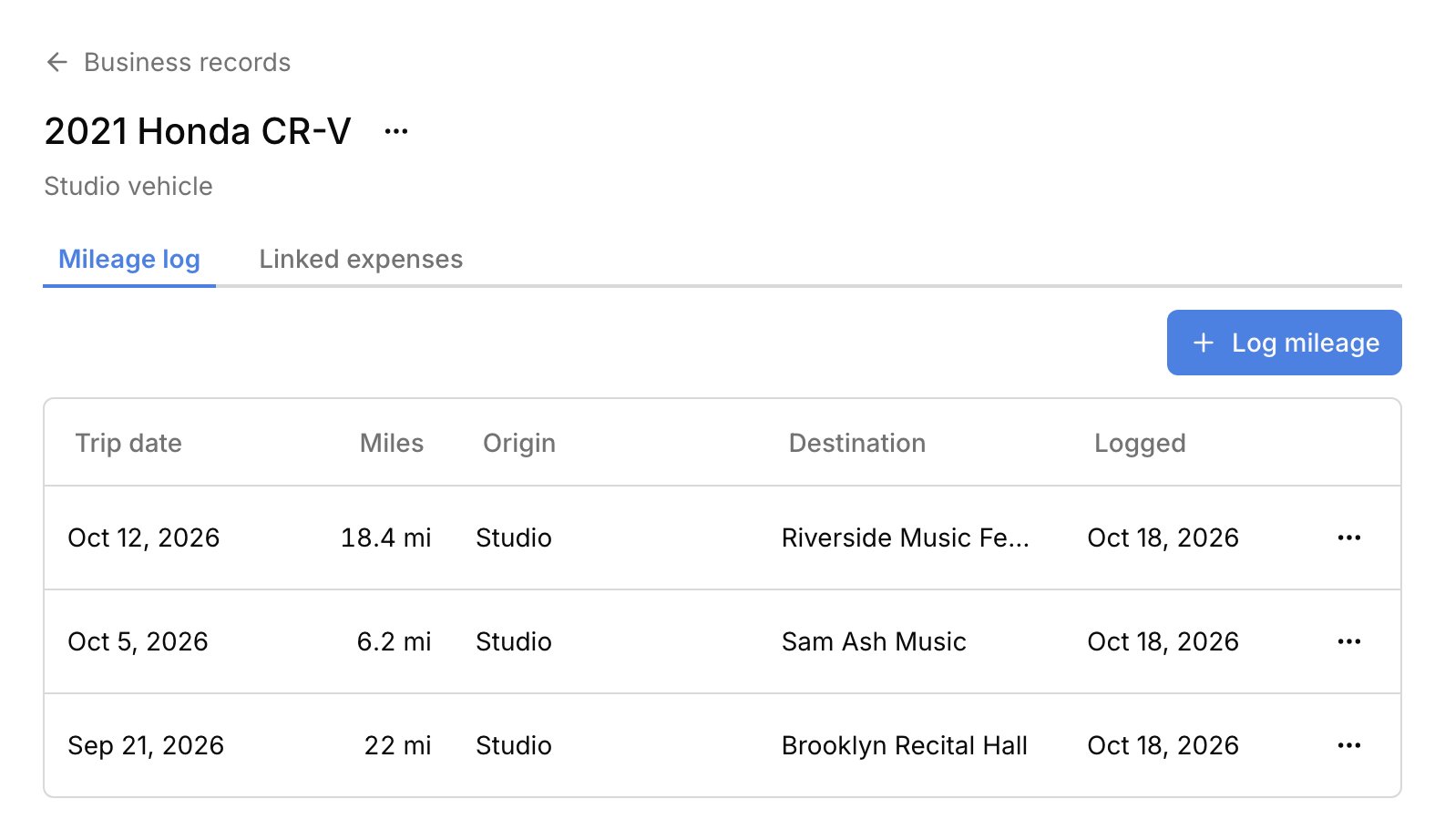
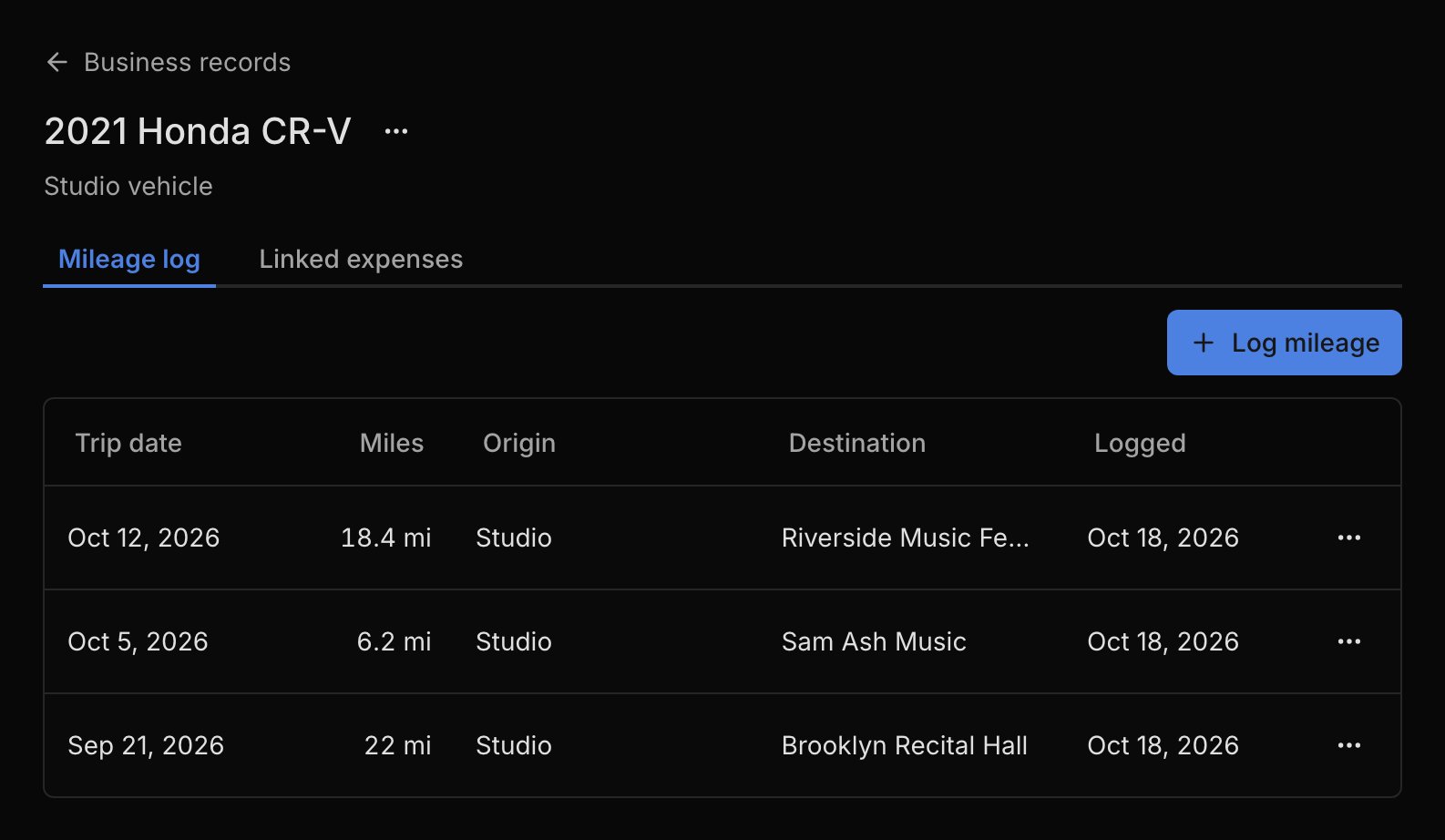
Each vehicle’s page keeps its records on two tabs. Mileage log lists every trip, newest first; click one to see its purpose or edit it, and use its ⋯ menu to delete it. Linked expenses lists the car costs tied to this vehicle: when you record an expense in the Car & Truck Expenses category, you pick the vehicle it’s for. The Business records list adds up each vehicle’s Lifetime miles. Trips are records, not money. They don’t appear in your reports or balances, and Harness doesn’t apply a mileage rate or work out a deduction. Mileage is on every plan.FAQ
Does Harness track my miles automatically?
Does Harness track my miles automatically?
No. You type each trip’s miles yourself. Harness doesn’t use GPS or work out the distance from the addresses.
Does Harness calculate my mileage deduction?
Does Harness calculate my mileage deduction?
No. Harness keeps the log and each vehicle’s total miles. You or your tax preparer apply the mileage rate.
Why don't my trips show in my reports?
Why don't my trips show in my reports?
Trips are records, not money, so they stay with the vehicle. Car costs you record as expenses, like gas and parking, do show in your Profit & Loss.
How do I get my mileage log to my accountant?
How do I get my mileage log to my accountant?
There’s no export or report for trips. Each vehicle’s full log is on its Mileage log tab.
Why can't I change which car a trip was for?
Why can't I change which car a trip was for?
A trip stays on the vehicle it was logged for. Delete it and log it again on the other vehicle.