
The default account
Every student has one default account, which pays for whatever their other rules don’t. Harness sets it up when you add the student, as a new account that bills their primary contact. A brother or sister gets their own new account too, so to bill them with the rest of the family, change their default to the family’s account. For a sign-up still waiting for approval, click Choose someone else on the student’s Billing tab to pick the payer before you approve it. A student’s sidebar lists who pays for them under Paid by.Split with another account
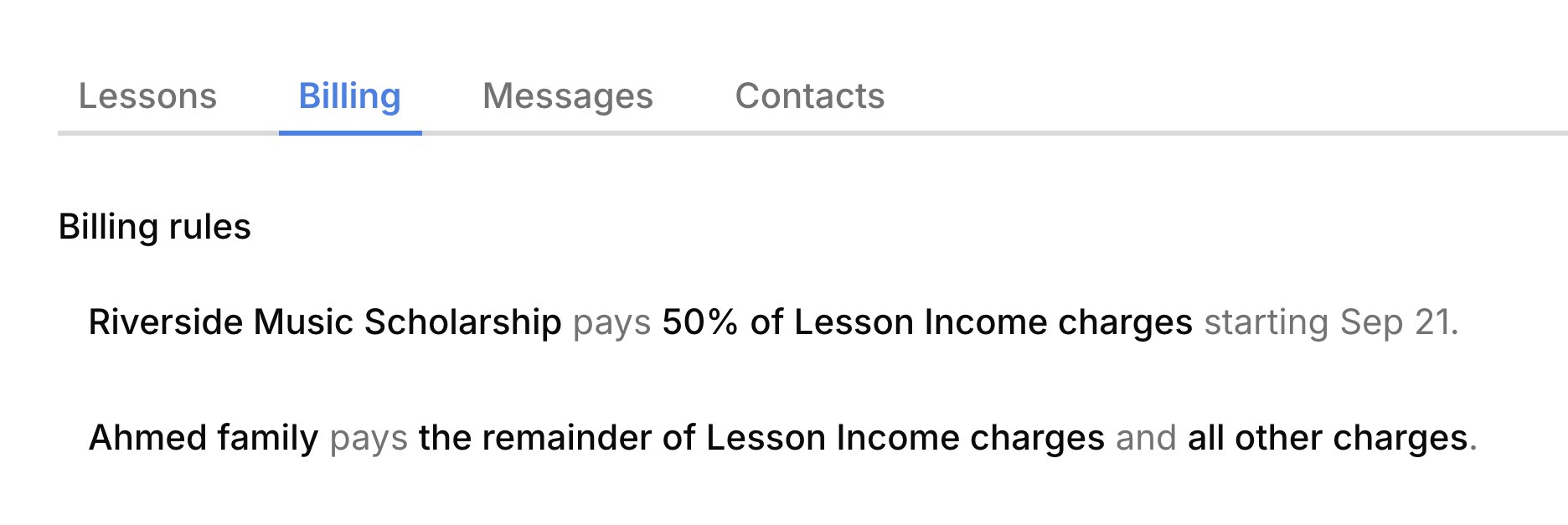
A rule sends part of a student’s charges to a second account, like a scholarship paying half of lessons or a grandparent paying up to $15 of each lesson. On the student’s Billing tab, click + (Add rule) beside Billing rules, then fill in the blanks of one sentence: who pays, how much, which charges, and between which dates. The share can be a percent of each charge or up to a dollar amount of each one, and it can cover all charges or just one category, like lessons. If the payer has no account yet, pick Create account from the list. Click Save, and the rule appears on the tab as that sentence; click it any time to change it. Rules apply to every new charge, fees included. To send just one fee somewhere else, pick the student under For and the payer under Account when you add the charge. From then on, each payer gets their own charge for their share, so everyone is invoiced only for their part. The paying account lists the student under Pays for.Change who pays
Change the default when a different account should pay everything the other rules don’t, like moving a new sibling onto the family’s account.1
Open the Billing tab
On the student’s page, open the Billing tab.
2
Pick the new payer
Click the default’s sentence, the last one in the list, and pick another account.
3
Save
Click Save.
End a rule
End a rule when the arrangement behind it is over. Click the rule and give it an end date, or hover it and click the trash icon to remove it if it was a mistake. A removed rule goes at once, and Undo in the message brings it back. The default account can be changed but never removed, since someone always pays the rest. Closing an account removes every rule that names it, so its students may need a new payer.FAQ
Why does the scholarship pay less than 50%?
Why does the scholarship pay less than 50%?
A rule for all charges takes its share after any rules for a single category, like lessons, have taken theirs.
I changed the rule, so why didn't last month's charges move?
I changed the rule, so why didn't last month's charges move?
Changing a rule doesn’t move charges already recorded. To move one that isn’t paid or on a sent invoice, change its Account; see Change or void a charge.
Why can't I add charges or mark attendance for this student?
Why can't I add charges or mark attendance for this student?
No one is set to pay for them, usually because the account that paid was closed. The student shows Billing setup incomplete, and lessons can’t be charged when you mark attendance. On their Billing tab, click Choose who pays and pick an account.
Why was an old lesson billed under a rule that already ended?
Why was an old lesson billed under a rule that already ended?
Rules follow the lesson’s date, not the day you mark it. A lesson from before the end date bills the way the rule said then.