
Built-in categories
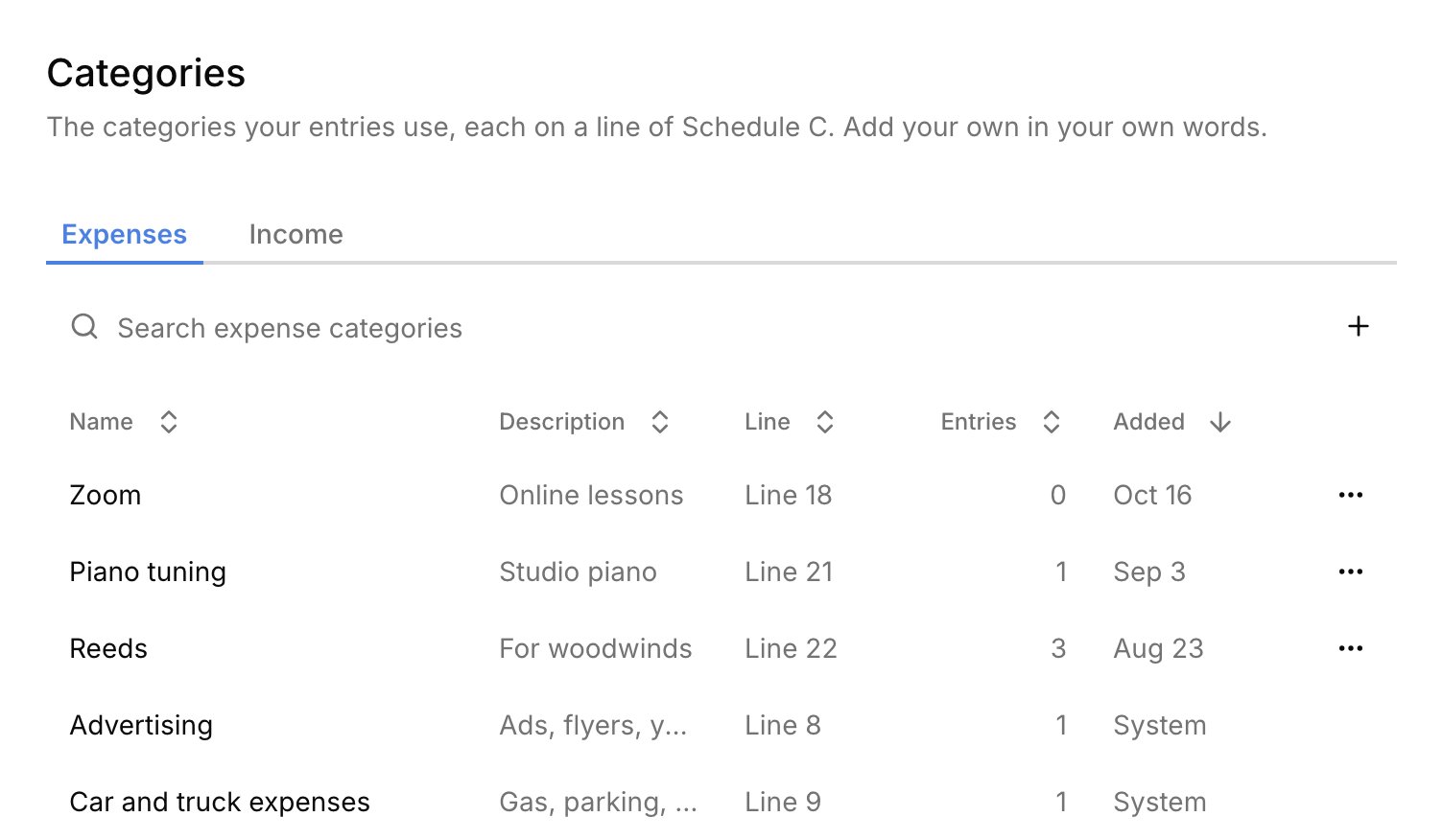
Harness comes with a set of categories, marked System, that follow the Schedule C lines. They’re the same for every studio, so you can’t rename or remove them. A few aren’t deductible and get their own section of your Profit & Loss. Anything Harness records on its own, like lesson charges and Stripe fees, is already sorted.Add your own
Add a category when the built-in ones don’t say it your way, like Reeds or Zoom. In Settings → Categories, open the Expenses or Income tab, click +, and give it a name and a tax line. You can also make one as you go: in any category list, like the one on a new expense or charge, type a name that isn’t there yet and Harness offers to create it. A new expense category asks which tax line it goes on.No category
A category is optional, so you can save a charge or expense now and sort it later. Entries without one read No category in Transactions and get their own No category row on your Profit & Loss, still counted in your totals. Click that row to see them. To sort an entry, click it in Finances → Transactions and pick a Category. You can change an entry’s category any time, even on a charge that’s on a sent invoice. Lines you type on an invoice start at No category too; pick one under the line. Recurring charges are the exception: every fee needs a category.Change a category
Click one of your own categories to change its name, description, or tax line. A new tax line moves all of its entries in every report, past years included, so Harness shows what will move before you confirm.Archive, merge, or delete
When you stop using one of your own categories, choose what happens to it from its ⋯ menu.- Archive hides it from category lists, but everything on it keeps it, including recurring charges that bill under it. Show archived at the bottom of the list shows it again, and Restore brings it back.
- Merge into moves everything on it to another category, yours or a built-in one, then removes it. It can’t be undone.
- Delete removes a category no entry or recurring charge uses. If a billing rule is set to it, Harness lists those rules, and they’re removed with it.
FAQ
Why can't I rename or delete Supplies?
Why can't I rename or delete Supplies?
Supplies is one of Harness’s built-in categories, which are locked. Add your own with the name you want, or merge one of yours into Supplies.
Why is there no Delete on my category?
Why is there no Delete on my category?
Delete only shows when no entry or recurring charge uses the category. Archive or merge it instead.
Why is Harness asking about past entries?
Why is Harness asking about past entries?
The change would alter what you deducted in an earlier year, so tax reports you’ve already used or filed may no longer match. Go back to leave those years as they are.
Why can't I create Reeds? It's not in the list.
Why can't I create Reeds? It's not in the list.
You have an archived category called Reeds, and Harness won’t make a second one with the same name. Restore it from Show archived in Settings → Categories.