
Write your policy
Most teachers already have their policy in a document, so you can paste it straight in. Go to Settings → Policy, click Create policy, paste or type your terms, and click Create Policy. Pasted headings and lists keep their formatting. Your policy goes live the moment you create it, so finish it before you save. You can also paste it while you set up your studio, or choose I’ll do this later to skip that step.Families agree at sign-up
While your policy is published, families agree to it before they can join. Your sign-up form ends with a required checkbox: “I have read and agree to the studio policy, including policies on cancellations, payments, and lesson expectations.” There’s nothing to switch on.Update your policy
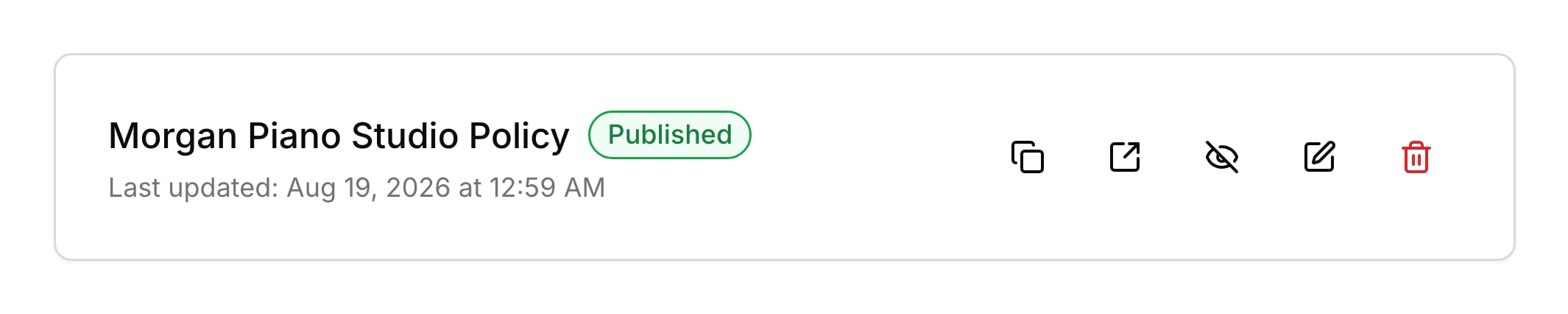
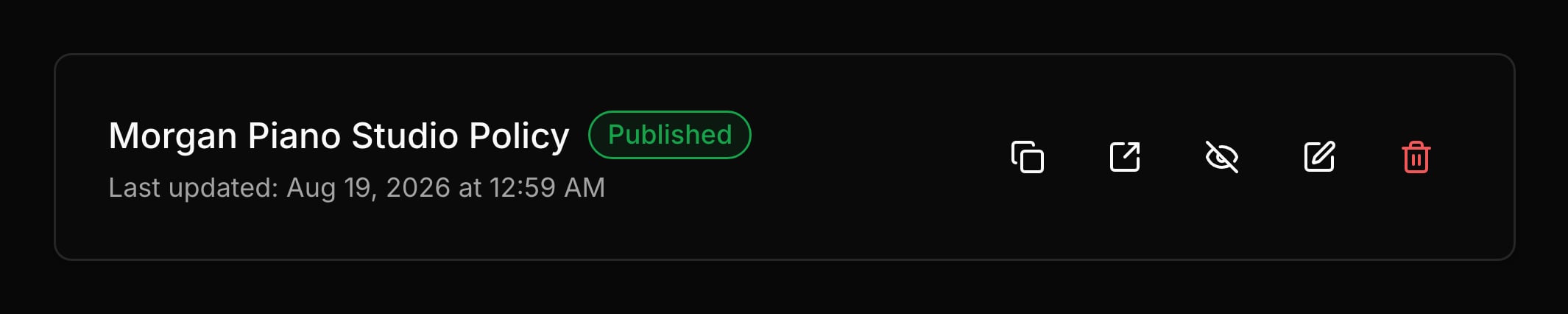
When you edit your policy, the page at its link changes, so families always read the latest version. Click Edit policy on the policy card, make your changes, and click Save Changes. If the policy is published, Harness then asks whether to tell families. Send Notification emails the primary contact of each student with an upcoming lesson, and No Thanks sends nothing. Each email shows on the family’s Messages tab, like your other messages.Unpublish or delete
Unpublishing takes your policy offline but keeps the text, so you can bring it back later. Click Unpublish policy and the card shows Draft: the link stops working, the checkbox leaves your sign-up form, and the link leaves the portal. Click Publish policy to put it back at the same link. Delete policy removes it for good. You can write a new one afterward, but it gets a new link, so the link in older emails stops working.What your families see
Families read your policy on any device, without signing in. While it’s published, they find it in these places:- On your sign-up form, the words “studio policy” in the checkbox open the policy in a new tab.
- The policy page shows your studio name, the date you last changed it, and your policy.
- The welcome email a family gets when a student joins links to your policy.
- In the student portal, tapping your studio name shows a link to your full policies.
- When you choose to send an update, families get an email from you with a button to read the new policy. It says there’s nothing to do, and that continuing lessons means accepting the change.
FAQ
Why didn't a family get the policy update?
Why didn't a family get the policy update?
The update goes only to the primary contact of each student with an upcoming lesson. Pending sign-ups and students with nothing on the calendar don’t get it.
Why didn't Harness ask to email families when I published?
Why didn't Harness ask to email families when I published?
Harness asks only after you save changes to a policy that’s already published. Creating or publishing a policy sends nothing.
Do my current students have to agree again?
Do my current students have to agree again?
No, only new sign-ups tick the box. The update email tells current families that continuing lessons means accepting the change.
Can I see who agreed to my policy?
Can I see who agreed to my policy?
No. Harness requires the checkbox before a family can sign up, but it doesn’t keep a record of who ticked it.
Why did my old policy link stop working?
Why did my old policy link stop working?
The policy was unpublished or deleted. Publishing again brings back the same link, but a new policy after a delete has a new one. Click Copy link on the policy card to share it.