> ## Documentation Index
> Fetch the complete documentation index at: https://harnesscalendar.com/docs/llms.txt
> Use this file to discover all available pages before exploring further.
# Scheduling links
> Scheduling links are pages where families pick a time from your openings.
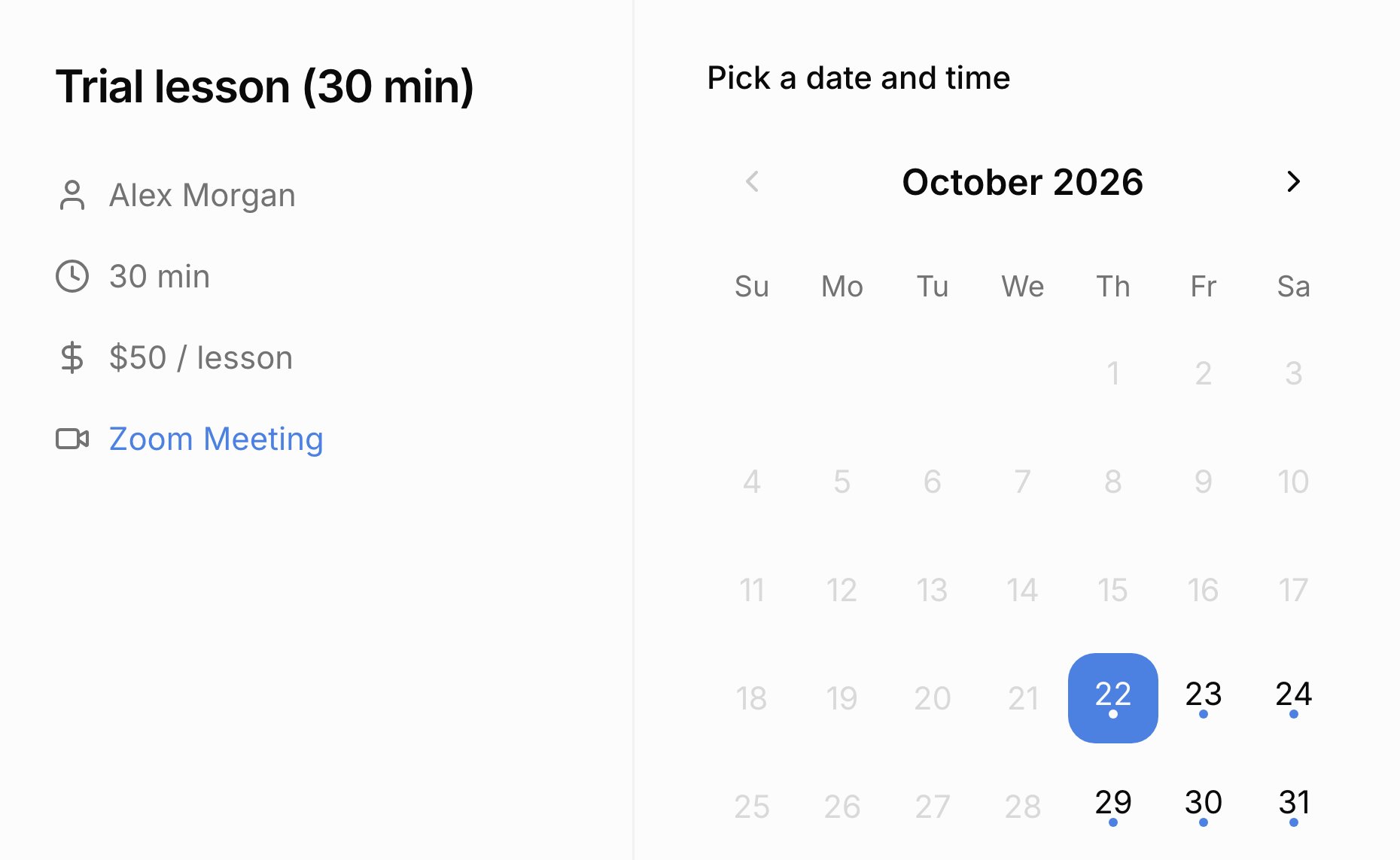
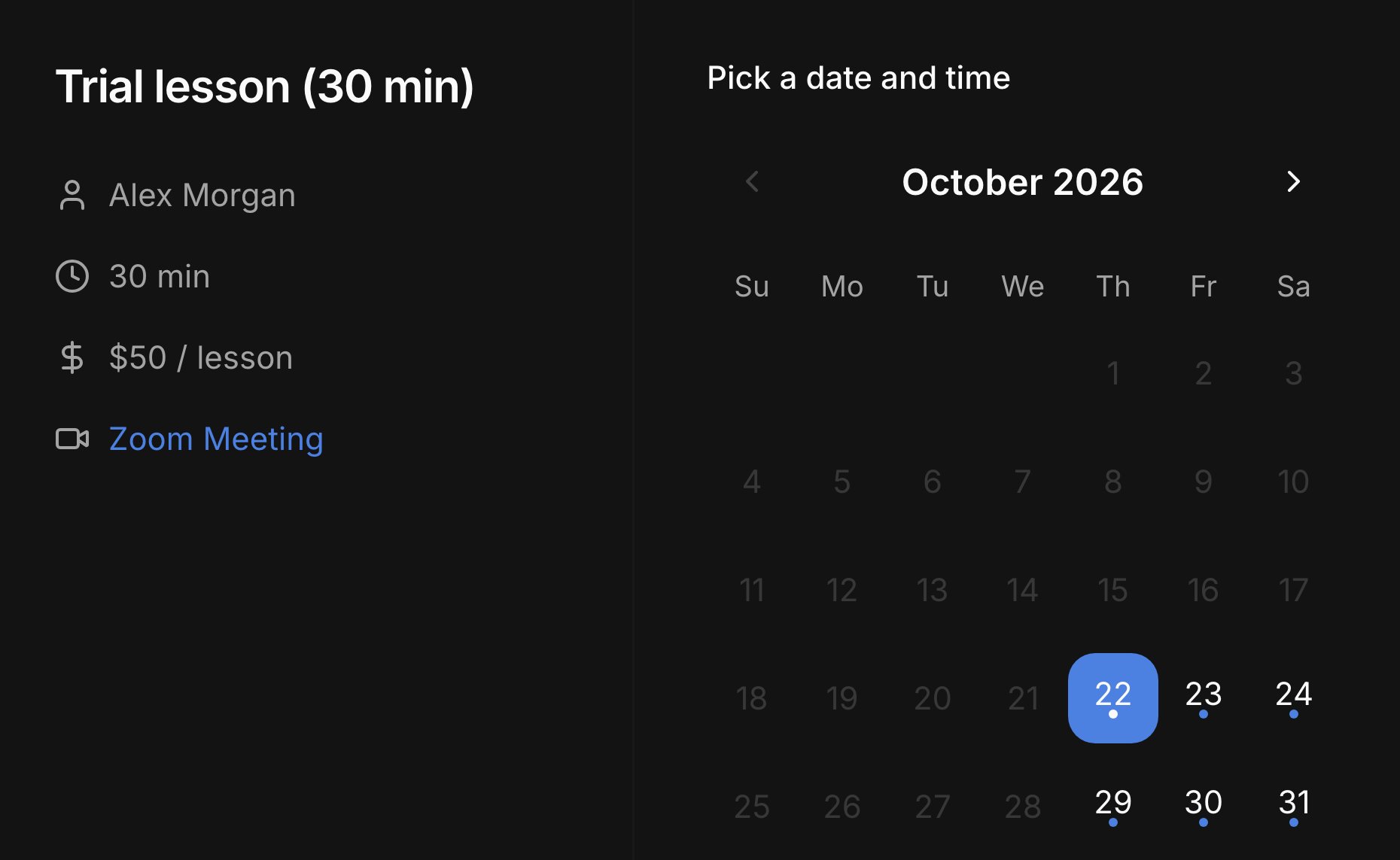 Share a link, and a family picks a time without making an account. The event lands on your [calendar](/docs/calendar) right away, and a lesson booking waits until you match it to a student. Scheduling links are on the [Professional plan](/docs/your-plan).
## Kinds of links
Every link starts from one of three kinds, and you can change any of its settings later.
* **Open Booking**: drop-in times, like a consultation. Each booking makes one event, and the link stays open for the next family.
* **Standing Time**: a regular weekly lesson. Each booking repeats weekly at the booked time.
* **One-off**: a single meeting, like a trial with someone new. You offer specific dates, and the link closes after one booking.
## Create and share a link
You build links on the calendar, and settings save as you go.
On the calendar, click **Scheduling**, then **+**, and pick a kind. Harness creates the link and opens its settings.
The **Name** is the title families see. **Event Duration** sets how long every booking runs.
Click **+ Weekly window** or **+ Ad-hoc window**, or drag on the calendar grid while the link is open.
Turn on **Book as lesson** to make each booking a lesson you match to a student. Leave it off for a plain event with nothing to review, like a parent meeting. Turn on **Enable payment** to set a rate.
Click **Copy link** and send it however you like. Once you write a **Message template**, **Copy with message** adds your note.
The **Scheduling** panel, where you make links and review bookings, isn't on a phone. See [Install Harness](/docs/install).
## Where availability comes from
A link offers times only inside its windows. The windows are the link's own, or come from an [annotation](/docs/annotations#use-with-scheduling-links) like your teaching hours, picked under **Source**. Families see only times after your **Minimum notice** and no further ahead than you allow. Turn on **Avoid calendar conflicts** to cross out times that overlap your events. On the calendar, each link's windows show as striped bars in its color, and you can drag them to change the times.
## Review bookings
Lesson bookings wait under **Pending Bookings** so you can say which student each is for. The event is already on your calendar; review decides who it belongs to, and the lesson isn't charged until then. Each booking is marked **Matches \[Name]** when the booker's email matches a contact, or **New contact**, and the **Scheduling** button shows a count while any wait. When someone books, you get an email and a [notification](/docs/inbox-and-notifications).
* **Confirm match** puts the matched student on the lesson.
* **Create student** adds a new [student](/docs/students) from the booking, with their own billing.
* **Link to student** puts a student you already have on the lesson, and can add the booker as their contact.
* **Dismiss** clears it from the list, leaving the event on your calendar.
## Reschedule links
A reschedule link lets a family pick a new time for an event already on your calendar. Right-click the event and choose **Reschedule**, or click **Reschedule** in the event window, and Harness copies a one-time link and opens its settings. It starts with no times, so add the times you can offer before you send it. For one date of a repeating lesson, **Move scope** picks **This event only** or **This and following**. When the family picks a time, the event moves right away and their contacts involved in **Scheduling** are [emailed](/docs/contacts#who-gets-emails).
To move it yourself, [drag it on the calendar](/docs/calendar#move-resize-and-unschedule).
## Pause or delete
Pausing takes a link offline without losing anything, until you choose **Resume**. Deleting is permanent and drops any bookings still waiting for review, so pause instead if any are waiting. Either way, events already booked stay on your calendar. Both are in the link's settings and the **⋯** menu on its row.
## What your families see
Families book from any device, with nothing to sign up for.
* On the booking page, they pick a time, shown in their own time zone, then enter their name and email and click **Confirm Booking**. The page shows your name, the length, any rate, and the location; a video link shows as a clickable label, like "Zoom Meeting", before they book.
* After booking, they see a confirmation page with **Add to Google Calendar** and **Download .ics**, and get an email with a calendar invite.
* On a reschedule page, they give no name or email. They pick a time and click **Submit**, and their contacts get an email with the new time and an invite.
* A paused, used, or deleted link shows "Link Not Found", and an expired one shows "Link Expired".
## FAQ
A link shows only times inside its windows, and crosses out times that are already taken. See [where availability comes from](#where-availability-comes-from).
No. They give a name and email on the booking page, and a reschedule link asks for nothing.
No, each link has one length. Make a second link for the other length and share both.
Yes. Under **Location**, choose **Video call** and paste your meeting link. Every booking gets the same link; Harness doesn't create meeting rooms.
An all-day event doesn't block booking times. Cover those hours with a timed event and turn on **Avoid calendar conflicts**, or [pause the link](#pause-or-delete) while you're away.
This documentation is built and hosted on [Mintlify](https://mintlify.com), a developer documentation platform.
Share a link, and a family picks a time without making an account. The event lands on your [calendar](/docs/calendar) right away, and a lesson booking waits until you match it to a student. Scheduling links are on the [Professional plan](/docs/your-plan).
## Kinds of links
Every link starts from one of three kinds, and you can change any of its settings later.
* **Open Booking**: drop-in times, like a consultation. Each booking makes one event, and the link stays open for the next family.
* **Standing Time**: a regular weekly lesson. Each booking repeats weekly at the booked time.
* **One-off**: a single meeting, like a trial with someone new. You offer specific dates, and the link closes after one booking.
## Create and share a link
You build links on the calendar, and settings save as you go.
On the calendar, click **Scheduling**, then **+**, and pick a kind. Harness creates the link and opens its settings.
The **Name** is the title families see. **Event Duration** sets how long every booking runs.
Click **+ Weekly window** or **+ Ad-hoc window**, or drag on the calendar grid while the link is open.
Turn on **Book as lesson** to make each booking a lesson you match to a student. Leave it off for a plain event with nothing to review, like a parent meeting. Turn on **Enable payment** to set a rate.
Click **Copy link** and send it however you like. Once you write a **Message template**, **Copy with message** adds your note.
The **Scheduling** panel, where you make links and review bookings, isn't on a phone. See [Install Harness](/docs/install).
## Where availability comes from
A link offers times only inside its windows. The windows are the link's own, or come from an [annotation](/docs/annotations#use-with-scheduling-links) like your teaching hours, picked under **Source**. Families see only times after your **Minimum notice** and no further ahead than you allow. Turn on **Avoid calendar conflicts** to cross out times that overlap your events. On the calendar, each link's windows show as striped bars in its color, and you can drag them to change the times.
## Review bookings
Lesson bookings wait under **Pending Bookings** so you can say which student each is for. The event is already on your calendar; review decides who it belongs to, and the lesson isn't charged until then. Each booking is marked **Matches \[Name]** when the booker's email matches a contact, or **New contact**, and the **Scheduling** button shows a count while any wait. When someone books, you get an email and a [notification](/docs/inbox-and-notifications).
* **Confirm match** puts the matched student on the lesson.
* **Create student** adds a new [student](/docs/students) from the booking, with their own billing.
* **Link to student** puts a student you already have on the lesson, and can add the booker as their contact.
* **Dismiss** clears it from the list, leaving the event on your calendar.
## Reschedule links
A reschedule link lets a family pick a new time for an event already on your calendar. Right-click the event and choose **Reschedule**, or click **Reschedule** in the event window, and Harness copies a one-time link and opens its settings. It starts with no times, so add the times you can offer before you send it. For one date of a repeating lesson, **Move scope** picks **This event only** or **This and following**. When the family picks a time, the event moves right away and their contacts involved in **Scheduling** are [emailed](/docs/contacts#who-gets-emails).
To move it yourself, [drag it on the calendar](/docs/calendar#move-resize-and-unschedule).
## Pause or delete
Pausing takes a link offline without losing anything, until you choose **Resume**. Deleting is permanent and drops any bookings still waiting for review, so pause instead if any are waiting. Either way, events already booked stay on your calendar. Both are in the link's settings and the **⋯** menu on its row.
## What your families see
Families book from any device, with nothing to sign up for.
* On the booking page, they pick a time, shown in their own time zone, then enter their name and email and click **Confirm Booking**. The page shows your name, the length, any rate, and the location; a video link shows as a clickable label, like "Zoom Meeting", before they book.
* After booking, they see a confirmation page with **Add to Google Calendar** and **Download .ics**, and get an email with a calendar invite.
* On a reschedule page, they give no name or email. They pick a time and click **Submit**, and their contacts get an email with the new time and an invite.
* A paused, used, or deleted link shows "Link Not Found", and an expired one shows "Link Expired".
## FAQ
A link shows only times inside its windows, and crosses out times that are already taken. See [where availability comes from](#where-availability-comes-from).
No. They give a name and email on the booking page, and a reschedule link asks for nothing.
No, each link has one length. Make a second link for the other length and share both.
Yes. Under **Location**, choose **Video call** and paste your meeting link. Every booking gets the same link; Harness doesn't create meeting rooms.
An all-day event doesn't block booking times. Cover those hours with a timed event and turn on **Avoid calendar conflicts**, or [pause the link](#pause-or-delete) while you're away.
This documentation is built and hosted on [Mintlify](https://mintlify.com), a developer documentation platform.