> ## Documentation Index
> Fetch the complete documentation index at: https://harnesscalendar.com/docs/llms.txt
> Use this file to discover all available pages before exploring further.
# Reports
> Reports are saved statements of your studio's money for any dates you choose.
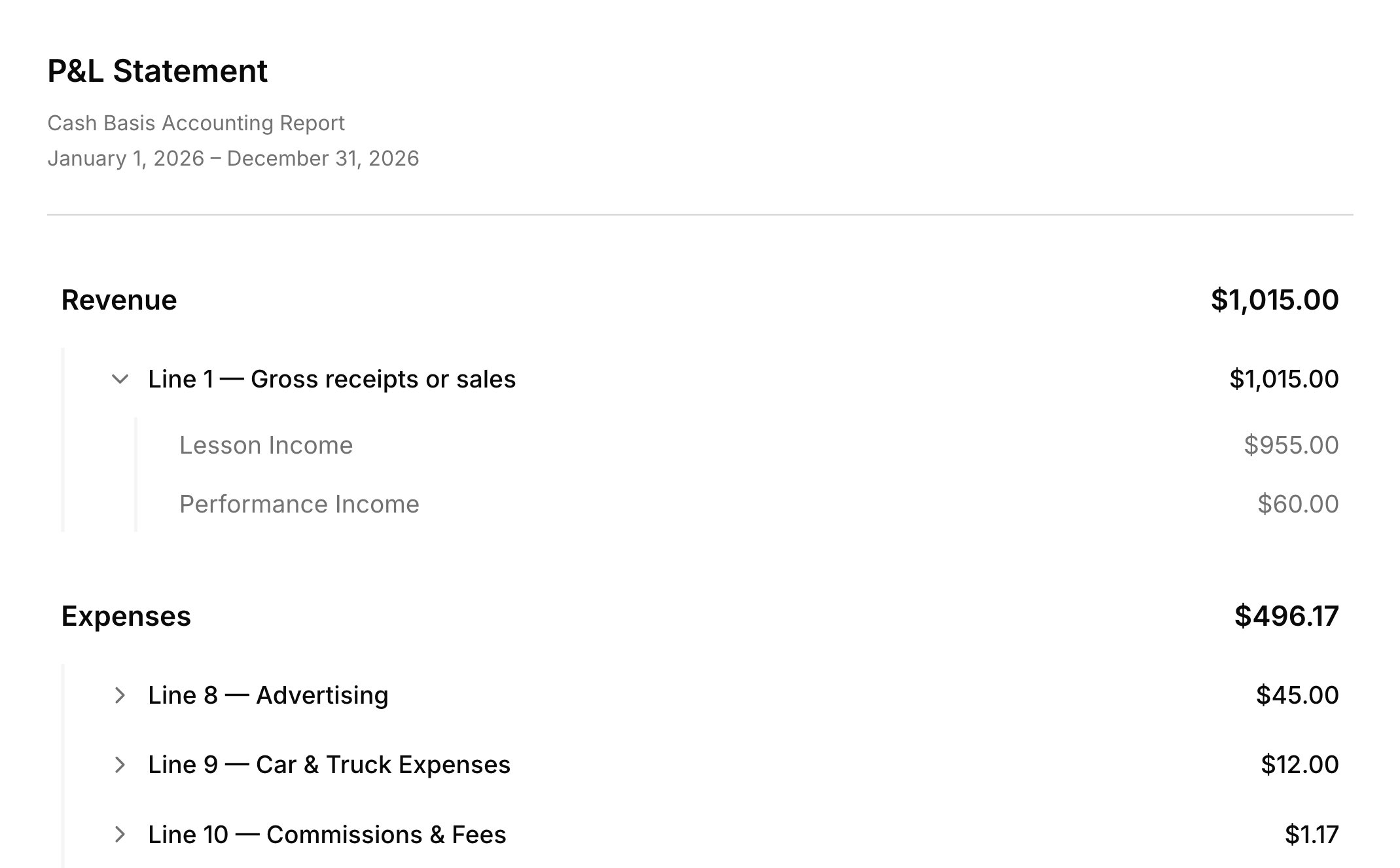
 Reports turn your studio's money into something you can read at a glance or hand to an accountant: a profit and loss statement, or a list of every transaction. They're built from the payments, charges, and expenses already in [Transactions](/docs/transactions), so there's nothing extra to enter. Reports are on every plan.
## Profit and loss
The profit and loss statement shows money in against money out for the dates you pick, so you can see whether the studio made money. Click **Create Report** in **Finances → Reports**, choose **P\&L Statement**, and set the dates. Income is the payments you received for lessons and other charges, and expenses are the ones you [record](/docs/expenses). Lines follow Schedule C, the tax form for self-employed income, so your accountant can read it line by line. Click a line to open it, then a category to see the entries behind it.
## Transaction report
A transaction report lists every entry in a date range: charges, payments, refunds, expenses, and the rest. Choose **Transaction Report** when you create the report, then use **Group by** to sort the rows by account, student, month, or another grouping. Each group shows how many entries it holds and their total. There's no lesson-count report, but grouping by **Student** shows each student's charges for those dates. Voided entries stay on the list, struck through, and never count toward the totals; tick **Hide voided** to leave them out. A report's type is set when you first save it, so start a new report to switch.
## Save and export
A saved report keeps its type, dates, and options, not its numbers, so it shows the latest figures every time you open it. Click **Save changes** to keep a report on the **Finances → Reports** list. For a fixed copy, or one to send your accountant, use **Download as PDF** or **Export as CSV** in the report's header. Mileage isn't part of any report; your trips stay in the [mileage log](/docs/mileage).
## FAQ
Yes. Download the profit and loss statement as a PDF or CSV. It's cash basis and laid out by Schedule C line, with a reminder to check it with your tax professional before filing.
No. Income comes from the payments recorded in Harness, including the ones families make online, and you [record expenses](/docs/expenses#record-an-expense) yourself.
Saved reports show the latest data each time you open them, so a payment or expense recorded, edited, or voided since then changes the totals. Download a PDF or CSV to keep a snapshot.
Refunds give back money held on the account, which was never counted as income. To take back a paid lesson, use [Cancel & refund](/docs/refunds#cancel-and-refund-a-charge): voiding the charge lowers your income.
Not in Reports. On **Finances → Accounts**, sort the **Balance** column to see who owes the most. See [Accounts](/docs/accounts).
This documentation is built and hosted on [Mintlify](https://mintlify.com), a developer documentation platform.
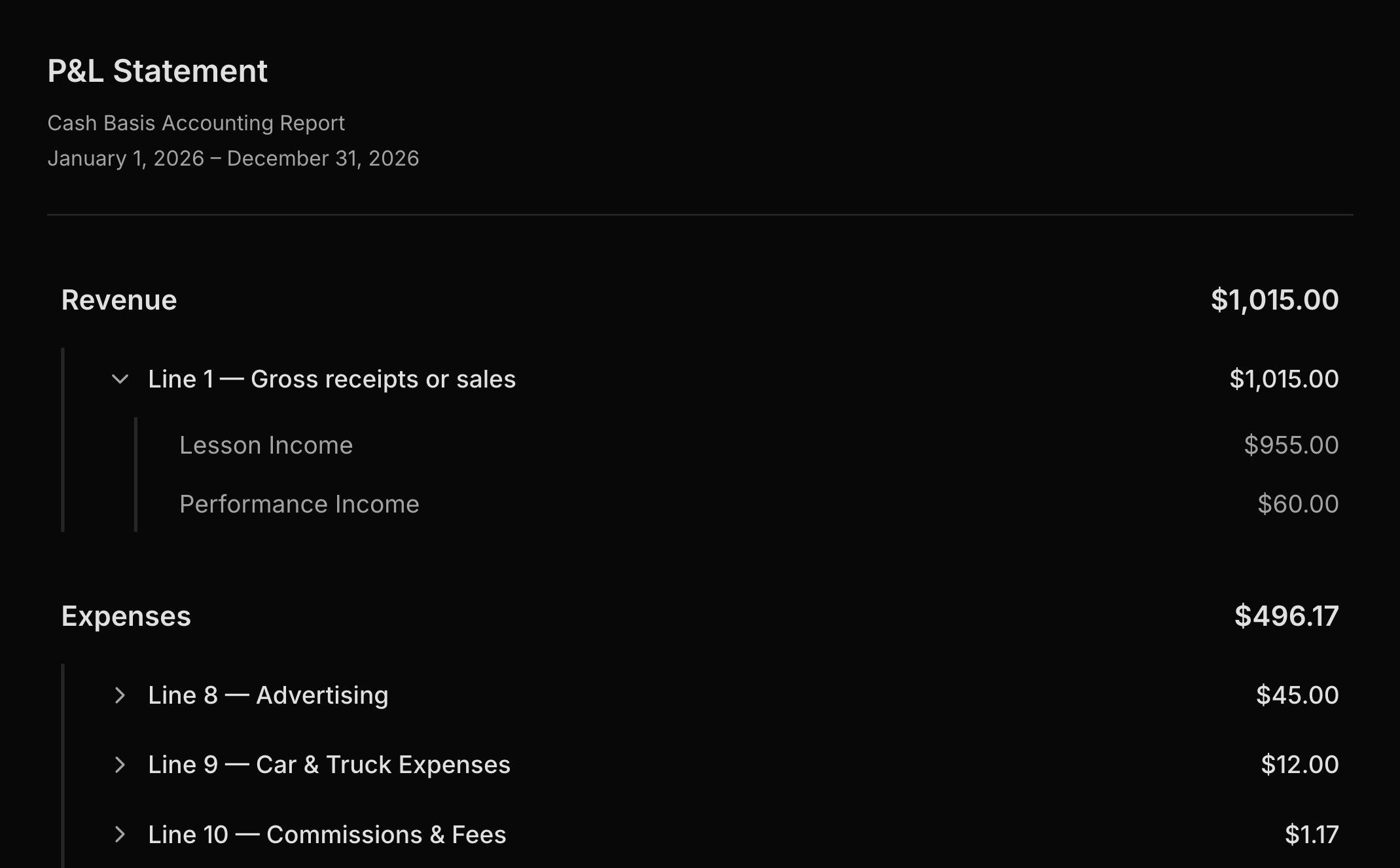
Reports turn your studio's money into something you can read at a glance or hand to an accountant: a profit and loss statement, or a list of every transaction. They're built from the payments, charges, and expenses already in [Transactions](/docs/transactions), so there's nothing extra to enter. Reports are on every plan.
## Profit and loss
The profit and loss statement shows money in against money out for the dates you pick, so you can see whether the studio made money. Click **Create Report** in **Finances → Reports**, choose **P\&L Statement**, and set the dates. Income is the payments you received for lessons and other charges, and expenses are the ones you [record](/docs/expenses). Lines follow Schedule C, the tax form for self-employed income, so your accountant can read it line by line. Click a line to open it, then a category to see the entries behind it.
## Transaction report
A transaction report lists every entry in a date range: charges, payments, refunds, expenses, and the rest. Choose **Transaction Report** when you create the report, then use **Group by** to sort the rows by account, student, month, or another grouping. Each group shows how many entries it holds and their total. There's no lesson-count report, but grouping by **Student** shows each student's charges for those dates. Voided entries stay on the list, struck through, and never count toward the totals; tick **Hide voided** to leave them out. A report's type is set when you first save it, so start a new report to switch.
## Save and export
A saved report keeps its type, dates, and options, not its numbers, so it shows the latest figures every time you open it. Click **Save changes** to keep a report on the **Finances → Reports** list. For a fixed copy, or one to send your accountant, use **Download as PDF** or **Export as CSV** in the report's header. Mileage isn't part of any report; your trips stay in the [mileage log](/docs/mileage).
## FAQ
Yes. Download the profit and loss statement as a PDF or CSV. It's cash basis and laid out by Schedule C line, with a reminder to check it with your tax professional before filing.
No. Income comes from the payments recorded in Harness, including the ones families make online, and you [record expenses](/docs/expenses#record-an-expense) yourself.
Saved reports show the latest data each time you open them, so a payment or expense recorded, edited, or voided since then changes the totals. Download a PDF or CSV to keep a snapshot.
Refunds give back money held on the account, which was never counted as income. To take back a paid lesson, use [Cancel & refund](/docs/refunds#cancel-and-refund-a-charge): voiding the charge lowers your income.
Not in Reports. On **Finances → Accounts**, sort the **Balance** column to see who owes the most. See [Accounts](/docs/accounts).
This documentation is built and hosted on [Mintlify](https://mintlify.com), a developer documentation platform.