> ## Documentation Index
> Fetch the complete documentation index at: https://harnesscalendar.com/docs/llms.txt
> Use this file to discover all available pages before exploring further.
# Payments
> A payment is money a family paid you, recorded on their account.
 Most families pay outside Harness, by cash, check, or an app like Zelle, and you record it in a few seconds. Payments made through an invoice's pay link record themselves. Either way, the payment lands on the family's [account](/docs/accounts) and lowers what they owe.
## Record a payment
Record a payment whenever a family pays you outside Harness.
Choose **Record payment** from the **⋯** menu of what the family paid for. Usually that's the invoice, in **Finances → Invoices**. Use the account's menu in **Finances → Accounts** for a lump sum that settles up what they owe, or a charge's menu in **Finances → Transactions** to pay just that charge.
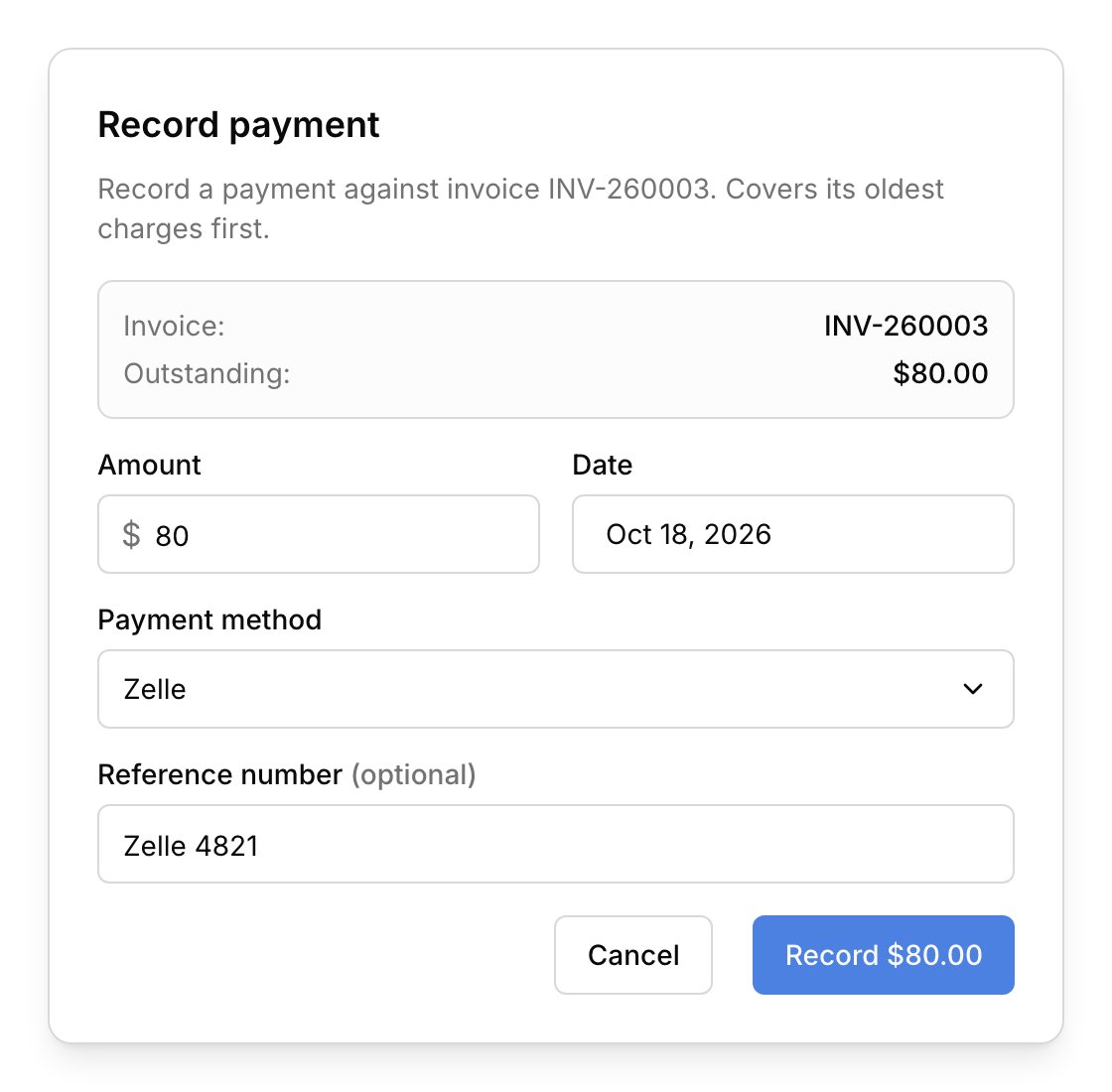
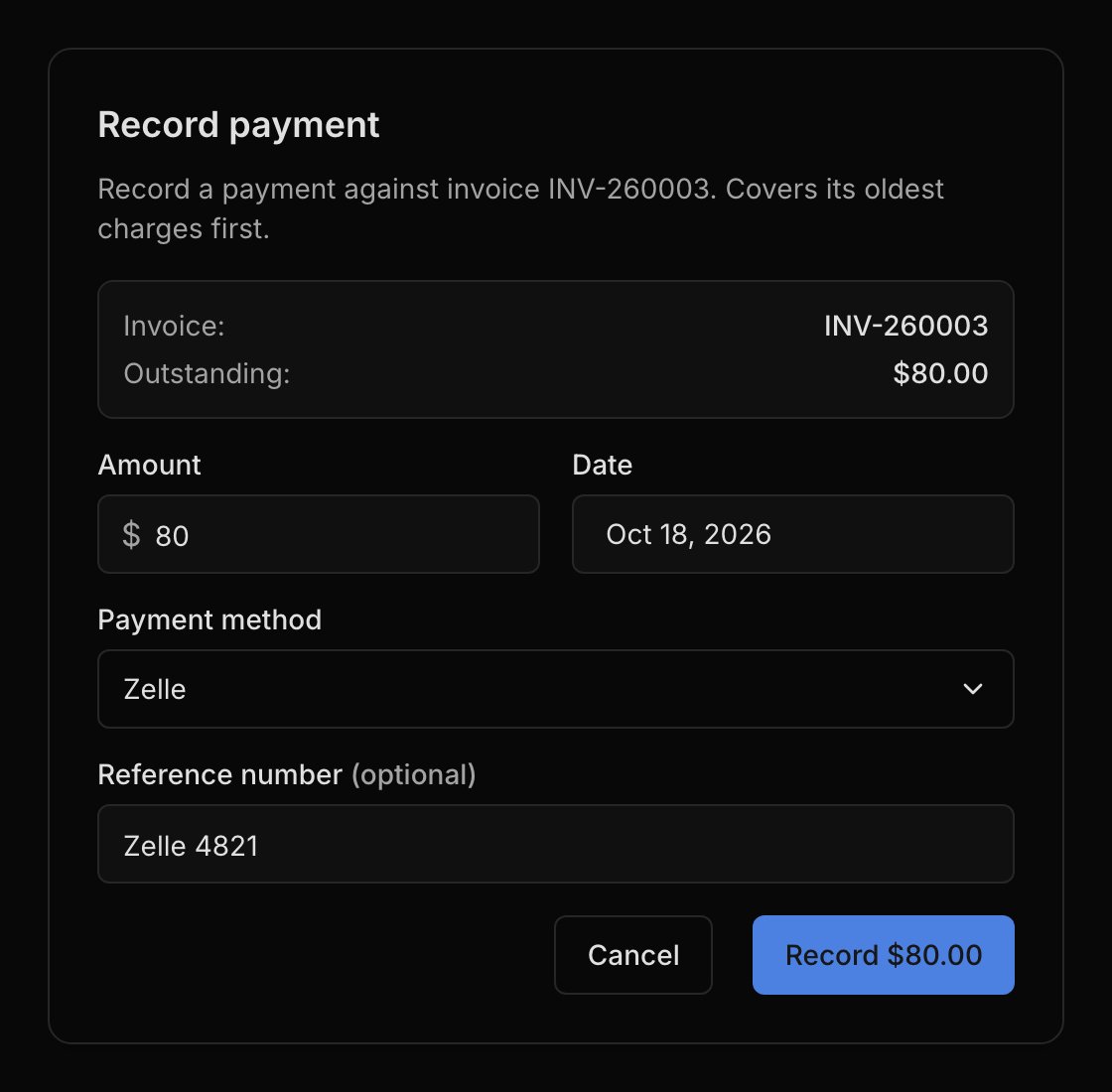
The amount starts at what's owed. Enter less for a partial payment, or more and the form shows how much will be held on the account.
Set the **Date** the family paid and the **Payment method**, like **Cash**, **Check**, **Zelle**, or **Venmo**. Add a **Reference number** if you like, such as a Zelle confirmation. It's saved with the payment and included when you download a [transaction report](/docs/reports#transaction-report) as a CSV.
Click **Record \$X**, which shows the amount. The invoice and the account's balance update right away.
If the invoice has a pay link, recording a payment by hand turns the link off so the family can't pay twice. Harness asks before it does.
## Online payments record themselves
When a family pays through an invoice's pay link, you don't need to record anything. A card payment is recorded the moment it goes through. A bank payment shows as **Processing** for a few business days while it clears, then is recorded when it lands (see [money on its way](/docs/transactions#money-on-its-way)). You get an email and an [inbox alert](/docs/inbox-and-notifications) for each one. For the ways families can pay, see [Online payments](/docs/online-payments#how-families-pay).
## Partial payments and overpayments
A family doesn't have to pay the exact amount owed. A smaller payment pays part of the invoice, and the rest stays owed. A larger one pays what's owed and holds the extra on the account, which shows as in credit on **Finances → Accounts**. The balance counts that money right away, and it comes off the next invoice you send. It's the family's own money, not [studio credit](/docs/credits), so you can also [refund it](/docs/refunds#refund-money-on-account).
If a family pays before you've sent an invoice, record the payment from the account's **⋯** menu. The account shows the money as in credit, and the next invoice you send goes out already paid, with an email telling the family no payment is needed.
## Fix a payment
Payments can't be edited, so to fix a mistake, void the payment and record it again. On a fully paid invoice, choose **Void payment** from the invoice's **⋯** menu. Otherwise, open **Finances → Transactions** and choose **Void transaction** on the payment's row (see [Fix a mistake](/docs/transactions#fix-a-mistake)). Either way, the charges it paid are owed again. A payment made online can't be voided, so give the money back with a [refund](/docs/refunds) instead.
## What your families see
Families don't get an email or a receipt when you record a payment. In the [student portal](/docs/student-portal), each invoice shows an **Amount paid** line, and a paid invoice is marked paid with its date. Money held on the account shows as an amount "applied to your next invoice".
## FAQ
Yes. Record the payment from the account's **⋯** menu first, then send the invoice, and it goes out already paid. See [Partial payments and overpayments](#partial-payments-and-overpayments).
Payments settle the oldest unpaid charges first. To pay a particular invoice, record the payment from that invoice.
A payment was recorded by hand on that invoice, which turns its pay link off. If the family opens the link, they're told it's no longer active and to contact you.
A bank payment on it is still on its way. Wait until it clears or fails, then try again.
The account is closed, and a closed account takes no new payments. [Reopen it](/docs/accounts#close-reopen-or-delete) first.
This documentation is built and hosted on [Mintlify](https://mintlify.com), a developer documentation platform.
Most families pay outside Harness, by cash, check, or an app like Zelle, and you record it in a few seconds. Payments made through an invoice's pay link record themselves. Either way, the payment lands on the family's [account](/docs/accounts) and lowers what they owe.
## Record a payment
Record a payment whenever a family pays you outside Harness.
Choose **Record payment** from the **⋯** menu of what the family paid for. Usually that's the invoice, in **Finances → Invoices**. Use the account's menu in **Finances → Accounts** for a lump sum that settles up what they owe, or a charge's menu in **Finances → Transactions** to pay just that charge.
The amount starts at what's owed. Enter less for a partial payment, or more and the form shows how much will be held on the account.
Set the **Date** the family paid and the **Payment method**, like **Cash**, **Check**, **Zelle**, or **Venmo**. Add a **Reference number** if you like, such as a Zelle confirmation. It's saved with the payment and included when you download a [transaction report](/docs/reports#transaction-report) as a CSV.
Click **Record \$X**, which shows the amount. The invoice and the account's balance update right away.
If the invoice has a pay link, recording a payment by hand turns the link off so the family can't pay twice. Harness asks before it does.
## Online payments record themselves
When a family pays through an invoice's pay link, you don't need to record anything. A card payment is recorded the moment it goes through. A bank payment shows as **Processing** for a few business days while it clears, then is recorded when it lands (see [money on its way](/docs/transactions#money-on-its-way)). You get an email and an [inbox alert](/docs/inbox-and-notifications) for each one. For the ways families can pay, see [Online payments](/docs/online-payments#how-families-pay).
## Partial payments and overpayments
A family doesn't have to pay the exact amount owed. A smaller payment pays part of the invoice, and the rest stays owed. A larger one pays what's owed and holds the extra on the account, which shows as in credit on **Finances → Accounts**. The balance counts that money right away, and it comes off the next invoice you send. It's the family's own money, not [studio credit](/docs/credits), so you can also [refund it](/docs/refunds#refund-money-on-account).
If a family pays before you've sent an invoice, record the payment from the account's **⋯** menu. The account shows the money as in credit, and the next invoice you send goes out already paid, with an email telling the family no payment is needed.
## Fix a payment
Payments can't be edited, so to fix a mistake, void the payment and record it again. On a fully paid invoice, choose **Void payment** from the invoice's **⋯** menu. Otherwise, open **Finances → Transactions** and choose **Void transaction** on the payment's row (see [Fix a mistake](/docs/transactions#fix-a-mistake)). Either way, the charges it paid are owed again. A payment made online can't be voided, so give the money back with a [refund](/docs/refunds) instead.
## What your families see
Families don't get an email or a receipt when you record a payment. In the [student portal](/docs/student-portal), each invoice shows an **Amount paid** line, and a paid invoice is marked paid with its date. Money held on the account shows as an amount "applied to your next invoice".
## FAQ
Yes. Record the payment from the account's **⋯** menu first, then send the invoice, and it goes out already paid. See [Partial payments and overpayments](#partial-payments-and-overpayments).
Payments settle the oldest unpaid charges first. To pay a particular invoice, record the payment from that invoice.
A payment was recorded by hand on that invoice, which turns its pay link off. If the family opens the link, they're told it's no longer active and to contact you.
A bank payment on it is still on its way. Wait until it clears or fails, then try again.
The account is closed, and a closed account takes no new payments. [Reopen it](/docs/accounts#close-reopen-or-delete) first.
This documentation is built and hosted on [Mintlify](https://mintlify.com), a developer documentation platform.