> ## Documentation Index
> Fetch the complete documentation index at: https://harnesscalendar.com/docs/llms.txt
> Use this file to discover all available pages before exploring further.
# Lessons
> Lessons are calendar events where you teach one or more students.
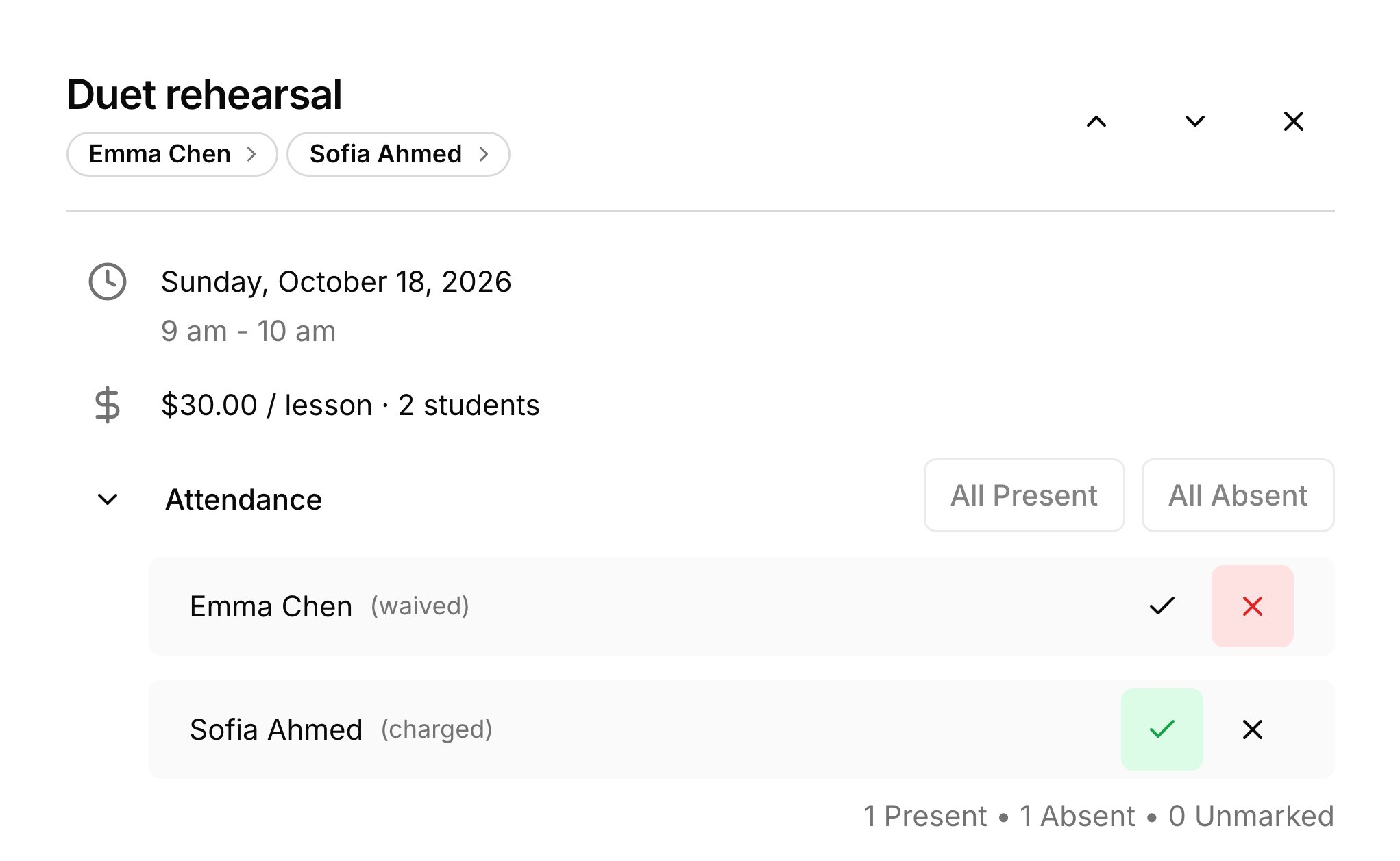
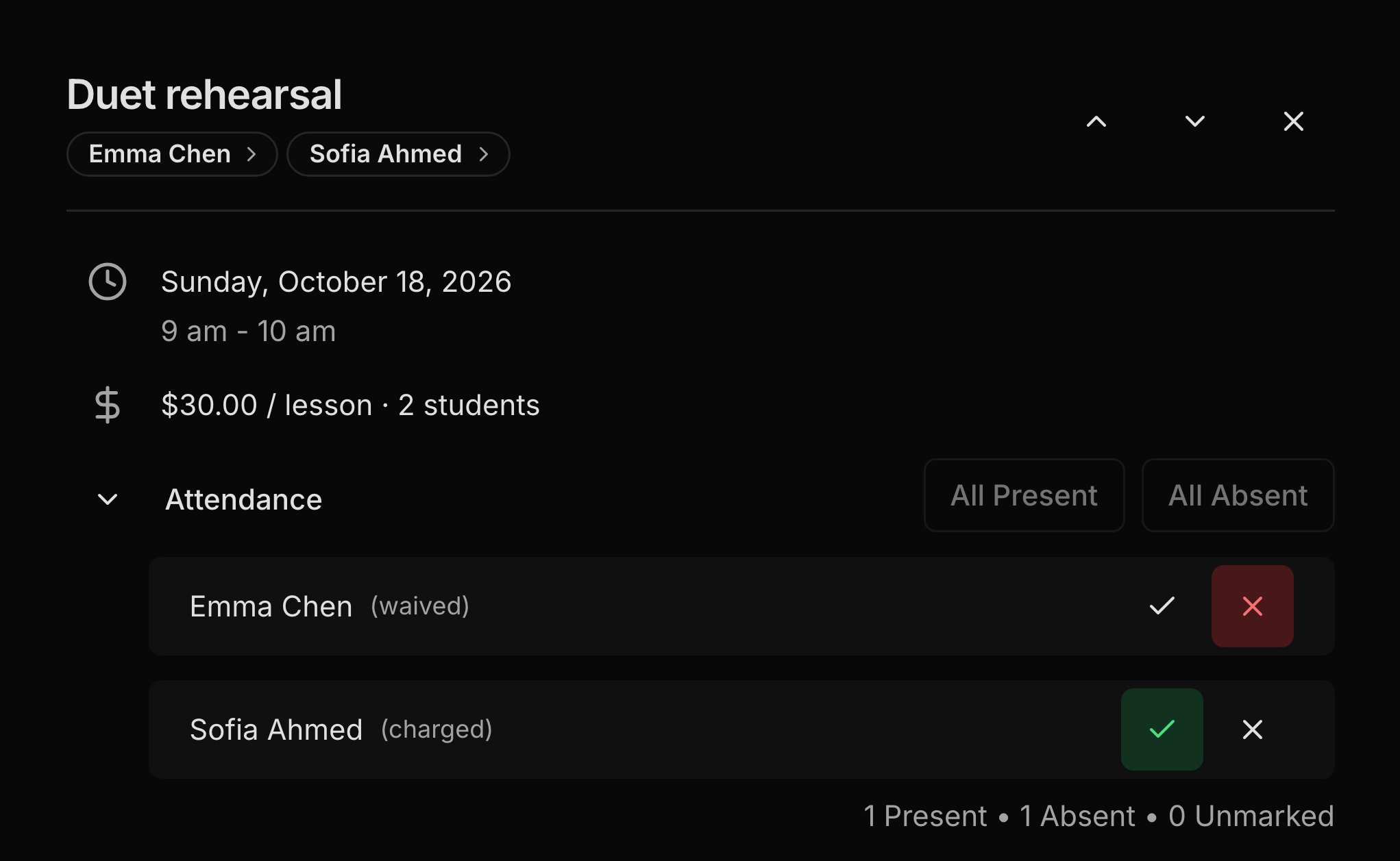 A lesson is charged when you mark attendance, to whoever pays for the student. Each lesson also holds your notes for the family, and families can tell you from the portal when a student can't make it.
## Make an event a lesson
Any event on your calendar becomes a lesson once you add students to it. In the event window, click the book icon (**Enable Lesson**) and add at least one student under **Add students**. Payment turns on with it, and your first rate preset fills in the price. Both switches lock once you save, so decide up front. If you bill a flat monthly tuition, click the dollar icon (**Disable Payment**) before saving and bill the tuition as a [recurring charge](/docs/recurring-charges). The rest of the event window is covered in [Calendar](/docs/calendar#create-an-event).
## Change the price
A lesson's price is its rate, and you change it in the event window like any other detail. To make one lesson free, set its rate to 0 and save for **This event only**. To stop charging per lesson for the rest of a series, clear the rate and save for **This and following events** or **All events**. Lessons you mark after that aren't charged, and charges already made keep the price they had.
## Mark attendance
Marking attendance is what charges a lesson. Open the lesson on the calendar or the Lessons page, then mark each student:
* **Present** charges the lesson's rate.
* **Absent**, then **Charge**, bills the lesson anyway, for a no-show policy.
* **Absent**, then **Waive**, records the absence with no charge.
A lesson with no rate tracks attendance only. Charges go to whoever pays for the student under their [billing rules](/docs/billing-rules), and the name then reads **(charged)**, **(waived)**, or **(no rate)**. In a group lesson, **All Present** and **All Absent** mark everyone at once, and a lesson's right-click menu on the calendar has **Mark All Present** and **Mark All Absent** too; an absence marked from that menu isn't charged until you pick **Still charge** in the lesson. Click a mark again, or choose **Unmark**, to remove it and reverse its charge.
## Late cancellations
The late-cancellation window decides whether a family is charged for cancelling at short notice. Set it under **Late-cancellation window** in **Settings → Invoicing**. When a family taps **Can't attend** in the [student portal](/docs/student-portal) with less notice than your window, the lesson's rate is charged. With more notice nothing is charged, and **None** never charges. Either way the student shows as absent with the family's reason, and you get an [inbox](/docs/inbox-and-notifications) item and an email. If the student comes after all, mark them **Present** and the notice clears.
## Lesson notes
Each lesson has notes for what you covered and what to practice. Write them under **Notes**, then click **Save** or **Send Notes**. Saved notes show in the portal. **Send Notes** also emails them, and the button then reads **Resend Notes**. Either way, only each student's **Lesson progression** [contacts](/docs/contacts#who-gets-emails) see the notes.
## Rate presets
Rate presets save the prices you charge most, so you pick one instead of typing it. Add them in **Settings → Rate presets**, then choose one from the **Rate presets** menu beside a lesson's rate. A new lesson starts with your first preset. A new studio has none, so add one while you [set up your studio](/docs/set-up-your-studio), or your first lesson has no price. A preset is copied onto the lesson, so editing or deleting it later never changes lessons you've already priced.
## The Lessons page
The **Lessons** page in the sidebar lists your lessons from today on, so you can work through a teaching day in one place. Click a lesson to mark attendance and write notes, and use **Previous lesson** and **Next lesson** to move between them ([keyboard shortcuts](/docs/keyboard-shortcuts) `j` and `k` do the same). Past lessons are on the calendar and on each student's **Lessons** tab in [Students](/docs/students).
## What your families see
Families follow their lessons in the [student portal](/docs/student-portal) and by email.
* An email with your notes when you click **Send Notes**, with a link to the lesson in the portal.
* Past lessons in the portal, with attendance and your saved notes.
* A **Can't attend** button on upcoming lessons, for [contacts involved in **Scheduling**](/docs/contacts#who-gets-emails). They can add a reason, see a warning before confirming when the notice is late enough to be charged, and get a confirmation email.
* Your late-cancellation window, when they tap your studio name in the portal.
## FAQ
A lesson is charged once you mark attendance and it has a rate. An absent student is charged only if you chose **Charge**, or the family cancelled late.
New lessons start with payment on and a price filled in, so every mark also charges. Clear the rate as in [Change the price](#change-the-price), and bill tuition as a [recurring charge](/docs/recurring-charges).
No. Only **Send Notes** emails anyone, though families can read saved notes in the portal.
Its charge has a payment or is on a sent invoice. Undo that first, for example by voiding the [invoice](/docs/invoices#fix-or-void), then unmark it.
No, Harness doesn't flag past absences. A student's **Lessons** tab in [Students](/docs/students) shows the attendance for each marked lesson, so you can check before choosing **Charge** or **Waive**.
This documentation is built and hosted on [Mintlify](https://mintlify.com), a developer documentation platform.
A lesson is charged when you mark attendance, to whoever pays for the student. Each lesson also holds your notes for the family, and families can tell you from the portal when a student can't make it.
## Make an event a lesson
Any event on your calendar becomes a lesson once you add students to it. In the event window, click the book icon (**Enable Lesson**) and add at least one student under **Add students**. Payment turns on with it, and your first rate preset fills in the price. Both switches lock once you save, so decide up front. If you bill a flat monthly tuition, click the dollar icon (**Disable Payment**) before saving and bill the tuition as a [recurring charge](/docs/recurring-charges). The rest of the event window is covered in [Calendar](/docs/calendar#create-an-event).
## Change the price
A lesson's price is its rate, and you change it in the event window like any other detail. To make one lesson free, set its rate to 0 and save for **This event only**. To stop charging per lesson for the rest of a series, clear the rate and save for **This and following events** or **All events**. Lessons you mark after that aren't charged, and charges already made keep the price they had.
## Mark attendance
Marking attendance is what charges a lesson. Open the lesson on the calendar or the Lessons page, then mark each student:
* **Present** charges the lesson's rate.
* **Absent**, then **Charge**, bills the lesson anyway, for a no-show policy.
* **Absent**, then **Waive**, records the absence with no charge.
A lesson with no rate tracks attendance only. Charges go to whoever pays for the student under their [billing rules](/docs/billing-rules), and the name then reads **(charged)**, **(waived)**, or **(no rate)**. In a group lesson, **All Present** and **All Absent** mark everyone at once, and a lesson's right-click menu on the calendar has **Mark All Present** and **Mark All Absent** too; an absence marked from that menu isn't charged until you pick **Still charge** in the lesson. Click a mark again, or choose **Unmark**, to remove it and reverse its charge.
## Late cancellations
The late-cancellation window decides whether a family is charged for cancelling at short notice. Set it under **Late-cancellation window** in **Settings → Invoicing**. When a family taps **Can't attend** in the [student portal](/docs/student-portal) with less notice than your window, the lesson's rate is charged. With more notice nothing is charged, and **None** never charges. Either way the student shows as absent with the family's reason, and you get an [inbox](/docs/inbox-and-notifications) item and an email. If the student comes after all, mark them **Present** and the notice clears.
## Lesson notes
Each lesson has notes for what you covered and what to practice. Write them under **Notes**, then click **Save** or **Send Notes**. Saved notes show in the portal. **Send Notes** also emails them, and the button then reads **Resend Notes**. Either way, only each student's **Lesson progression** [contacts](/docs/contacts#who-gets-emails) see the notes.
## Rate presets
Rate presets save the prices you charge most, so you pick one instead of typing it. Add them in **Settings → Rate presets**, then choose one from the **Rate presets** menu beside a lesson's rate. A new lesson starts with your first preset. A new studio has none, so add one while you [set up your studio](/docs/set-up-your-studio), or your first lesson has no price. A preset is copied onto the lesson, so editing or deleting it later never changes lessons you've already priced.
## The Lessons page
The **Lessons** page in the sidebar lists your lessons from today on, so you can work through a teaching day in one place. Click a lesson to mark attendance and write notes, and use **Previous lesson** and **Next lesson** to move between them ([keyboard shortcuts](/docs/keyboard-shortcuts) `j` and `k` do the same). Past lessons are on the calendar and on each student's **Lessons** tab in [Students](/docs/students).
## What your families see
Families follow their lessons in the [student portal](/docs/student-portal) and by email.
* An email with your notes when you click **Send Notes**, with a link to the lesson in the portal.
* Past lessons in the portal, with attendance and your saved notes.
* A **Can't attend** button on upcoming lessons, for [contacts involved in **Scheduling**](/docs/contacts#who-gets-emails). They can add a reason, see a warning before confirming when the notice is late enough to be charged, and get a confirmation email.
* Your late-cancellation window, when they tap your studio name in the portal.
## FAQ
A lesson is charged once you mark attendance and it has a rate. An absent student is charged only if you chose **Charge**, or the family cancelled late.
New lessons start with payment on and a price filled in, so every mark also charges. Clear the rate as in [Change the price](#change-the-price), and bill tuition as a [recurring charge](/docs/recurring-charges).
No. Only **Send Notes** emails anyone, though families can read saved notes in the portal.
Its charge has a payment or is on a sent invoice. Undo that first, for example by voiding the [invoice](/docs/invoices#fix-or-void), then unmark it.
No, Harness doesn't flag past absences. A student's **Lessons** tab in [Students](/docs/students) shows the attendance for each marked lesson, so you can check before choosing **Charge** or **Waive**.
This documentation is built and hosted on [Mintlify](https://mintlify.com), a developer documentation platform.