> ## Documentation Index
> Fetch the complete documentation index at: https://harnesscalendar.com/docs/llms.txt
> Use this file to discover all available pages before exploring further.
# Invoices
> An invoice is the bill you send an account for its charges.
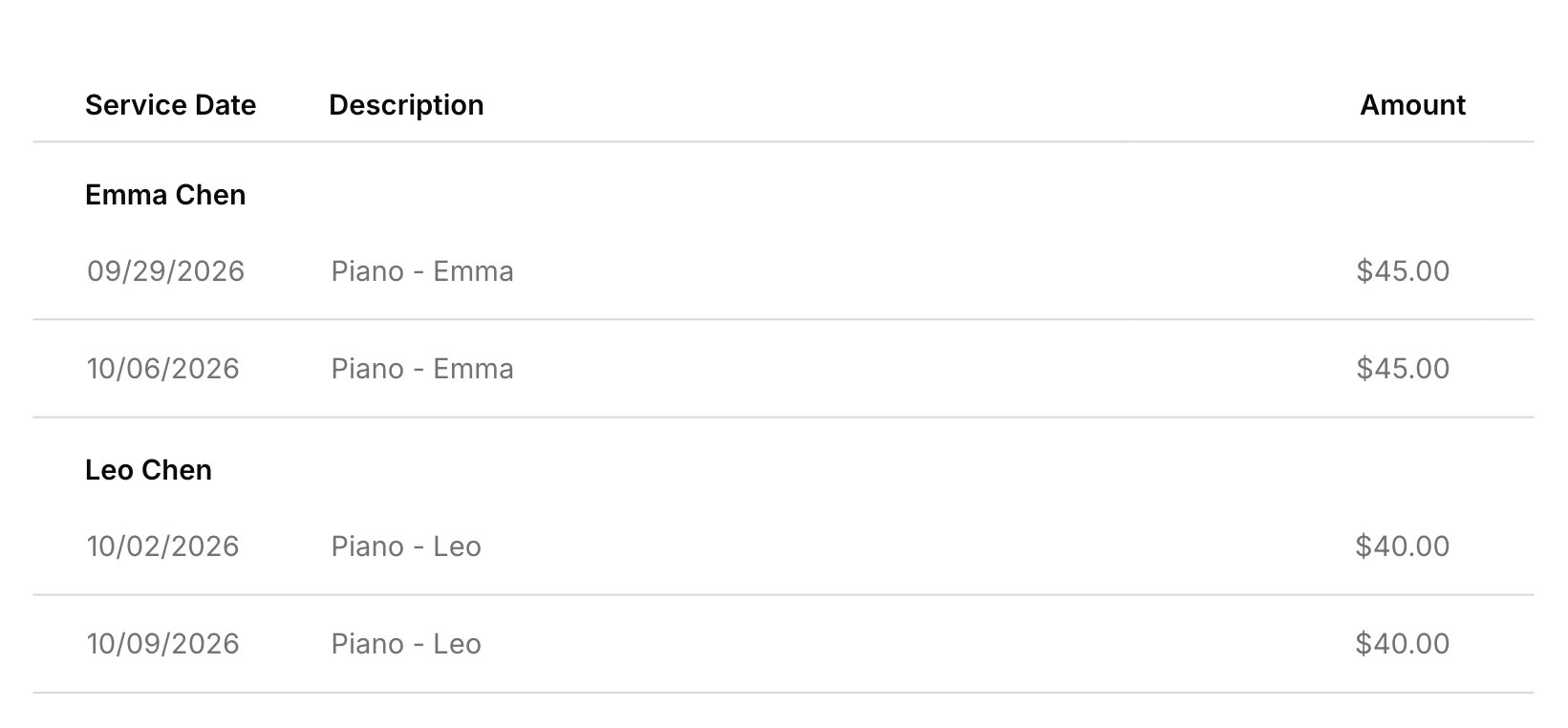
 Charges wait on an [account](/docs/accounts) until an invoice collects them. You can build an invoice yourself, or let [automatic billing](/docs/automatic-billing) draft one for each account every cycle. Once it's sent, the family gets it by email and in the portal, and their [payments](/docs/payments) settle it.
## Create and send
Starting from the account is quickest, because its waiting charges come along.
Choose **Create invoice** in an account's **⋯** menu on **Finances → Accounts**, which fills in the account's unbilled charges. Or click **Add Invoice** on **Finances → Invoices** to start blank.
Under **Choose who to bill**, pick the account. Its Bill-to prints on the invoice, and everyone on the account gets it. To bill someone with no account, choose **Enter emails manually**.
**Attach charges** adds charges waiting on the account, and **Add item** adds a line you type, like a book. On a family invoice, lines group under each student with their own subtotal.
Pick the terms, which set the due date, and check **How to pay**. In the **Build** tab, choose whether the family can pay online and which reminders go out.
Click **Save draft**, then **Send Now** in the **Manage** tab.
## What sending does
Sending emails the invoice and locks it. Everyone on the account gets their own email with the PDF attached, plus a **Pay Now** button when [online payments](/docs/online-payments) are on for that invoice. Money held on the account and any [studio credit](/docs/credits#how-credit-applies-to-invoices) come off, so an invoice can go out already paid. Each email shows on the account's [Messages](/docs/messages#emails-harness-sends) tab. On the Hobby plan, invoices send without a pay button.
## Reminders
Reminders nudge families about invoices that still have money owed. Harness can email a reminder 3 days before the due date, on the day, and 3 days after. Automatic reminders start off, so turn them on in your [invoice defaults](#invoice-defaults). Each invoice keeps its own reminder choices, which start from your defaults and can be changed in the **Build** tab before you send. To nudge a family yourself, choose **Send reminder** on a sent invoice, up to once a day per invoice. Reminders by hand go one invoice at a time, so there's no way to remind several at once. Reminders, automatic or by hand, are on the Professional plan (see [Your plan](/docs/your-plan)).
## Fix or void
A sent invoice can't change, so you fix one by voiding it and making a new one. Choose **Void invoice**, pick a reason, and confirm. The invoice stays in the list marked voided, and its charges go back to the account, ready for the next invoice. If it has payments, void them first (see [Fix a payment](/docs/payments#fix-a-payment)). An invoice paid online can't be voided; to give money back, see [Refunds](/docs/refunds#cancel-and-refund-a-charge). A draft you no longer need can be removed with **Delete invoice**.
## When an invoice can't send
An invoice whose email didn't go out lands on the **Failed** tab. Open it with **View/edit invoice**, and the **Manage** tab shows why, often an address that can't receive mail, with a **Fix the email** link to the account. You can still change the invoice itself, like its lines, notes, or recipients. Once it's fixed, send it with **Update and send**, or choose **Retry send** from the list. For invoices automatic billing couldn't send, see [Automatic billing](/docs/automatic-billing).
## Invoice defaults
Your defaults in **Settings → Invoicing** fill in each new invoice. Changing them doesn't touch invoices already made.
* **Lesson terms**: the terms, and so the due date, on invoices Harness drafts. On invoices you start yourself, pick the terms in the editor.
* **Default payment instructions**: what fills **How to pay**, like your Venmo handle or where to mail a check.
* **Automatic reminders**: which reminders new invoices start with.
* **Invoice header**: which studio details print at the top of the PDF, taken from your [studio profile](/docs/studio-profile).
The same page holds settings covered elsewhere: **Late-cancellation window** (see [Late cancellations](/docs/lessons#late-cancellations)), **Billing automation** and **Default billing cycle** (see [Automatic billing](/docs/automatic-billing)), and **Credit application** (see [Credits](/docs/credits#how-credit-applies-to-invoices)).
## What your families see
Families get your invoices by email, from your name, with nothing to sign up for.
* The email shows the amount due, the due date, and each line with its date, plus a **Pay Now** button when online payments are on. The PDF is attached.
* Reminder emails show what's still owed, with the same button.
* The [student portal](/docs/student-portal) shows sent invoices for their account, never drafts.
* If you send an invoice again from [Messages](/docs/messages#send-an-email-again), they get it as it stands today.
## FAQ
No. Sending locks it, so [void it](#fix-or-void) and make a new one. Its charges come back to bill again.
No. An invoice lists only its own lines. Families see their full balance in the student portal, and you see it on the [account](/docs/accounts).
Yes. Each lesson is its own line with its date and price.
No. The header is text only: your studio name and the details you pick under **Invoice header**.
No. **How to pay** is plain text, so type your Venmo handle or Zelle email instead.
This documentation is built and hosted on [Mintlify](https://mintlify.com), a developer documentation platform.
Charges wait on an [account](/docs/accounts) until an invoice collects them. You can build an invoice yourself, or let [automatic billing](/docs/automatic-billing) draft one for each account every cycle. Once it's sent, the family gets it by email and in the portal, and their [payments](/docs/payments) settle it.
## Create and send
Starting from the account is quickest, because its waiting charges come along.
Choose **Create invoice** in an account's **⋯** menu on **Finances → Accounts**, which fills in the account's unbilled charges. Or click **Add Invoice** on **Finances → Invoices** to start blank.
Under **Choose who to bill**, pick the account. Its Bill-to prints on the invoice, and everyone on the account gets it. To bill someone with no account, choose **Enter emails manually**.
**Attach charges** adds charges waiting on the account, and **Add item** adds a line you type, like a book. On a family invoice, lines group under each student with their own subtotal.
Pick the terms, which set the due date, and check **How to pay**. In the **Build** tab, choose whether the family can pay online and which reminders go out.
Click **Save draft**, then **Send Now** in the **Manage** tab.
## What sending does
Sending emails the invoice and locks it. Everyone on the account gets their own email with the PDF attached, plus a **Pay Now** button when [online payments](/docs/online-payments) are on for that invoice. Money held on the account and any [studio credit](/docs/credits#how-credit-applies-to-invoices) come off, so an invoice can go out already paid. Each email shows on the account's [Messages](/docs/messages#emails-harness-sends) tab. On the Hobby plan, invoices send without a pay button.
## Reminders
Reminders nudge families about invoices that still have money owed. Harness can email a reminder 3 days before the due date, on the day, and 3 days after. Automatic reminders start off, so turn them on in your [invoice defaults](#invoice-defaults). Each invoice keeps its own reminder choices, which start from your defaults and can be changed in the **Build** tab before you send. To nudge a family yourself, choose **Send reminder** on a sent invoice, up to once a day per invoice. Reminders by hand go one invoice at a time, so there's no way to remind several at once. Reminders, automatic or by hand, are on the Professional plan (see [Your plan](/docs/your-plan)).
## Fix or void
A sent invoice can't change, so you fix one by voiding it and making a new one. Choose **Void invoice**, pick a reason, and confirm. The invoice stays in the list marked voided, and its charges go back to the account, ready for the next invoice. If it has payments, void them first (see [Fix a payment](/docs/payments#fix-a-payment)). An invoice paid online can't be voided; to give money back, see [Refunds](/docs/refunds#cancel-and-refund-a-charge). A draft you no longer need can be removed with **Delete invoice**.
## When an invoice can't send
An invoice whose email didn't go out lands on the **Failed** tab. Open it with **View/edit invoice**, and the **Manage** tab shows why, often an address that can't receive mail, with a **Fix the email** link to the account. You can still change the invoice itself, like its lines, notes, or recipients. Once it's fixed, send it with **Update and send**, or choose **Retry send** from the list. For invoices automatic billing couldn't send, see [Automatic billing](/docs/automatic-billing).
## Invoice defaults
Your defaults in **Settings → Invoicing** fill in each new invoice. Changing them doesn't touch invoices already made.
* **Lesson terms**: the terms, and so the due date, on invoices Harness drafts. On invoices you start yourself, pick the terms in the editor.
* **Default payment instructions**: what fills **How to pay**, like your Venmo handle or where to mail a check.
* **Automatic reminders**: which reminders new invoices start with.
* **Invoice header**: which studio details print at the top of the PDF, taken from your [studio profile](/docs/studio-profile).
The same page holds settings covered elsewhere: **Late-cancellation window** (see [Late cancellations](/docs/lessons#late-cancellations)), **Billing automation** and **Default billing cycle** (see [Automatic billing](/docs/automatic-billing)), and **Credit application** (see [Credits](/docs/credits#how-credit-applies-to-invoices)).
## What your families see
Families get your invoices by email, from your name, with nothing to sign up for.
* The email shows the amount due, the due date, and each line with its date, plus a **Pay Now** button when online payments are on. The PDF is attached.
* Reminder emails show what's still owed, with the same button.
* The [student portal](/docs/student-portal) shows sent invoices for their account, never drafts.
* If you send an invoice again from [Messages](/docs/messages#send-an-email-again), they get it as it stands today.
## FAQ
No. Sending locks it, so [void it](#fix-or-void) and make a new one. Its charges come back to bill again.
No. An invoice lists only its own lines. Families see their full balance in the student portal, and you see it on the [account](/docs/accounts).
Yes. Each lesson is its own line with its date and price.
No. The header is text only: your studio name and the details you pick under **Invoice header**.
No. **How to pay** is plain text, so type your Venmo handle or Zelle email instead.
This documentation is built and hosted on [Mintlify](https://mintlify.com), a developer documentation platform.