> ## Documentation Index
> Fetch the complete documentation index at: https://harnesscalendar.com/docs/llms.txt
> Use this file to discover all available pages before exploring further.
# Expenses
> Expenses are what your studio spends, like sheet music, room rent, or parking.
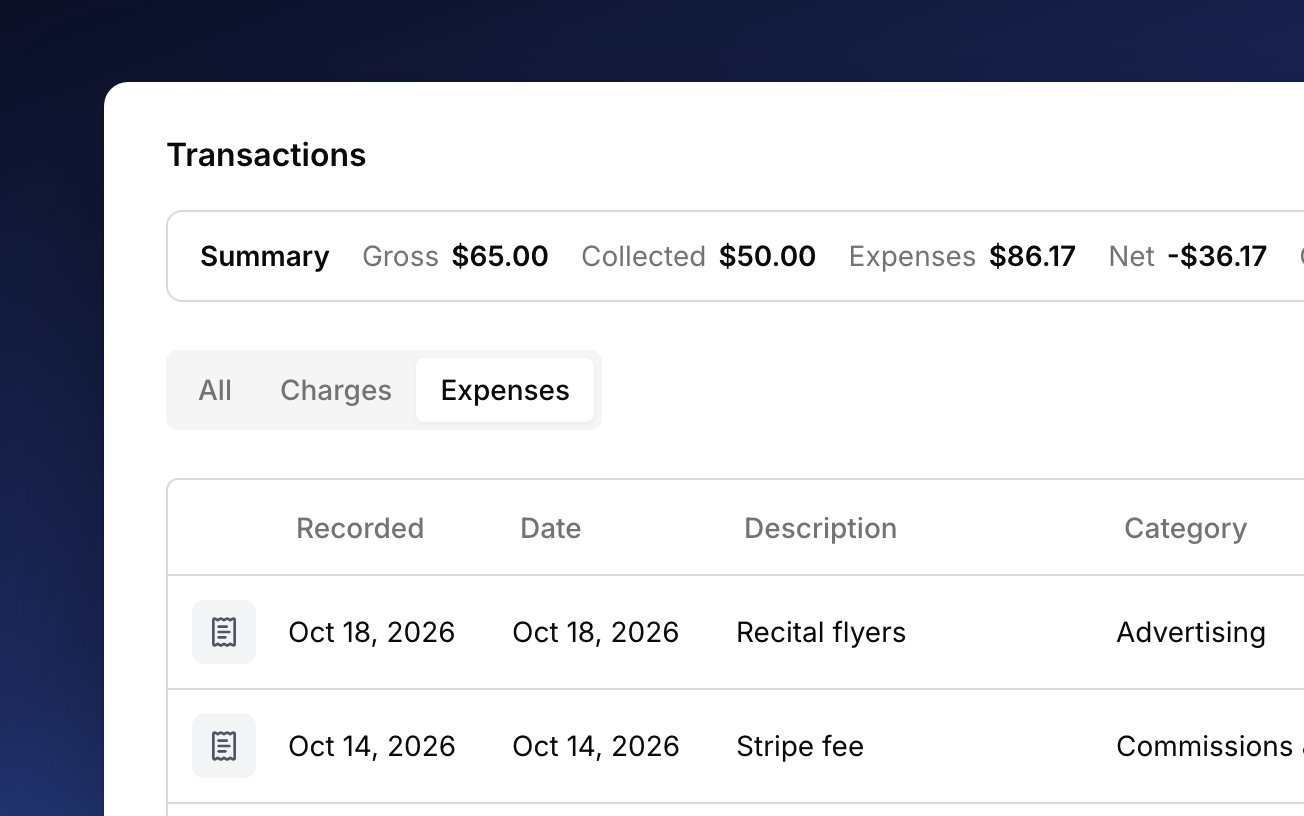
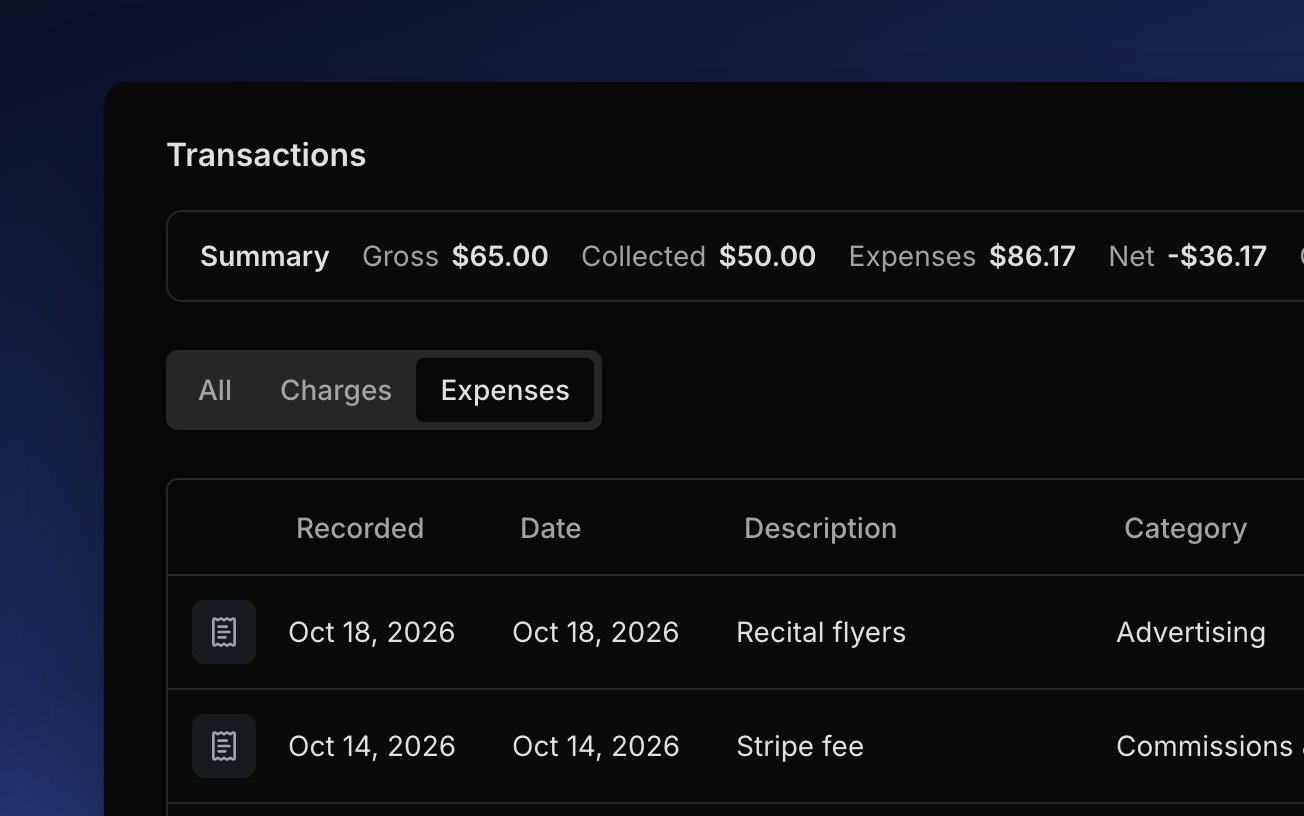 Expenses sit with your other [transactions](/docs/transactions), on their own tab. They belong to the studio, not to a student or account, so they never change what a family owes. Each one counts toward your [Profit & Loss report](/docs/reports#profit-and-loss), sorted by tax category.
## Record an expense
Add an expense when you buy something for the studio, ideally with the receipt in hand.
Go to **Finances → Transactions** and choose **Add Transaction → Expense**, or [press `x`](/docs/keyboard-shortcuts) anywhere in Harness.
Enter the amount, what you paid for, and the business purpose. Then pick a **Category**, how you paid, and the **Vendor**. Harness remembers vendors you've used before.
Click the paperclip or drag a photo or PDF onto the form. On a phone, choose **Take photo** to use the camera. Harness suggests a receipt for bigger purchases and travel, but never requires one.
Click **Add**.
Logging a stack of receipts? Turn on **Add more** to keep the form open. The date, category, and vendor stay filled in for the next one.
## Categories
Every expense needs a category, so it lands on the right tax line. The list follows the IRS Schedule C lines, each shown with its line number, plus two non-deductible categories that your Profit & Loss keeps separate. You can't add your own. A few categories ask for more: **Meals** needs who was there and the business purpose, **Travel** needs where and when, and **Car & Truck Expenses** needs a [vehicle](/docs/mileage#add-a-vehicle). A car expense then shows on that vehicle's **Linked expenses** tab, next to its [mileage](/docs/mileage).
## Fees Harness records
When a family pays online, Harness records Stripe's processing fee as an expense on its own, so your books show what you actually kept. A fee for a disputed payment is recorded the same way. These rows read **Fee** on their detail sheet and link to the payment they came from. Stripe sets the amount, so you can't change it or delete the fee, but you can still change its category, description, or note. See [what Harness records](/docs/online-payments#what-harness-records) from Stripe. Harness also records each payment for your own Harness subscription, under **Office Expenses**. See [Your plan](/docs/your-plan).
## Change an expense
Click an expense to open its details and fix anything that's off. Each field saves as you change it, and you can add or remove receipts there too. To log a similar purchase, **Duplicate expense** opens a new one with the same details, including the date, so change it before you click **Add**. **Delete transaction** removes an expense and its receipts for good.
## FAQ
No. Harness doesn't connect to your bank or card, so you add each expense yourself. Turn on **Add more** to get through a stack quickly.
You can snap it: on a phone, tap the paperclip and choose **Take photo**. Harness can't take receipts by email, so save the receipt and attach it to the expense.
No. The categories follow the IRS Schedule C lines, so every expense lands on a line of your [Profit & Loss](/docs/reports#profit-and-loss).
Expenses are fixed by editing or deleting them, since voiding is for money a family owed. Open the expense to [change or delete it](#change-an-expense).
No. Each expense is added on its own. Use **Duplicate expense** on last month's, then change the date.
This documentation is built and hosted on [Mintlify](https://mintlify.com), a developer documentation platform.
Expenses sit with your other [transactions](/docs/transactions), on their own tab. They belong to the studio, not to a student or account, so they never change what a family owes. Each one counts toward your [Profit & Loss report](/docs/reports#profit-and-loss), sorted by tax category.
## Record an expense
Add an expense when you buy something for the studio, ideally with the receipt in hand.
Go to **Finances → Transactions** and choose **Add Transaction → Expense**, or [press `x`](/docs/keyboard-shortcuts) anywhere in Harness.
Enter the amount, what you paid for, and the business purpose. Then pick a **Category**, how you paid, and the **Vendor**. Harness remembers vendors you've used before.
Click the paperclip or drag a photo or PDF onto the form. On a phone, choose **Take photo** to use the camera. Harness suggests a receipt for bigger purchases and travel, but never requires one.
Click **Add**.
Logging a stack of receipts? Turn on **Add more** to keep the form open. The date, category, and vendor stay filled in for the next one.
## Categories
Every expense needs a category, so it lands on the right tax line. The list follows the IRS Schedule C lines, each shown with its line number, plus two non-deductible categories that your Profit & Loss keeps separate. You can't add your own. A few categories ask for more: **Meals** needs who was there and the business purpose, **Travel** needs where and when, and **Car & Truck Expenses** needs a [vehicle](/docs/mileage#add-a-vehicle). A car expense then shows on that vehicle's **Linked expenses** tab, next to its [mileage](/docs/mileage).
## Fees Harness records
When a family pays online, Harness records Stripe's processing fee as an expense on its own, so your books show what you actually kept. A fee for a disputed payment is recorded the same way. These rows read **Fee** on their detail sheet and link to the payment they came from. Stripe sets the amount, so you can't change it or delete the fee, but you can still change its category, description, or note. See [what Harness records](/docs/online-payments#what-harness-records) from Stripe. Harness also records each payment for your own Harness subscription, under **Office Expenses**. See [Your plan](/docs/your-plan).
## Change an expense
Click an expense to open its details and fix anything that's off. Each field saves as you change it, and you can add or remove receipts there too. To log a similar purchase, **Duplicate expense** opens a new one with the same details, including the date, so change it before you click **Add**. **Delete transaction** removes an expense and its receipts for good.
## FAQ
No. Harness doesn't connect to your bank or card, so you add each expense yourself. Turn on **Add more** to get through a stack quickly.
You can snap it: on a phone, tap the paperclip and choose **Take photo**. Harness can't take receipts by email, so save the receipt and attach it to the expense.
No. The categories follow the IRS Schedule C lines, so every expense lands on a line of your [Profit & Loss](/docs/reports#profit-and-loss).
Expenses are fixed by editing or deleting them, since voiding is for money a family owed. Open the expense to [change or delete it](#change-an-expense).
No. Each expense is added on its own. Use **Duplicate expense** on last month's, then change the date.
This documentation is built and hosted on [Mintlify](https://mintlify.com), a developer documentation platform.