> ## Documentation Index
> Fetch the complete documentation index at: https://harnesscalendar.com/docs/llms.txt
> Use this file to discover all available pages before exploring further.
# Credits
> Studio credit is an amount you give an account to take off future invoices.
 Studio credit is a way to give a family something back, like a makeup for a lesson you had to cancel. You issue it to an [account](/docs/accounts), and it comes off that account's next [invoice](/docs/invoices) when it's sent. It lowers what the family owes without any money changing hands.
## Where credit comes from
Studio credit always starts with you. Issue it when you want to make something right or say thanks, like a missed lesson or a referral. If you void an invoice that used credit, Harness gives that credit back to the account for the next one. Money a family paid ahead is a different thing: it's their own money held on the account, not studio credit. See [partial payments and overpayments](/docs/payments#partial-payments-and-overpayments).
## Issue a credit
You issue credit to one account at a time, on either plan.
In **Finances → Accounts**, open the account's **⋯** menu and choose **Issue credit**.
Enter the **Amount**, and a **Reason** if you want one, like "Makeup for canceled lesson".
Click **Issue credit**. The credit waits for the account's next invoice.
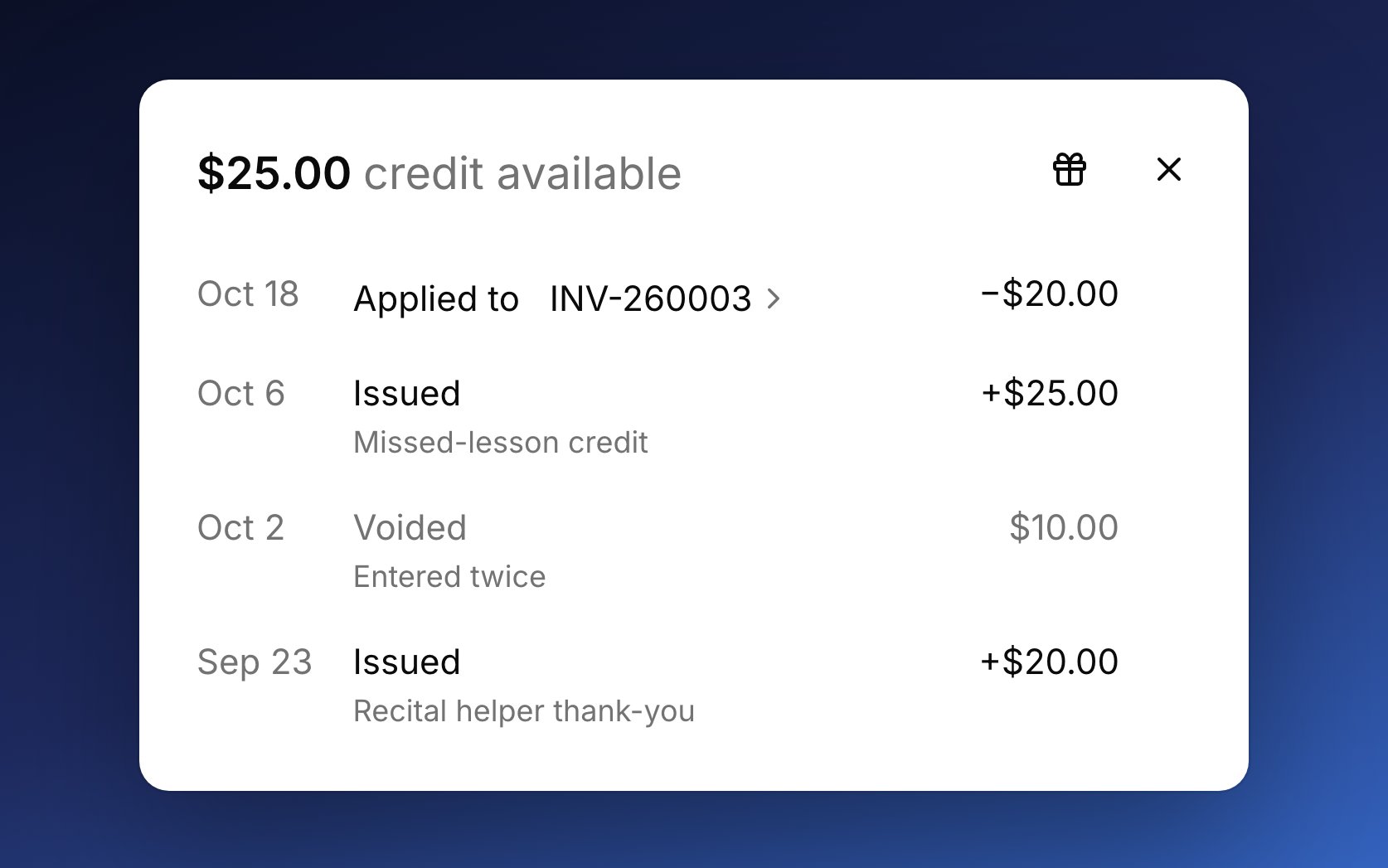
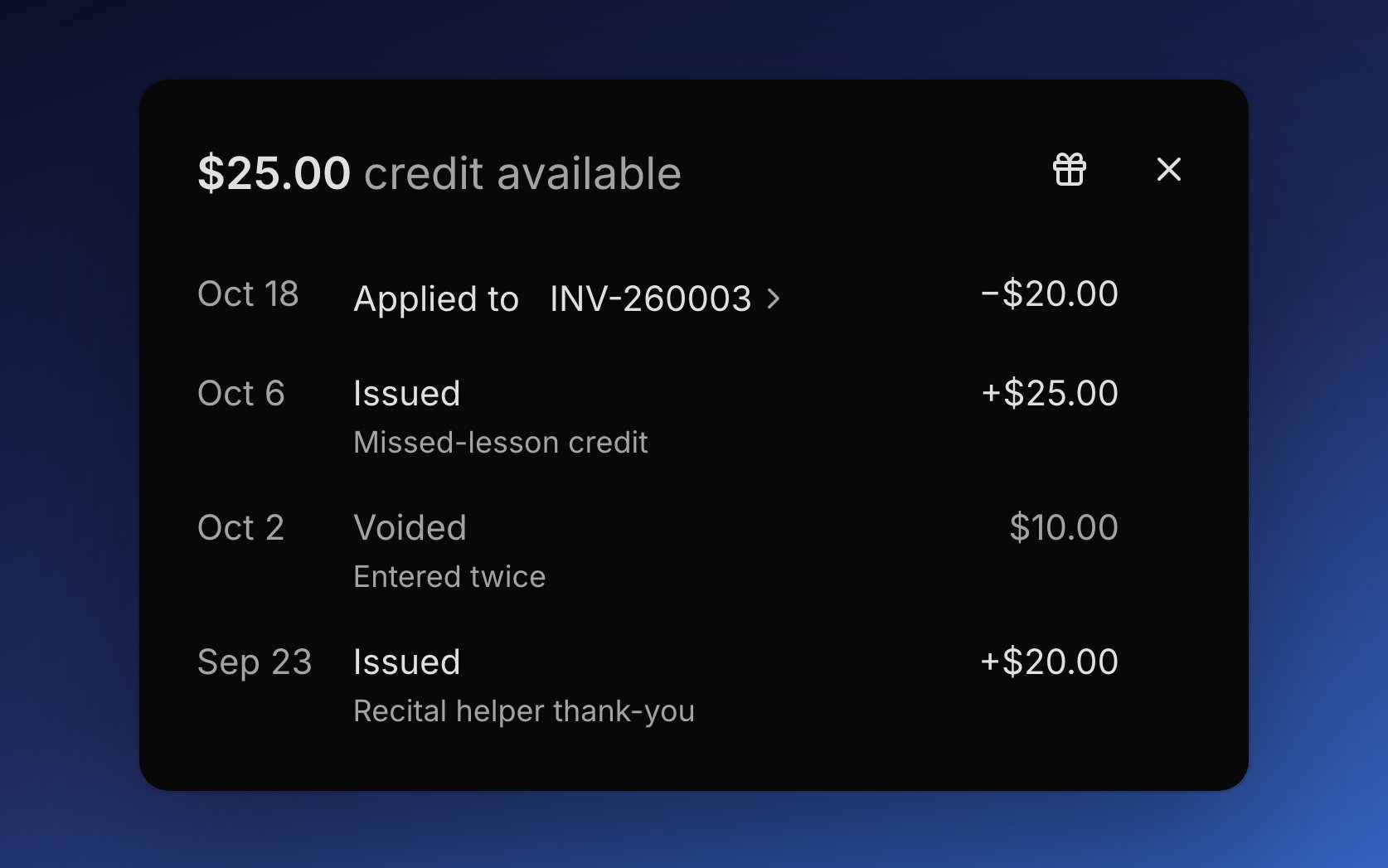
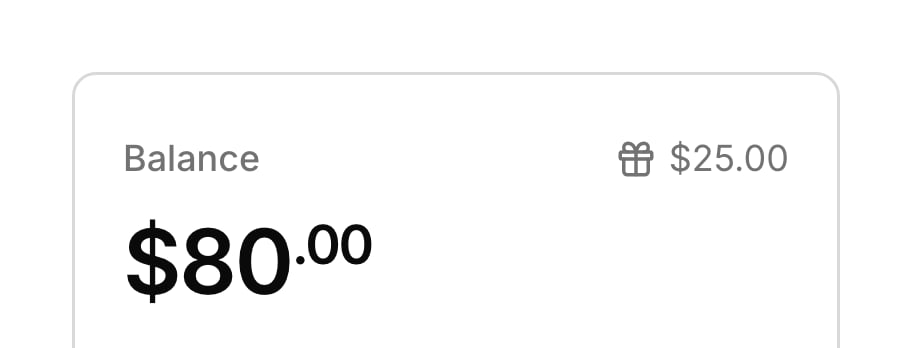
On the account page, the gift button beside **Balance** shows how much credit the account has. Click it to open the credit sheet, which lists every credit issued, applied to an invoice, given back, or voided, with its reason. The sheet has its own **Issue credit** button too.
Studio credit is a way to give a family something back, like a makeup for a lesson you had to cancel. You issue it to an [account](/docs/accounts), and it comes off that account's next [invoice](/docs/invoices) when it's sent. It lowers what the family owes without any money changing hands.
## Where credit comes from
Studio credit always starts with you. Issue it when you want to make something right or say thanks, like a missed lesson or a referral. If you void an invoice that used credit, Harness gives that credit back to the account for the next one. Money a family paid ahead is a different thing: it's their own money held on the account, not studio credit. See [partial payments and overpayments](/docs/payments#partial-payments-and-overpayments).
## Issue a credit
You issue credit to one account at a time, on either plan.
In **Finances → Accounts**, open the account's **⋯** menu and choose **Issue credit**.
Enter the **Amount**, and a **Reason** if you want one, like "Makeup for canceled lesson".
Click **Issue credit**. The credit waits for the account's next invoice.
On the account page, the gift button beside **Balance** shows how much credit the account has. Click it to open the credit sheet, which lists every credit issued, applied to an invoice, given back, or voided, with its reason. The sheet has its own **Issue credit** button too.
 ## How credit applies to invoices
Credit comes off an invoice when it's sent, whether you send it or [automatic billing](/docs/automatic-billing) does. Credit never comes off an invoice that's already gone out, so it waits for the next one. While you edit a draft, the **Studio credit** line in the totals shows what will come off, and you can remove it from that one invoice.
**Credit application** in **Settings → Invoicing** decides how much is taken. **Automatic**, the default, takes as much as each invoice needs and keeps the rest for later. **Manual** takes nothing until you enter an amount on a draft with its gift icon.
## Void a credit
Void a credit you issued by mistake from the credit sheet: point to its **Issued** row, click the void icon, and confirm **Void credit**. You can only void a credit none of which has been spent, so the void icon goes away once part of it comes off an invoice. Voiding can't be undone. When you [close an account](/docs/accounts#close-reopen-or-delete), Harness uses its credit on what the account owes and cancels the rest for good, even if you reopen it later.
## What your families see
Families see studio credit only once it's on an invoice. The invoice email, PDF, and portal show a **Studio credit** line that lowers the **Amount due**. The [student portal](/docs/student-portal) shows no credit balance, so credit you've issued stays out of view until the next invoice.
## FAQ
Harness has no discount setting, and credit is one amount at a time, so it suits one-off thank-yous. For an ongoing discount, set a lower [lesson price](/docs/lessons#change-the-price) or a lower [recurring charge](/docs/recurring-charges) for that student.
Credit only comes off invoices as they're sent, so it waits for the account's next invoice.
No. That's the family's own money held on the account, and it comes off their next invoice on its own. Unlike studio credit, you can [refund it](/docs/refunds#refund-money-on-account).
Some of it has already come off an invoice. A credit can only be voided while none of it has been spent.
No. Studio credit lowers what a family owes, but it isn't money they paid, so there's nothing to give back. To return money a family did pay, see [Refunds](/docs/refunds).
This documentation is built and hosted on [Mintlify](https://mintlify.com), a developer documentation platform.
## How credit applies to invoices
Credit comes off an invoice when it's sent, whether you send it or [automatic billing](/docs/automatic-billing) does. Credit never comes off an invoice that's already gone out, so it waits for the next one. While you edit a draft, the **Studio credit** line in the totals shows what will come off, and you can remove it from that one invoice.
**Credit application** in **Settings → Invoicing** decides how much is taken. **Automatic**, the default, takes as much as each invoice needs and keeps the rest for later. **Manual** takes nothing until you enter an amount on a draft with its gift icon.
## Void a credit
Void a credit you issued by mistake from the credit sheet: point to its **Issued** row, click the void icon, and confirm **Void credit**. You can only void a credit none of which has been spent, so the void icon goes away once part of it comes off an invoice. Voiding can't be undone. When you [close an account](/docs/accounts#close-reopen-or-delete), Harness uses its credit on what the account owes and cancels the rest for good, even if you reopen it later.
## What your families see
Families see studio credit only once it's on an invoice. The invoice email, PDF, and portal show a **Studio credit** line that lowers the **Amount due**. The [student portal](/docs/student-portal) shows no credit balance, so credit you've issued stays out of view until the next invoice.
## FAQ
Harness has no discount setting, and credit is one amount at a time, so it suits one-off thank-yous. For an ongoing discount, set a lower [lesson price](/docs/lessons#change-the-price) or a lower [recurring charge](/docs/recurring-charges) for that student.
Credit only comes off invoices as they're sent, so it waits for the account's next invoice.
No. That's the family's own money held on the account, and it comes off their next invoice on its own. Unlike studio credit, you can [refund it](/docs/refunds#refund-money-on-account).
Some of it has already come off an invoice. A credit can only be voided while none of it has been spent.
No. Studio credit lowers what a family owes, but it isn't money they paid, so there's nothing to give back. To return money a family did pay, see [Refunds](/docs/refunds).
This documentation is built and hosted on [Mintlify](https://mintlify.com), a developer documentation platform.