> ## Documentation Index
> Fetch the complete documentation index at: https://harnesscalendar.com/docs/llms.txt
> Use this file to discover all available pages before exploring further.
# Charges
> Charges are what an account owes you, like a lesson, reeds, or a registration fee.
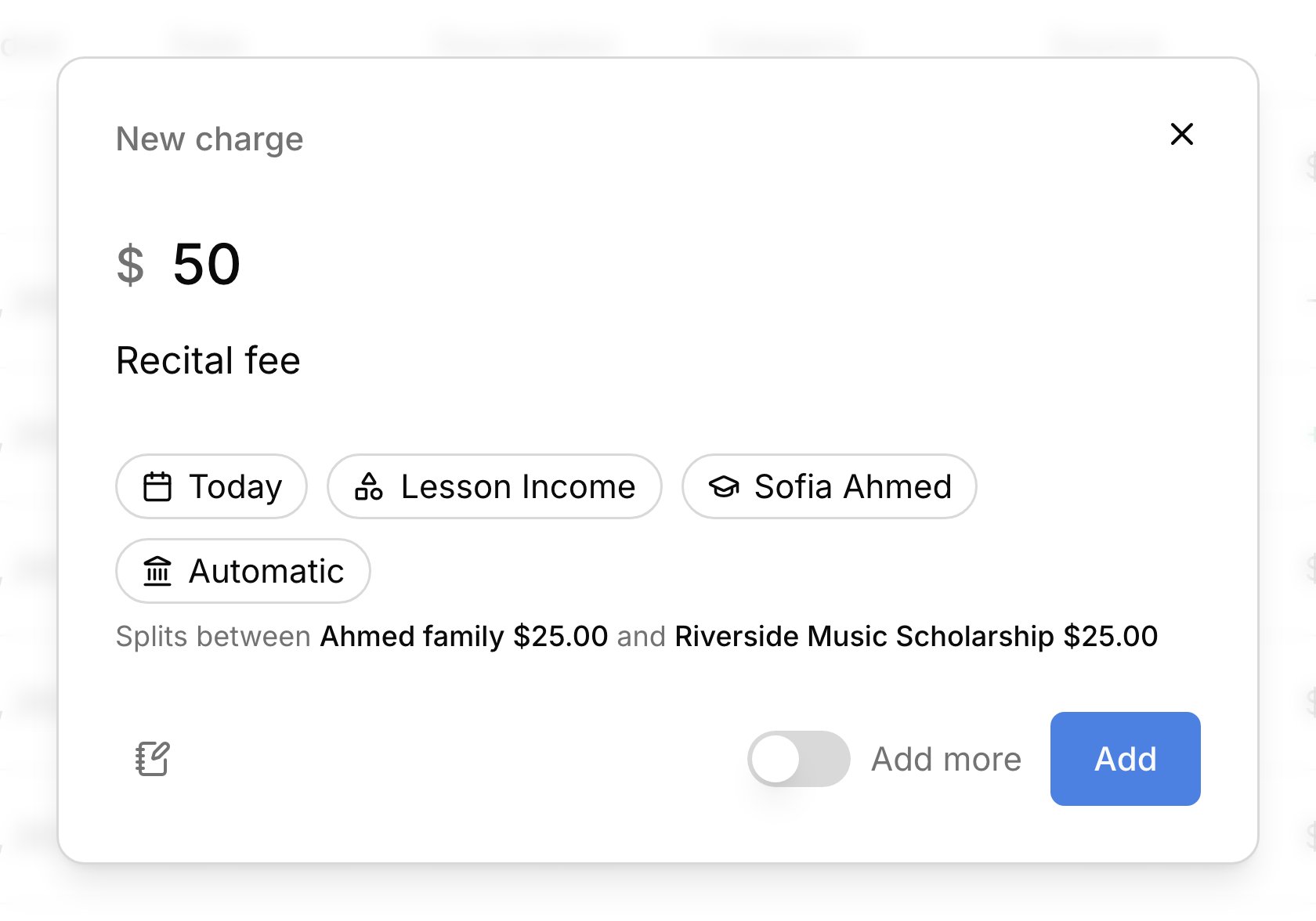
 Most charges appear on their own when you mark attendance or a recurring charge comes due, and you add the rest by hand. Each charge waits on its account until an [invoice](/docs/invoices) collects it, so families see nothing until that invoice is sent.
## Where charges come from
Harness makes most charges itself, and you add the rest. A charge comes from one of these:
* Lessons, charged when you [mark attendance](/docs/lessons#mark-attendance).
* [Recurring charges](/docs/recurring-charges), like monthly tuition or an instrument rental, on their dates.
* [Extra charges](#add-an-extra-charge) you add, like a book or a recital fee.
* Lines you type on an [invoice](/docs/invoices#create-and-send) with **Add item**, which belong to that invoice only.
* [Paid events](/docs/calendar#create-an-event) that aren't lessons, like a gig. This is a record of income from the event that you then mark paid; it isn't billed to a family.
A student's charge goes to whoever pays for them under their [billing rules](/docs/billing-rules). When a student's billing is split, each payer gets their own charge for their share. Every charge is on the **Charges** tab of [Transactions](/docs/transactions), and a student's **Billing** tab lists all of theirs.
## Add an extra charge
Add a charge by hand for anything that isn't a lesson or a regular fee, like reeds, a book, or a registration fee. On **Finances → Transactions**, click **Add Transaction → Charge**, or press `c` anywhere (see [keyboard shortcuts](/docs/keyboard-shortcuts)).
Enter the amount and what you're billing for.
Under **For**, pick a student or an account. A student's charge follows their billing rules. An account is billed directly with no student attached, which suits a school or a fee for the whole family. For a student, **Account** can put this one charge on a single account instead.
Pick a category, which is how the income is grouped in your reports. Any date works, past or future, and the charge waits for the account's next invoice either way.
The line just above **Add** shows which account the charge bills, or how it splits. Click **Add**.
To charge several students the same fee, turn on **Add more**. The form stays open with the date and category kept, so for each student, enter the amount and description and change **For**.
## Change or void a charge
Click a charge to open its details, where changes save as you make them. You can edit a charge until it's paid or on a sent invoice. To bill a different account, change **Account** and confirm **Move charge**, and it moves to that account's next invoice. **Void transaction** cancels a charge but keeps it in the list, struck through, so the record stays. **Delete transaction** removes a charge for good, as long as it was never paid or sent.
A charge with money against it works differently. Use **Cancel & refund** on a paid charge to cancel it and give the money back (see [Refunds](/docs/refunds#cancel-and-refund-a-charge)). A charge on a sent invoice can't change until you [void the invoice](/docs/invoices#fix-or-void).
## FAQ
Yes. [Add an extra charge](#add-an-extra-charge) and pick July's date under **Date**. It goes on the account's next invoice.
Yes. Set it up as a [recurring charge](/docs/recurring-charges) that repeats **Annually**, or add it as an extra charge each year.
No. In a group lesson, each student is charged the full rate. To divide a fee, add one charge per student for their share, with **Add more** turned on.
The student's billing is split between more than one payer, and each gets a charge for their share. See [Billing rules](/docs/billing-rules).
Money held on an account pays charges once they're on a sent invoice. It covers this charge when the next invoice goes out.
This documentation is built and hosted on [Mintlify](https://mintlify.com), a developer documentation platform.
Most charges appear on their own when you mark attendance or a recurring charge comes due, and you add the rest by hand. Each charge waits on its account until an [invoice](/docs/invoices) collects it, so families see nothing until that invoice is sent.
## Where charges come from
Harness makes most charges itself, and you add the rest. A charge comes from one of these:
* Lessons, charged when you [mark attendance](/docs/lessons#mark-attendance).
* [Recurring charges](/docs/recurring-charges), like monthly tuition or an instrument rental, on their dates.
* [Extra charges](#add-an-extra-charge) you add, like a book or a recital fee.
* Lines you type on an [invoice](/docs/invoices#create-and-send) with **Add item**, which belong to that invoice only.
* [Paid events](/docs/calendar#create-an-event) that aren't lessons, like a gig. This is a record of income from the event that you then mark paid; it isn't billed to a family.
A student's charge goes to whoever pays for them under their [billing rules](/docs/billing-rules). When a student's billing is split, each payer gets their own charge for their share. Every charge is on the **Charges** tab of [Transactions](/docs/transactions), and a student's **Billing** tab lists all of theirs.
## Add an extra charge
Add a charge by hand for anything that isn't a lesson or a regular fee, like reeds, a book, or a registration fee. On **Finances → Transactions**, click **Add Transaction → Charge**, or press `c` anywhere (see [keyboard shortcuts](/docs/keyboard-shortcuts)).
Enter the amount and what you're billing for.
Under **For**, pick a student or an account. A student's charge follows their billing rules. An account is billed directly with no student attached, which suits a school or a fee for the whole family. For a student, **Account** can put this one charge on a single account instead.
Pick a category, which is how the income is grouped in your reports. Any date works, past or future, and the charge waits for the account's next invoice either way.
The line just above **Add** shows which account the charge bills, or how it splits. Click **Add**.
To charge several students the same fee, turn on **Add more**. The form stays open with the date and category kept, so for each student, enter the amount and description and change **For**.
## Change or void a charge
Click a charge to open its details, where changes save as you make them. You can edit a charge until it's paid or on a sent invoice. To bill a different account, change **Account** and confirm **Move charge**, and it moves to that account's next invoice. **Void transaction** cancels a charge but keeps it in the list, struck through, so the record stays. **Delete transaction** removes a charge for good, as long as it was never paid or sent.
A charge with money against it works differently. Use **Cancel & refund** on a paid charge to cancel it and give the money back (see [Refunds](/docs/refunds#cancel-and-refund-a-charge)). A charge on a sent invoice can't change until you [void the invoice](/docs/invoices#fix-or-void).
## FAQ
Yes. [Add an extra charge](#add-an-extra-charge) and pick July's date under **Date**. It goes on the account's next invoice.
Yes. Set it up as a [recurring charge](/docs/recurring-charges) that repeats **Annually**, or add it as an extra charge each year.
No. In a group lesson, each student is charged the full rate. To divide a fee, add one charge per student for their share, with **Add more** turned on.
The student's billing is split between more than one payer, and each gets a charge for their share. See [Billing rules](/docs/billing-rules).
Money held on an account pays charges once they're on a sent invoice. It covers this charge when the next invoice goes out.
This documentation is built and hosted on [Mintlify](https://mintlify.com), a developer documentation platform.