> ## Documentation Index
> Fetch the complete documentation index at: https://harnesscalendar.com/docs/llms.txt
> Use this file to discover all available pages before exploring further.
# Calendar
> The calendar is where every lesson and event in your studio lives.
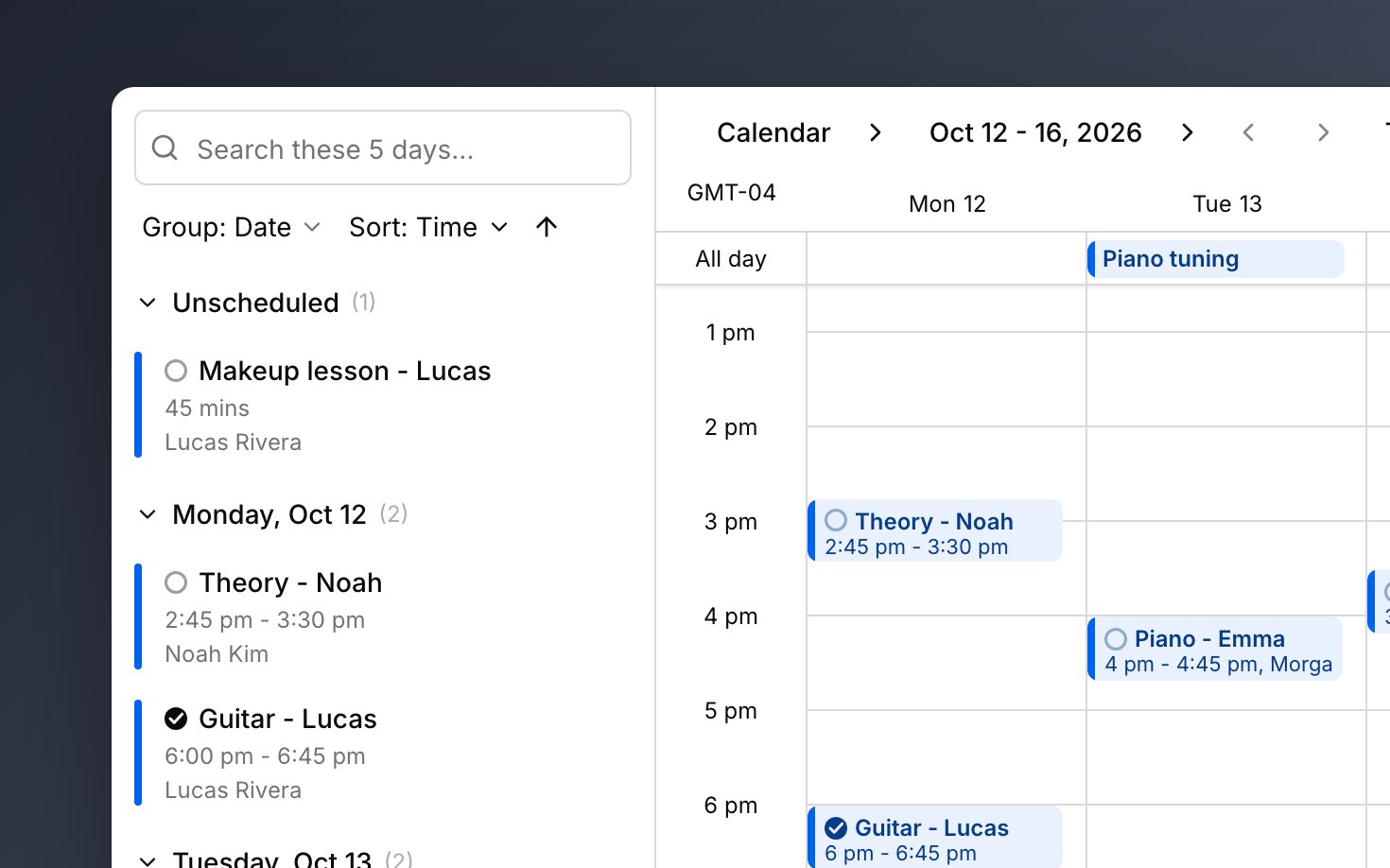
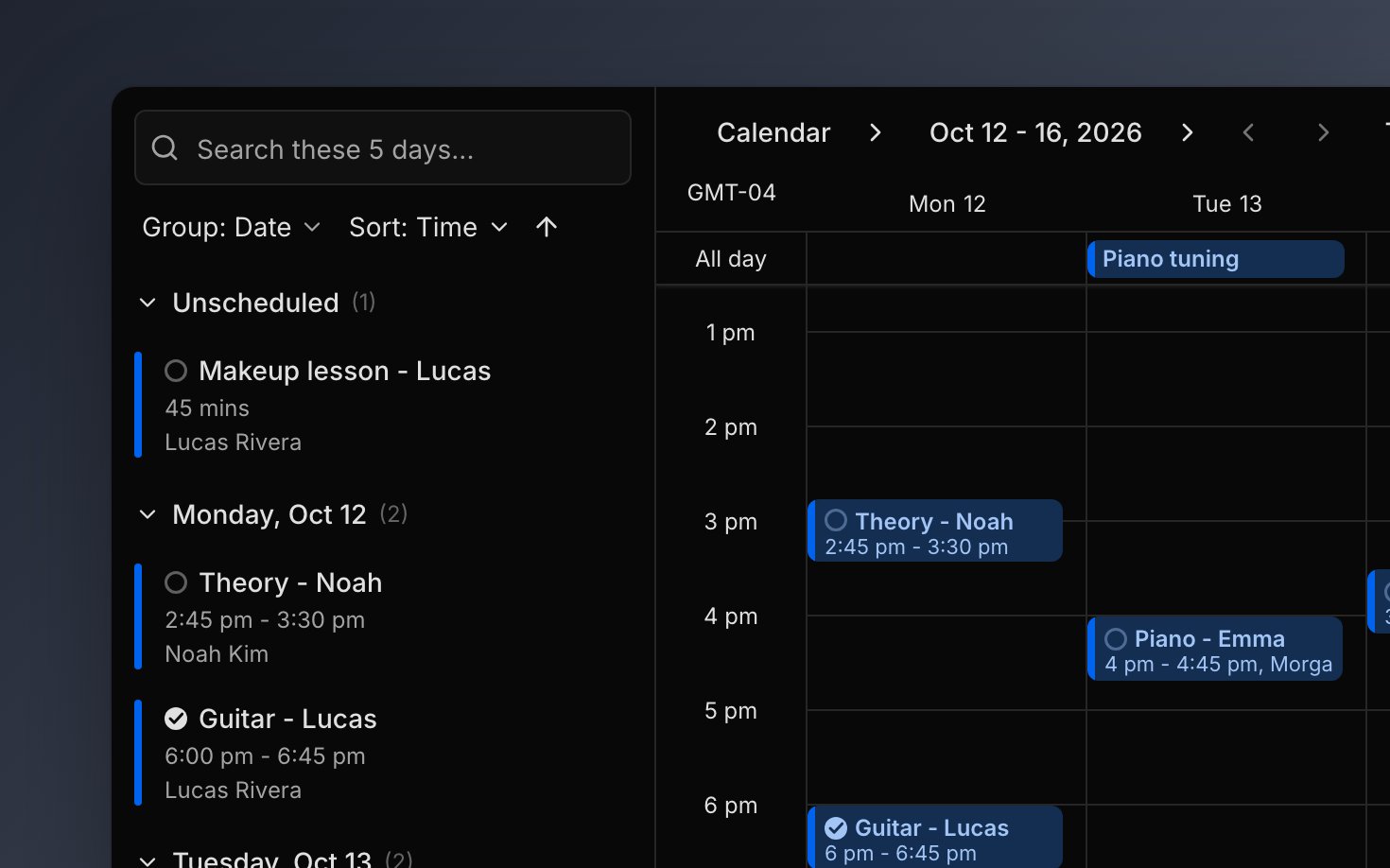 The calendar shows an agenda beside a day, week, or month grid, always in your studio's time zone. Every [lesson](/docs/lessons) starts here as an event. Your [annotations](/docs/annotations) and the open times of your [scheduling links](/docs/scheduling-links) show on the grid beside them.
## Views
Choose how much time you see from the **Calendar** menu at the top of the grid: **Day**, **Week**, **Month**, or a few days at a time. Step back and forward with the arrows, or click **Today** to come back. The agenda on the left lists everything in view by day, with an **Unscheduled** group at the top for events still waiting for a date. In Month view, a busy day shows "+N more"; click it to see the whole day. Most of this has [keyboard shortcuts](/docs/keyboard-shortcuts).
On a phone, the calendar is the agenda only, and the grid is on tablet and desktop. See [Install Harness](/docs/install).
## Create an event
Anything with a time can go on the calendar: a lesson, a gig, a recital, or a week off. Click **Create event** or press `e`, or click or drag across an empty part of the grid to start at that time. Every event is one of three kinds:
* A timed event has a start and an end, and sits in the grid.
* An all-day event sits in the strip above the grid and can run for several days, like a vacation. Turn on **All day** to make one.
* An unscheduled event has no date yet. Click **Unschedule** instead of saving, and it waits in the agenda until you place it.
To make an event a [lesson](/docs/lessons#make-an-event-a-lesson) with students and attendance, turn on the book icon (**Enable Lesson**). To [track payment for](/docs/charges#where-charges-come-from) an event that isn't a lesson, like a paid gig, turn on the dollar icon (**Enable Payment**). Decide before you save, because both lock once the event is saved.
## Make it repeat
Most lessons happen every week, so you set one up once and Harness fills in the rest of the series. In the event's window, pick a pattern from the menu by the repeat icon, which reads **Once** until you do.
When you change, move, or delete a repeating event, Harness asks which events to change. Choose **This event only** to change one date, like a lesson moved for a dentist appointment. Choose **This and following events** to change that date and every one after it, while earlier lessons keep their attendance and charges. This is the way to change every week from now on. Use **All events** only from the first lesson of the series.
## Move, resize, and unschedule
Most changes to an event's time are a drag away. Drag an event to a new time or day and it keeps its length, or drag its top or bottom edge to make it longer or shorter. Where you drop it changes what it becomes: the strip above the grid makes it all-day, and the agenda unschedules it. To schedule it again, drag it from **Unscheduled** back onto the grid. An unscheduled lesson keeps any charge it already has; to remove the charge, void it in [Charges](/docs/charges#change-or-void-a-charge). You can't take attendance until the lesson is back on the calendar.
If you'd rather the family pick the new time, send a [reschedule link](/docs/scheduling-links#reschedule-links).
## Delete an event
Deleting takes an event off your calendar for good. Click the trash icon in the event's window, or right-click the event and choose **Delete**. For a repeating event, you choose which dates to delete, the same way as when you edit. Charges already recorded for a lesson stay on the account, so [void them](/docs/charges#change-or-void-a-charge) if they shouldn't be billed.
Deleting happens right away and can't be undone. Deleting a whole lesson series also removes its attendance and notes. To set an event aside instead, unschedule it.
## Time zone
Your whole calendar runs on your studio's time zone, never your device's, so times stay put when you travel. Harness sets it from your browser the first time you sign in, and you can change it under **Timezone** in **Settings → Profile**. The gutter left of the grid shows the offset in use, like GMT-07, so you can check it at a glance. Repeating lessons keep their clock time when daylight saving starts or ends.
## FAQ
You chose **This and following events** or **All events**, which change more than one date. To undo it, open the lesson you changed, set it back, and save with **This and following events**. Then change just that date with **This event only**.
No. Your Harness calendar doesn't sync with other calendar apps. When a family books through a [scheduling link](/docs/scheduling-links), their confirmation lets them add the lesson to their own calendar.
No. Events that overlap sit side by side in the grid. A [scheduling link](/docs/scheduling-links#where-availability-comes-from) can skip times that clash with your events.
Yes. In the event's window, type any end time, like 3:00 pm to 3:22 pm, instead of picking one from the list.
No. The calendar doesn't email families when you add, move, or delete an event. To let the family choose the new time and get an email about it, send a [reschedule link](/docs/scheduling-links#reschedule-links).
This documentation is built and hosted on [Mintlify](https://mintlify.com), a developer documentation platform.
The calendar shows an agenda beside a day, week, or month grid, always in your studio's time zone. Every [lesson](/docs/lessons) starts here as an event. Your [annotations](/docs/annotations) and the open times of your [scheduling links](/docs/scheduling-links) show on the grid beside them.
## Views
Choose how much time you see from the **Calendar** menu at the top of the grid: **Day**, **Week**, **Month**, or a few days at a time. Step back and forward with the arrows, or click **Today** to come back. The agenda on the left lists everything in view by day, with an **Unscheduled** group at the top for events still waiting for a date. In Month view, a busy day shows "+N more"; click it to see the whole day. Most of this has [keyboard shortcuts](/docs/keyboard-shortcuts).
On a phone, the calendar is the agenda only, and the grid is on tablet and desktop. See [Install Harness](/docs/install).
## Create an event
Anything with a time can go on the calendar: a lesson, a gig, a recital, or a week off. Click **Create event** or press `e`, or click or drag across an empty part of the grid to start at that time. Every event is one of three kinds:
* A timed event has a start and an end, and sits in the grid.
* An all-day event sits in the strip above the grid and can run for several days, like a vacation. Turn on **All day** to make one.
* An unscheduled event has no date yet. Click **Unschedule** instead of saving, and it waits in the agenda until you place it.
To make an event a [lesson](/docs/lessons#make-an-event-a-lesson) with students and attendance, turn on the book icon (**Enable Lesson**). To [track payment for](/docs/charges#where-charges-come-from) an event that isn't a lesson, like a paid gig, turn on the dollar icon (**Enable Payment**). Decide before you save, because both lock once the event is saved.
## Make it repeat
Most lessons happen every week, so you set one up once and Harness fills in the rest of the series. In the event's window, pick a pattern from the menu by the repeat icon, which reads **Once** until you do.
When you change, move, or delete a repeating event, Harness asks which events to change. Choose **This event only** to change one date, like a lesson moved for a dentist appointment. Choose **This and following events** to change that date and every one after it, while earlier lessons keep their attendance and charges. This is the way to change every week from now on. Use **All events** only from the first lesson of the series.
## Move, resize, and unschedule
Most changes to an event's time are a drag away. Drag an event to a new time or day and it keeps its length, or drag its top or bottom edge to make it longer or shorter. Where you drop it changes what it becomes: the strip above the grid makes it all-day, and the agenda unschedules it. To schedule it again, drag it from **Unscheduled** back onto the grid. An unscheduled lesson keeps any charge it already has; to remove the charge, void it in [Charges](/docs/charges#change-or-void-a-charge). You can't take attendance until the lesson is back on the calendar.
If you'd rather the family pick the new time, send a [reschedule link](/docs/scheduling-links#reschedule-links).
## Delete an event
Deleting takes an event off your calendar for good. Click the trash icon in the event's window, or right-click the event and choose **Delete**. For a repeating event, you choose which dates to delete, the same way as when you edit. Charges already recorded for a lesson stay on the account, so [void them](/docs/charges#change-or-void-a-charge) if they shouldn't be billed.
Deleting happens right away and can't be undone. Deleting a whole lesson series also removes its attendance and notes. To set an event aside instead, unschedule it.
## Time zone
Your whole calendar runs on your studio's time zone, never your device's, so times stay put when you travel. Harness sets it from your browser the first time you sign in, and you can change it under **Timezone** in **Settings → Profile**. The gutter left of the grid shows the offset in use, like GMT-07, so you can check it at a glance. Repeating lessons keep their clock time when daylight saving starts or ends.
## FAQ
You chose **This and following events** or **All events**, which change more than one date. To undo it, open the lesson you changed, set it back, and save with **This and following events**. Then change just that date with **This event only**.
No. Your Harness calendar doesn't sync with other calendar apps. When a family books through a [scheduling link](/docs/scheduling-links), their confirmation lets them add the lesson to their own calendar.
No. Events that overlap sit side by side in the grid. A [scheduling link](/docs/scheduling-links#where-availability-comes-from) can skip times that clash with your events.
Yes. In the event's window, type any end time, like 3:00 pm to 3:22 pm, instead of picking one from the list.
No. The calendar doesn't email families when you add, move, or delete an event. To let the family choose the new time and get an email about it, send a [reschedule link](/docs/scheduling-links#reschedule-links).
This documentation is built and hosted on [Mintlify](https://mintlify.com), a developer documentation platform.