> ## Documentation Index
> Fetch the complete documentation index at: https://harnesscalendar.com/docs/llms.txt
> Use this file to discover all available pages before exploring further.
# Billing rules
> Choose who pays for a student, and split their charges across accounts.
Set billing rules when someone other than the student's usual payer covers part of their charges: a school that pays half of lessons, a grandparent who covers the book fee. For how rules decide who pays, see [Accounts and students](/docs/students/accounts-and-students).
## Before you start
* Every student has a **default** account that pays whatever other rules leave. Harness sets it up when you add the student.
* The account a rule names must exist. You can create one from inside the rule.
## Add a rule
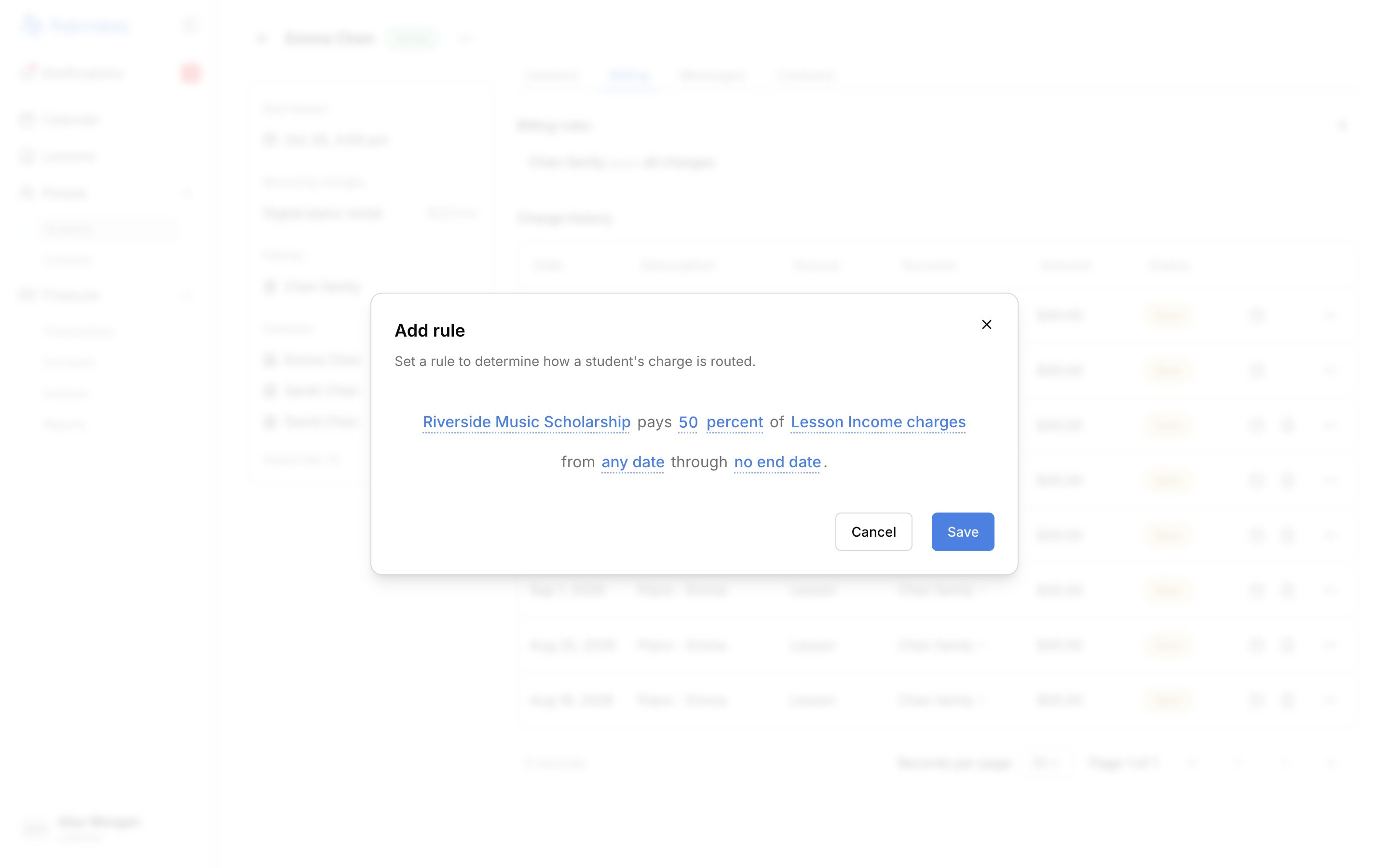
Open the student and choose the **Billing** tab. Click **+** (**Add rule**) beside **Billing rules**. You can also choose **Add billing rule** from the student's **⋯** menu.
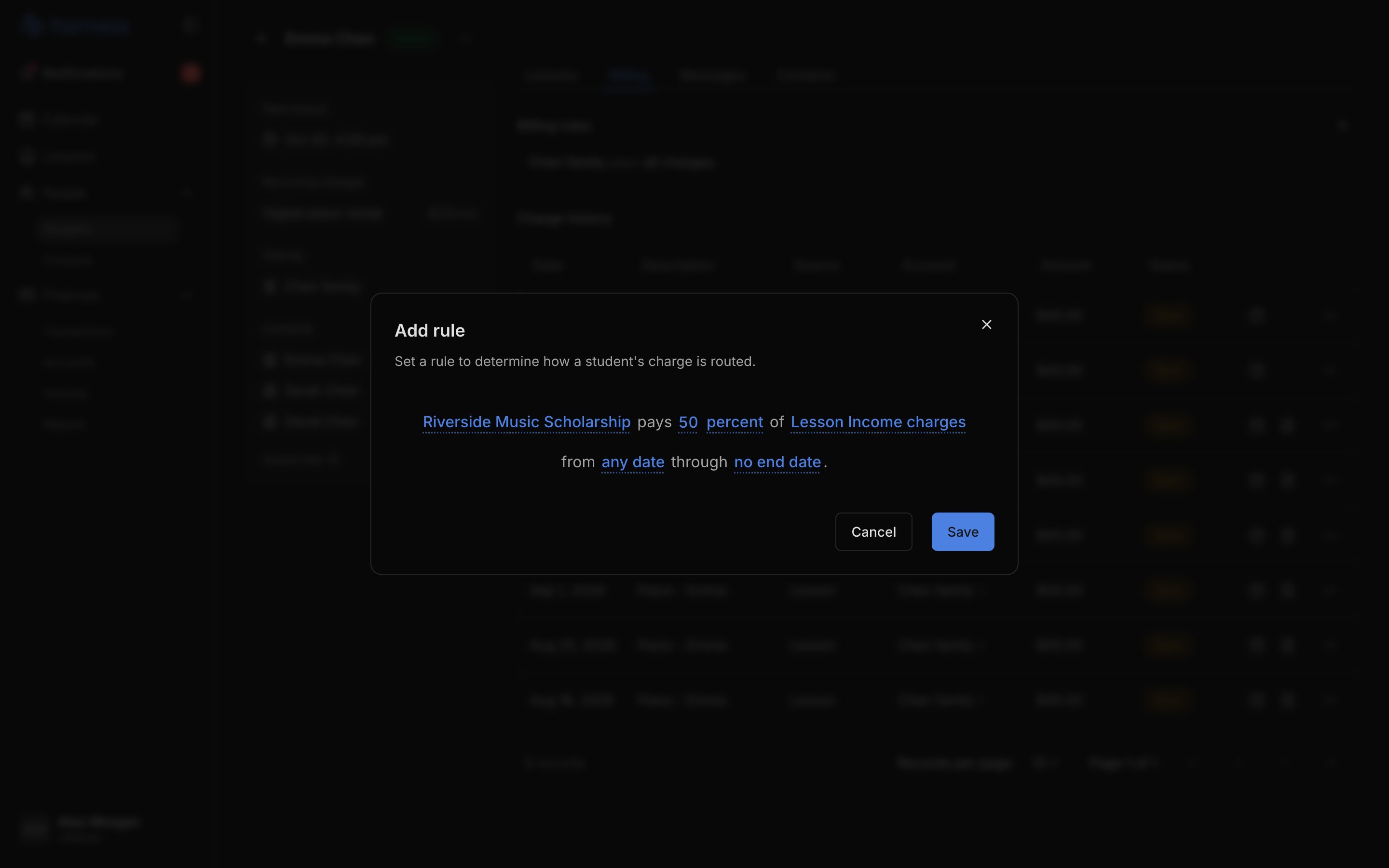
The rule reads as one sentence: *\[Account] pays \[50] percent of \[all charges] from \[any date] through \[no end date].* Click each blank to set it:
* **Account**: who pays. Choose **Create account** at the bottom of the list to make a new one.
* **Share**: type a number. Click **percent** and choose **dollars** to pay up to a set amount of each charge.
* **Which charges**: **All charges**, or one category, such as lessons.
* **Dates**: leave them open, or pick a start and an end.
Click **Save**. If something's missing or the rule doesn't fit with the others, a line under the sentence says what to change.
Rules only affect charges created after you save. Charges already recorded keep their payer.
## Change who pays by default
Click the default's sentence, the last one in the list (*\[Account] pays all charges*, or *the remaining* share when other rules come first), and pick another account. The default can be changed, never removed.
If the student shows *No one pays \[name]'s charges yet*, click **Choose who pays**. Until you do, Harness can't create charges for them.
## Edit or remove a rule
* **Edit**: click the rule, change any blank, and click **Save**.
* **Remove**: hover the rule and click the trash icon, or open it and click **Remove rule**. The rule goes at once; click **Undo** in the message to bring it back.
 ## FAQ
On the student's page, under **Paid by** in the sidebar. On an account's page, **Pays for** lists every student whose rules name it.
Closing an account removes every rule that names it. If that was the student's default, choose who pays again. See [Close an account](/docs/billing/close-an-account).
This documentation is built and hosted on [Mintlify](https://mintlify.com), a developer documentation platform.
## FAQ
On the student's page, under **Paid by** in the sidebar. On an account's page, **Pays for** lists every student whose rules name it.
Closing an account removes every rule that names it. If that was the student's default, choose who pays again. See [Close an account](/docs/billing/close-an-account).
This documentation is built and hosted on [Mintlify](https://mintlify.com), a developer documentation platform.