> ## Documentation Index
> Fetch the complete documentation index at: https://harnesscalendar.com/docs/llms.txt
> Use this file to discover all available pages before exploring further.
# Annotations
> Annotations are named, colored bars that mark time on your calendar.
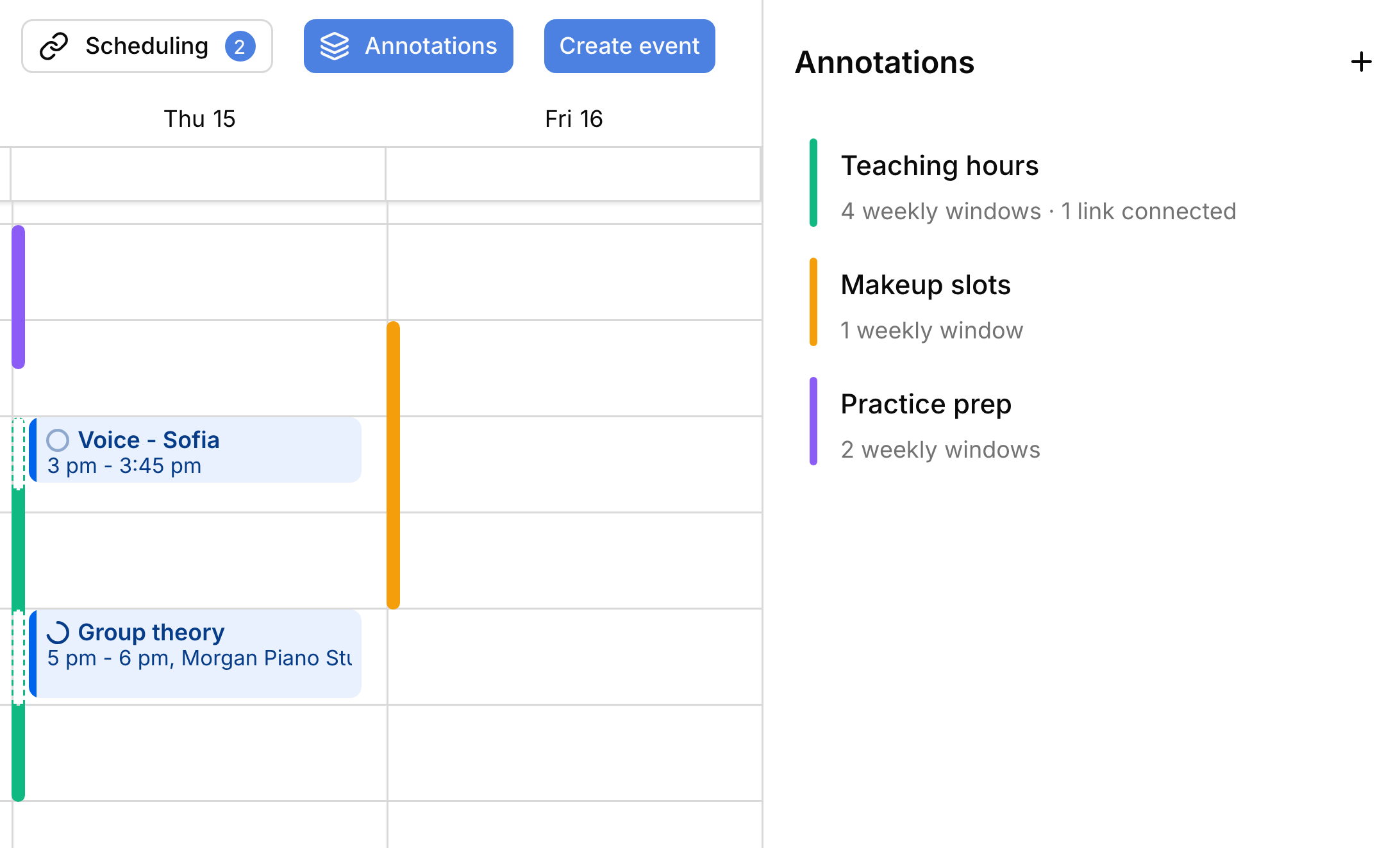
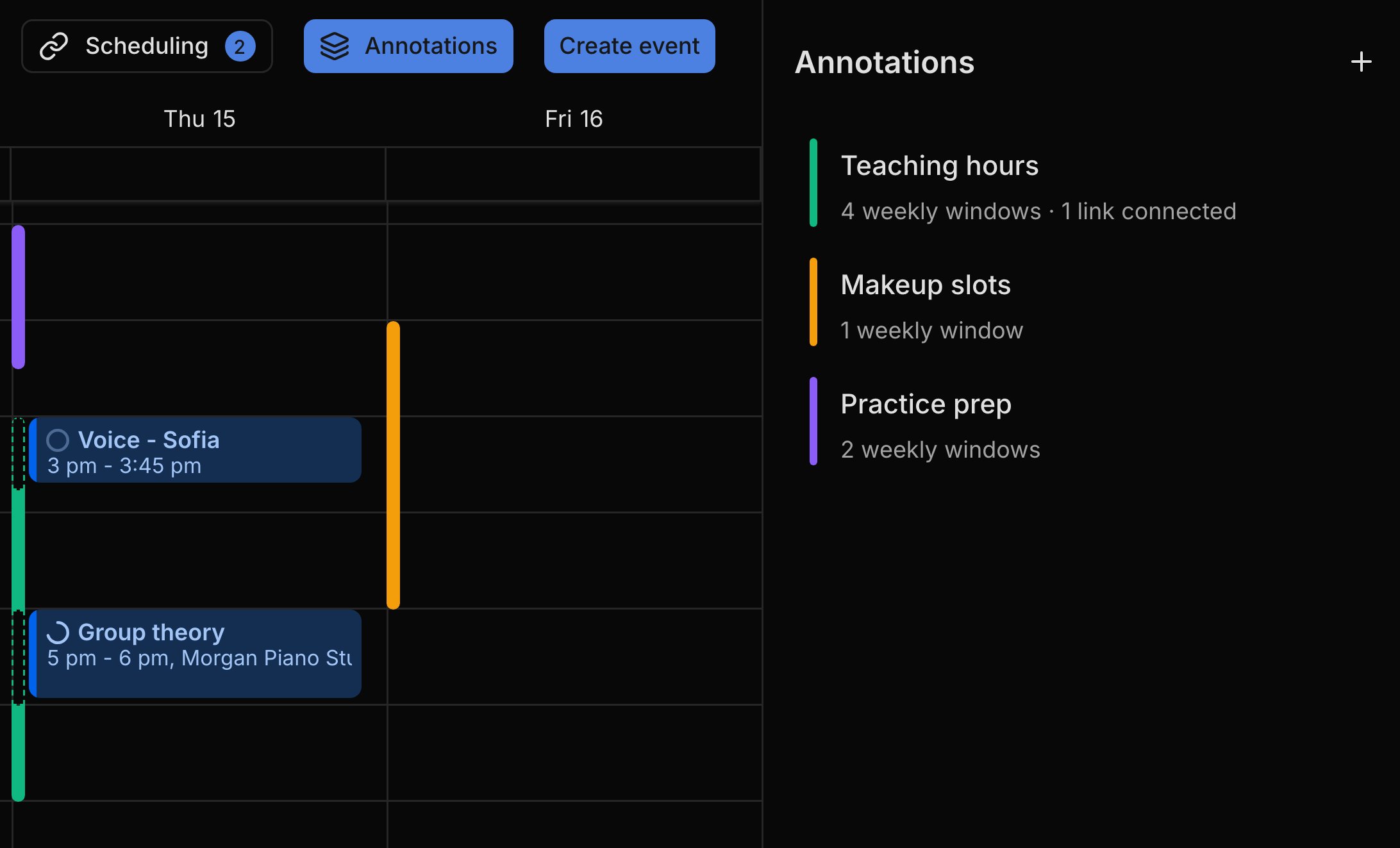 Use annotations as notes to yourself, like your teaching hours or makeup slots, on your [calendar](/docs/calendar). An annotation holds no students or charges, doesn't block bookings, and families never see it. A scheduling link can use its times as openings, so your hours live in one place.
## Weekly or one-time
Every annotation is one of two kinds, set under **Availability type**. **Weekly windows** paint on the same days every week, like the afternoons you teach. **Ad-hoc windows** paint only on the dates you pick, like extra makeup slots before a recital. Each window shows as a thin bar down the edge of its day, and where a lesson overlaps it, the bar turns to a dashed outline so the lesson stays readable.
## Add an annotation
You build an annotation from the calendar, in the **Annotations** panel.
On the calendar, click **Annotations**, then **+**. Harness creates one and opens it.
Give it a **Name**, like "Teaching hours", and pick a **Calendar color** so you can tell its bars apart.
Under **Availability type**, pick **Weekly windows** or **Ad-hoc windows**.
Click **+ Weekly window** or **+ Ad-hoc window** and set each row, or drag on the calendar grid while the annotation is open.
Changes save as you go, so there's no Save button. Annotations aren't available on a phone. See [Install Harness](/docs/install).
## Edit, hide, or delete
You reshape an annotation right on the calendar, much like moving an event. To open it, click its row in the **Annotations** panel or one of its bars. Drag a bar to move it, or drag its edge to change the times; a weekly window changes every week. To remove one window, click its bar and press Delete. The eye icon on a row hides the annotation without deleting it, and the row's **⋯** menu has **Delete** for the whole annotation.
## Use with scheduling links
An annotation can supply the open times for a [scheduling link](/docs/scheduling-links#where-availability-comes-from), so you set your hours once. Pick the annotation under the link's **Source**, and the link follows every change you make; the annotation lists it under **Connected scheduling links**. To give the link different times, switch its **Source** to **Custom**: the link keeps a copy of the times and stops following the annotation. If you delete the annotation, each connected link keeps its own copy and keeps working. Scheduling links are on the [Professional plan](/docs/your-plan).
## FAQ
Annotations are your own notes and never block a time. To keep a time off a booking page, leave it out of the link's open times. See [where availability comes from](/docs/scheduling-links#where-availability-comes-from).
A scheduling link that uses an annotation follows every change to it. To give the link its own times, switch its **Source** to **Custom**.
Annotations show in Day and Week views, where the calendar shows hours. Switch views from the **Calendar** menu.
Hiding is remembered on each browser, so hide it again there. Hiding only changes what you see; a scheduling link using the annotation still offers its times.
Switching an annotation between **Weekly windows** and **Ad-hoc windows** clears the times of the kind you switched away from. Switch back and add them again.
This documentation is built and hosted on [Mintlify](https://mintlify.com), a developer documentation platform.
Use annotations as notes to yourself, like your teaching hours or makeup slots, on your [calendar](/docs/calendar). An annotation holds no students or charges, doesn't block bookings, and families never see it. A scheduling link can use its times as openings, so your hours live in one place.
## Weekly or one-time
Every annotation is one of two kinds, set under **Availability type**. **Weekly windows** paint on the same days every week, like the afternoons you teach. **Ad-hoc windows** paint only on the dates you pick, like extra makeup slots before a recital. Each window shows as a thin bar down the edge of its day, and where a lesson overlaps it, the bar turns to a dashed outline so the lesson stays readable.
## Add an annotation
You build an annotation from the calendar, in the **Annotations** panel.
On the calendar, click **Annotations**, then **+**. Harness creates one and opens it.
Give it a **Name**, like "Teaching hours", and pick a **Calendar color** so you can tell its bars apart.
Under **Availability type**, pick **Weekly windows** or **Ad-hoc windows**.
Click **+ Weekly window** or **+ Ad-hoc window** and set each row, or drag on the calendar grid while the annotation is open.
Changes save as you go, so there's no Save button. Annotations aren't available on a phone. See [Install Harness](/docs/install).
## Edit, hide, or delete
You reshape an annotation right on the calendar, much like moving an event. To open it, click its row in the **Annotations** panel or one of its bars. Drag a bar to move it, or drag its edge to change the times; a weekly window changes every week. To remove one window, click its bar and press Delete. The eye icon on a row hides the annotation without deleting it, and the row's **⋯** menu has **Delete** for the whole annotation.
## Use with scheduling links
An annotation can supply the open times for a [scheduling link](/docs/scheduling-links#where-availability-comes-from), so you set your hours once. Pick the annotation under the link's **Source**, and the link follows every change you make; the annotation lists it under **Connected scheduling links**. To give the link different times, switch its **Source** to **Custom**: the link keeps a copy of the times and stops following the annotation. If you delete the annotation, each connected link keeps its own copy and keeps working. Scheduling links are on the [Professional plan](/docs/your-plan).
## FAQ
Annotations are your own notes and never block a time. To keep a time off a booking page, leave it out of the link's open times. See [where availability comes from](/docs/scheduling-links#where-availability-comes-from).
A scheduling link that uses an annotation follows every change to it. To give the link its own times, switch its **Source** to **Custom**.
Annotations show in Day and Week views, where the calendar shows hours. Switch views from the **Calendar** menu.
Hiding is remembered on each browser, so hide it again there. Hiding only changes what you see; a scheduling link using the annotation still offers its times.
Switching an annotation between **Weekly windows** and **Ad-hoc windows** clears the times of the kind you switched away from. Switch back and add them again.
This documentation is built and hosted on [Mintlify](https://mintlify.com), a developer documentation platform.